Who is this guide for?

The story-driven explorer

You want to take in landscapes, architecture and dark scenes in detail. So you compare resolution and contrast, without making the highest esports speed your goal in itself. RTINGS discusses higher resolutions as an option for detailed games.

The long-session player

You play for long periods at a desk, so you also consider screen positioning, readability, reflections and taking breaks. Arboportaal notes that small symbols, reflections and poor lighting conditions can all affect how easy it is to read what’s on screen.

The PC or console player with a fixed setup

You want to check in advance that the resolution, refresh rate and video input are right for your device and games. Check the output capabilities of your own PC or console for each connection.

What should you look for?

QHD IPS

Suitable for: anyone looking for QHD on a desk who often plays for long periods with fixed interface elements on screen.

Trade-off: don’t choose this option based on resolution alone. Also consider reflections, adjustability and how the picture looks in your room’s lighting.

QHD QD-OLED

Suitable for: anyone who values contrast in dark scenes and has a PC suited to QHD.

Trade-off: if static game menus stay on screen for long periods, check the maintenance features and warranty terms for the exact model.

4K QD-OLED

Suitable for: anyone who wants to see fine details in the surroundings and has a PC or console capable of delivering their desired 4K picture.

Trade-off: check that your device and connection support your desired combination of resolution and refresh rate. Also bear in mind the considerations that come with OLED.

What to consider What to look for when buying Who is this important for?
Picture detail and contrast Compare panel type and resolution, and check how the picture looks in your own lighting. An HDR label alone is not proof of tested HDR performance. If I want to make out landscapes, architecture and dark scenes clearly, I look at both resolution and contrast. Around 33% of consumers put picture detail and contrast first.
Comfort and readability Check for height adjustment or suitable VESA mounting, desk space and potential reflections where you play. Anyone who plays for long periods at a desk will want a comfortable viewing position and a clear picture without distracting reflections. Around 27% of consumers prioritise comfort and readability.
PC or console video signal For each video input, check the supported resolution and Hz, then compare these with your device’s output settings and game support. If I want to keep using my current PC or console, I first check which picture mode it can actually output. Around 20% of consumers prioritise device compatibility.
Purchase, energy and aftercare Compare the energy label for the exact model and check the terms of sale and any manufacturer’s warranty separately. Anyone weighing up energy use and aftercare as well as picture quality will want to check the terms for the exact model. Around 20% of consumers consider this overall purchase decision their top priority.

Common mistakes

  • Assuming the maximum Hz is your game’s frame rate

    A monitor’s maximum refresh rate is not automatically the frame rate delivered by your game, device and connection together.

    Before buying, check the resolution and Hz you want for each video input, and see which output settings your PC or console supports.

  • Choosing OLED without considering fixed game menus

    Static elements that stay on screen for long periods can carry a risk of permanent image changes on OLED displays. Protection features don’t remove the need to check the terms.

    Read the maintenance and warranty terms for the exact model, and compare it with IPS if fixed interface elements stay visible for long periods. ASUS describes protection features for its own ROG OLED models; this information does not automatically apply to other models.

  • Choosing a bigger or sharper screen without considering your workspace

    Reflections, an awkward screen position and details that are hard to read can make long sessions less comfortable.

    Check the available desk space, viewing position, reflections and adjustability before choosing a screen.

Brands worth considering

Philips Evnia

Two specific models illustrate different display options: the Philips 27M2N5500/00 is a QHD model with a stated 180 Hz refresh rate, while the 27M2N3800A/00 offers switchable 4K and Full HD modes, according to Philips.

  • The two models show what a QHD option looks like, as well as switching between resolution and speed modes.
  • These are manufacturer specifications for these models. Check which mode and input work with your own source device.

Gigabyte

According to Gigabyte, the Gigabyte MO27Q2A combines QHD QD-OLED, up to 280 Hz and 130 mm of height adjustment.

  • These stated features are worth considering if both contrast and adjustable screen height matter to you.
  • Tweakers noted its limited 18 W USB-C charging capacity and observed that black can look greyer in ambient light. These points apply to this model, not the brand as a whole.

Alienware

According to Dell, the Alienware AW2725Q is a 27-inch 4K QD-OLED monitor with a stated refresh rate of 240 Hz.

  • This model is a specific 4K option to compare if fine picture detail is your priority.
  • The specifications are not an independent performance measurement. Check that you have the required 4K source and review the terms for the exact version.

AOC

In its guide of 17 September 2026, Tweakers named the QHD IPS monitor AOC Q27G4ZR as a cheaper alternative.

  • This model is worth considering when weighing up IPS versus OLED.
  • For this specific IPS model, Tweakers advised turning down overdrive at 60 Hz. Don’t apply this finding to other AOC models.

Gaming monitors at Joybuy

This selection includes gaming monitors with QHD or 4K displays, offering a range of panel and adjustment options for adventure games.

AOC Gaming Q27G42XNE 27-inch QHD monitor

AOC Gaming Q27G42XNE 27-inch QHD monitor

A QHD option for anyone who values picture detail in adventure games.

QHD 2560 × 1440; stated 180 Hz; FreeSync Premium; HDMI 2.0 and DisplayPort 1.4.

View at Joybuy

INNOCN 2751S PLUS 27-inch QHD Mini-LED gaming monitor

INNOCN 2751S PLUS 27-inch QHD Mini-LED gaming monitor

A desk-friendly option for anyone looking for QHD and a height-adjustable stand.

QHD 2560 × 1440; Fast IPS; Mini-LED with 1152 zones; stated 275 Hz; height-adjustable stand.

View at Joybuy

KTC H27E6S 27-inch QHD Fast IPS gaming monitor

KTC H27E6S 27-inch QHD Fast IPS gaming monitor

A QHD model for anyone who values an adjustable stand and FreeSync and G-Sync compatibility.

QHD 2560 × 1440; stated 240 Hz, overclocked to 275 Hz; Fast IPS; height-adjustable stand; HDMI 2.0 and DisplayPort 1.4.

View at Joybuy

KTC M27P6 27-inch 4K Mini-LED gaming monitor, white

KTC M27P6 27-inch 4K Mini-LED gaming monitor, white

A dual-mode option for anyone who wants to see whether 4K or Full HD is a better fit for their source device and game.

4K up to 160 Hz or Full HD up to 320 Hz; Fast IPS; Mini-LED with 1152 zones; USB-C 65 W and KVM.

View at Joybuy
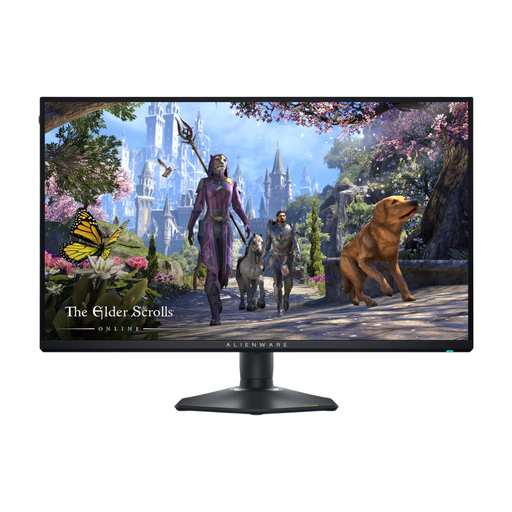
Alienware AW2725QF 27-inch 4K monitor

Alienware AW2725QF 27-inch 4K monitor

An option for anyone who wants to switch between a 4K mode for detail and a Full HD mode with a higher stated refresh rate.

IPS; 4K up to 180 Hz or Full HD up to 360 Hz; ComfortView Plus.

View at Joybuy

Frequently asked questions

Should you choose the highest refresh rate for historical adventures?

Not necessarily. First check which resolution and frame rate your game and device can deliver. In detailed games, a higher resolution may matter more than the highest Hz figure. A monitor’s maximum refresh rate does not guarantee the same frame rate in your setup.

How should you set up a monitor for a long gaming session?

Position the screen so text remains easy to read without distracting reflections, and adjust the height where possible. Break up long periods of sitting and screen use. Arboportaal outlines considerations for screen work; information about workplaces is not automatically a legal requirement for gaming at home.

What should you consider if game menus stay on screen for a long time with OLED?

Check the maintenance features and warranty terms for the exact model. ASUS warns that its ROG OLED models can be at risk of burn-in from static images displayed for long periods, and describes protection features. This information does not prove that other brands offer the same features or coverage.

What information can help you compare energy use?

Compare the EU energy label and product information for the exact monitor. The European Commission states that computer monitors are covered by the rules for electronic displays; actual energy use also depends on how you use the monitor and its settings.

What are your rights when buying a monitor online in the Netherlands?

For an applicable distance purchase, the cooling-off period is usually 14 days. You are also entitled to a product that works as it should: according to the Dutch government, Dutch statutory warranty has no fixed term, and the seller is your point of contact if a product is faulty. A manufacturer’s warranty is separate.
