
Puzzle player who works from home
You use one desk for game text, clues and work windows, and want to be able to position your screen to suit you. Arboportaal recommends placing the screen directly in front of you, with the top just below eye level.


For relaxed puzzle adventures at a desk you also use for work, prioritise readability, resolution and an easily adjustable screen position; consider a higher refresh rate only after that. A QHD LCD can be a good middle ground, while 4K offers more pixels if your PC or console supports the picture mode you want. If you often have static work windows on screen, OLED needs extra consideration: ASUS gives a general warning about image retention with prolonged static images, but that warning does not determine the risk for any specific monitor.
You use one desk for game text, clues and work windows, and want to be able to position your screen to suit you. Arboportaal recommends placing the screen directly in front of you, with the top just below eye level.
You prioritise resolution and clear, small on-screen details, and check that your PC or console supports the picture mode you choose. Samsung and GIGABYTE’s specifications show that resolutions and supported settings vary by model.
You compare LCD and OLED for your gaming experience, while also considering OLED’s drawbacks if you do a lot of static-screen work from home. Dell describes the AW2725D as a QD-OLED monitor; ASUS gives a general warning about prolonged static images on OLED.
Start with readability and screen position, then check whether your PC or console can handle the resolution and refresh rate you want. Panel choice matters most if you often have fixed work windows on screen.
| What to consider | What should you look for? | Who should consider this? |
|---|---|---|
| Readability and detail | Compare screen size and native resolution; if possible, view text at your usual viewing distance and check your device’s output. | If you want to read small clues without overlooking what your PC or console can handle, clear detail should be your first priority; around 40% of consumers put readability and detail first. |
| Screen position | Check the height adjustment, tilt and any VESA mounting options; consider whether the screen can be positioned to suit your desk. | If you use the same space for work and gaming, a screen that you can position comfortably is important; around 30% of consumers prioritise setting up a shared workspace. |
| Panel and static images | Check the panel type and the terms for the exact model. ASUS gives a general warning that prolonged static images on OLED can cause image retention or burn-in. | If you often leave fixed work windows open and are choosing between LCD and OLED, you’ll want to factor this into your decision; around 20% of consumers prioritise panel choice and static use. |
| Connections and picture mode | Check the HDMI or DisplayPort input, and which resolution and refresh rate it supports with your PC or console. | If your current device needs to output a specific picture mode, start with the connection and its supported settings; around 10% of consumers prioritise connectivity and the picture modes their device can handle. |
The maximum refresh rate can vary by connection. ASUS specifies a maximum of 180 Hz via DisplayPort and 144 Hz via HDMI for the VG27AQ3A.
Check the resolution and refresh rate for the input you’ll actually use.
According to ASUS, the stand supplied with the ASUS VG27AQ3A is not height-adjustable. A screen you can’t position comfortably may not suit your desk setup.
Before buying, check the adjustment range and VESA size, and make sure you can position the monitor directly in front of you at your workspace.
You may need a separate, compatible monitor arm or stand.
ASUS warns that prolonged, high-contrast static images on OLED can cause image retention or burn-in. This is not a risk rating for every brand or model.
If you work on it often, read the care instructions and written warranty terms for the exact OLED model.
Samsung lists an IPS panel for the Samsung LS27DG502EUXEN, while a product listing for the same model describes it as VA.
Before choosing a version, compare the full model number and panel type with the manufacturer’s specifications.
The Odyssey G5 G50D LS27DG502EUXEN offers a 27-inch QHD option with an adjustable stand.
The G27U offers a 27-inch 4K IPS option with height adjustment and HDMI 2.1.
The TUF Gaming VG27AQ3A is a QHD Fast IPS monitor for those who can adjust the screen position using a suitable alternative mount.
The Evnia 27M2N5500/00 is a 27-inch QHD gaming monitor.
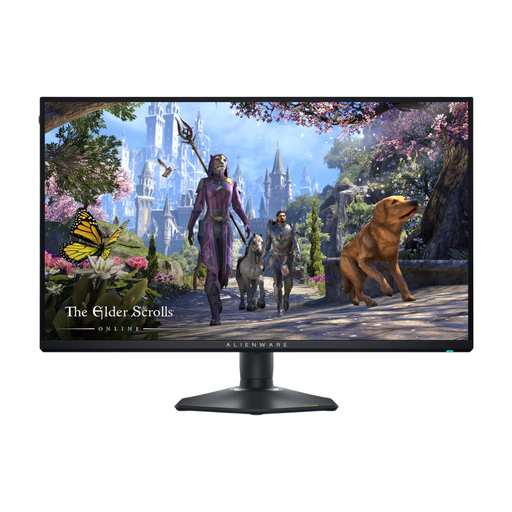
The AW2725D offers a QHD QD-OLED option for those who have chosen this panel type with care.
These Joybuy picks include gaming monitors for puzzle adventures and shared-desk use, with models ranging from QHD to 4K.
 No image available
An option if you want to view game text and small details on a 4K IPS screen.
27 inches; 4K UHD; 180 Hz.
Check that your PC or console supports the 4K mode you want.
 No image available
A good fit if you’re looking for a 4K monitor for small details in games and work.
4K 160 Hz and FHD 320 Hz are separate picture modes; the title lists Fast IPS, Type-C 65 W and KVM.
Check which picture mode and connections suit your device and how you’ll use it.
 No image available
A 27-inch 4K UHD LCD option if small on-screen details matter to you.
27 inches; 3840 × 2160 pixels; LCD.
Check the resolution and picture mode you want for your PC or console.
 No image available
An option if you’re looking for a gaming monitor with a larger 32-inch screen for a shared workspace.
32 inches; IPS; 180 Hz.
Check the full model code and the screen position the stand allows on your desk.
 No image available
A good fit if you want to view puzzle text and clues on a 27-inch WQHD screen.
27 inches; 2K WQHD; 200 Hz; Rapid IPS.
Check that your device and connection support the resolution and refresh rate you want.
No, it’s not a general buying requirement. Check readability, resolution, screen position and your device’s output first. The advertised maximum refresh rate can vary by input: ASUS lists a maximum of 144 Hz via HDMI and 180 Hz via DisplayPort for the VG27AQ3A.
Arboportaal recommends positioning the screen directly in front of you, with the top just below eye level, and tilting it so you’re looking straight at it. Before buying, check whether the stand or a suitable mount will let you achieve this position on your desk.
The EU energy label for electronic displays uses ratings from A to G. Check the label and product information for the exact version; only estimate running costs once you know the model’s power consumption, how many hours you use it and your electricity tariff.
According to ACM ConsuWijzer, in the Netherlands you have a statutory guarantee in addition to any manufacturer’s or retailer’s guarantee. If a product doesn’t meet the expectations you were entitled to have under normal use, the retailer is responsible for providing an appropriate free remedy; there is no single fixed statutory guarantee period for every monitor.
According to ACM ConsuWijzer, online purchases usually come with a 14-day cooling-off period. Check the applicable terms and any return costs; if the product is faulty, a statutory guarantee may be the appropriate route.