
Competitive PC gamer
You play fast-paced online matches and want to track moving targets clearly, without choosing a resolution or refresh rate your PC can’t handle. RTINGS discusses how achievable frame rates factor into choosing a gaming monitor.


For fast-paced PC matches, a sensible starting point is a monitor with a refresh rate your PC and connection can actually deliver. Also compare independent measurements of motion clarity and input lag. If you want more image detail or play on a console, factor in resolution and supported HDMI modes too. Check separately where your headphone audio and headset microphone connect: a headphone output on the monitor doesn’t prove that the microphone will work through it.
You play fast-paced online matches and want to track moving targets clearly, without choosing a resolution or refresh rate your PC can’t handle. RTINGS discusses how achievable frame rates factor into choosing a gaming monitor.
You might switch between a PC and console, for example, and want to know in advance which connection handles game audio, headphone audio and the microphone. The GIGABYTE G27U specifications list a headphone jack; that alone tells you nothing about microphone input.
You want the monitor to accept your preferred console output while still letting you use your headset for game audio and chat. Sony describes separate video output and audio device settings on the PS5.
Start with the device you play on and the display mode it supports through your chosen connection. Then decide what matters most to you: motion clarity, headset connectivity, extra image detail or console compatibility.
| What to consider | What should you check? | Who should pay particular attention? |
|---|---|---|
| Motion clarity and response time | Compare measurements of motion blur, overshoot and input lag at the refresh rates you play at. Also check the connection and cable required; RTINGS treats these measurements as separate characteristics. | If you want to track moving targets in fast-paced matches and your PC delivers high frame rates, this is the top priority for around 40% of the consumers concerned. |
| Headphones and team chat | Check the audio output, your device’s microphone input, and the settings for game and chat audio separately. Sony describes a setting on the PS5 for selecting the audio output device. | If you play with a headset and want to use both game audio and team chat, this connection setup is the main concern for around 30% of consumers. |
| Image detail and contrast | Compare the resolution, screen size, panel finish and maximum refresh rate for each mode. A higher resolution can put more strain on your PC at high frame rates. | If you want more detail or contrast as well as fast-paced matches, and want to factor in your PC’s performance, around 20% of consumers prioritise this display choice. |
| Console output and HDMI | Check which HDMI modes the monitor supports and which output your console and game offer. Sony describes PS5 output of up to 120 Hz for games that support it. | If you play on console and want to check the supported display mode in advance, this compatibility is the deciding factor for around 10% of consumers. |
Pixel response time and input lag describe different parts of the display chain. Aggressive overdrive can also cause overshoot.
Compare measurements of both at the refresh rate you actually play at.
A headphone audio connection doesn’t prove that the monitor handles microphone input. As a result, your chosen connection might provide audio but not the chat setup you need.
Check the audio output and microphone input separately on the monitor, PC or console.
A dual-mode monitor may have different maximum refresh rates at different resolutions, and a console won’t automatically support the maximum PC refresh rate.
Check the combination of resolution, Hz, HDMI or DisplayPort, and the frame rate your game actually delivers.
ACM ConsuWijzer distinguishes between a commercial warranty and the seller’s legal responsibilities.
Keep your proof of purchase and, if something goes wrong, consider your legal rights alongside the terms of the commercial warranty.
The MAG 272F X24 is an example of a 27-inch Full HD monitor that MSI positions for competitive gaming.
The G27U illustrates a dual-mode option for players who want to switch between UHD detail and a faster Full HD mode.
The UltraGear 27GX704A-B is an example of a 27-inch QHD OLED monitor with a high refresh rate.
The XL2546X is a 24.5-inch Fast-TN monitor that ZOWIE positions for esports.
RTINGS discusses the ROG Swift OLED PG32UCDM Gen3 as a 32-inch QD-OLED model with 4K and 240 Hz.
These product picks focus on Full HD monitors for fast-paced PC matches. Check which connection and display mode suit your PC and headset for each model.
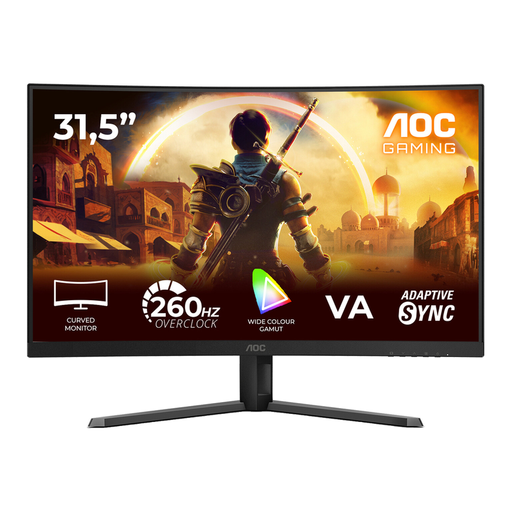 Image unavailable
The stated Full HD resolution and native 240 Hz are suited to a PC setup that can make use of that refresh rate.
The product name lists 240 Hz native and 260 Hz overclocked, a VA panel, Adaptive-Sync and DisplayPort. The stated 0.3 ms is MPRT.
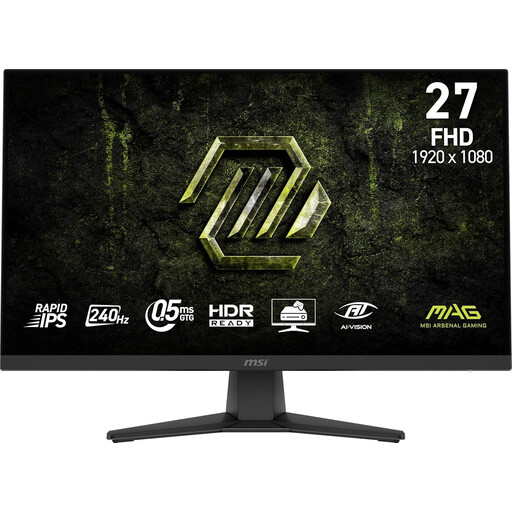 Image unavailable
This Full HD model is worth comparing if your PC supports the stated 240 Hz; the specification isn’t an independent measurement of motion clarity or input lag.
The product name lists 1920 × 1080, 240 Hz, AMD Adaptive Sync and a stated response time of 0.5 ms. The listed connections are HDMI and VGA.
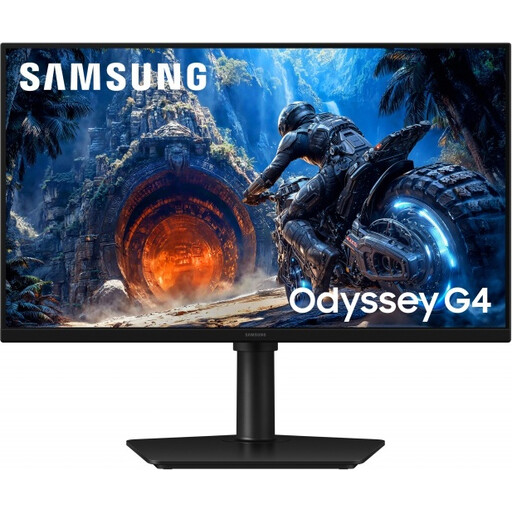 Image unavailable
The stated refresh rate varies by connection. If you’re choosing this monitor for fast-paced matches, check which mode your PC and cable support.
The product name lists Fast IPS, up to 300 Hz via DisplayPort and up to 240 Hz via HDMI. A headphone output is also listed, but this doesn’t confirm support for a headset microphone.
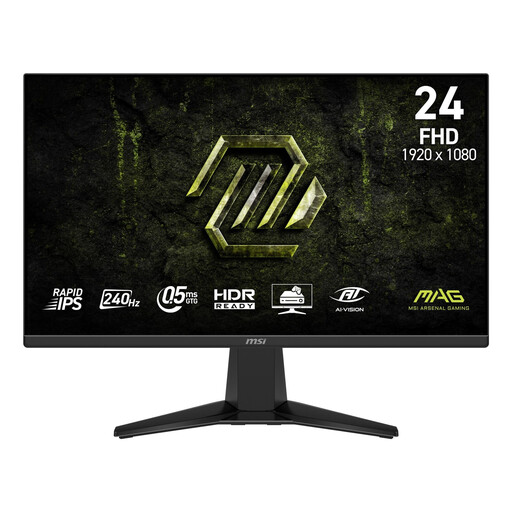 Image unavailable
The stated 240 Hz and Full HD resolution make this a model worth comparing if your PC delivers high frame rates.
The product name lists Rapid IPS and Adaptive-Sync. The product description lists HDMI, DisplayPort and a headphone output; it doesn’t confirm a microphone input.
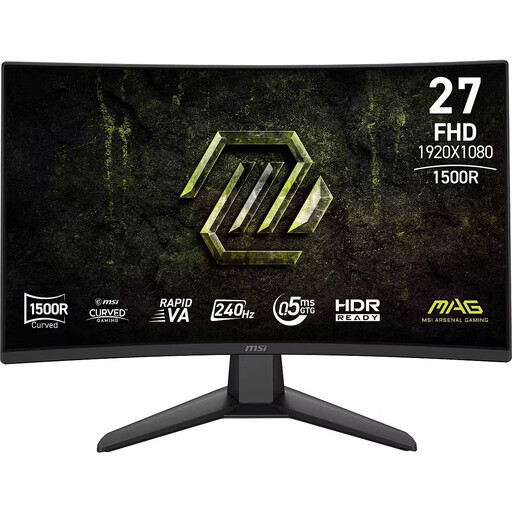 Image unavailable
Compare this 27-inch curved model with the space available on your desk and the display mode your PC can deliver.
The product name lists Rapid VA, 240 Hz, Adaptive-Sync and a stated response time of 0.5 ms. The product description lists two HDMI connections, DisplayPort and a headphone output; microphone support isn’t confirmed.
No, 240 Hz isn’t essential for every player. You can only make use of a higher refresh rate if your source, connection and game deliver enough frames; compare measurements of motion clarity and input lag too. Sony describes 120Hz output on the PS5 for games that support it.
Don’t assume that a headphone jack also supports microphone input. The GIGABYTE G27U lists a headphone jack, but that doesn’t confirm microphone functionality. Check where your device’s microphone connects; on the PS5, you can select the audio device.
Check the PS5 settings to see which display mode the connected monitor accepts. Sony describes separate settings for 120 Hz and VRR; available output depends on the monitor and the game. Test 1440p output if you want to use that mode.
According to ACM ConsuWijzer, a standard online product purchase usually comes with a 14-day cooling-off period after delivery, subject to applicable exceptions. You also have a legal guarantee: if a product doesn’t perform as you could reasonably expect under normal use, the seller is responsible for providing an appropriate solution. A manufacturer’s warranty doesn’t replace this legal right.
Yes, an energy label is worth considering when comparing specific models. The European Commission states that energy labelling and ecodesign rules also apply to electronic displays, with some exceptions under the regulations. A high refresh rate alone doesn’t tell you how much energy a monitor uses.