
Vandaag of morgen in huis

Kwaliteit gegarandeerd

Welkomstaanbiedingen ontgrendelen: GRATIS bezorging | Tot 80% korting | Gratis 30 dagen JoyPlus-proefperiode
Download de app
Buying a gaming monitor seems simple until you start comparing the specifications. 144Hz, 180Hz, 240Hz, HDR, Adaptive Sync, IPS, VA and OLED: manufacturers use plenty of terms, but not every feature matters equally to every gamer. For example, a monitor with a high refresh rate may offer little benefit if your computer can’t produce a similar frame rate.
There are practical pitfalls, too. A large screen won’t always fit comfortably on a standard desk, a low Full HD resolution may look less sharp on a 32-inch screen, and response times aren’t always measured using the same method. Use the checks below to compare gaming monitors based on useful, verifiable features.
A 144Hz gaming monitor, 180Hz gaming monitor or 240Hz gaming monitor can display motion more smoothly than a 60Hz screen. You’ll notice the difference most in fast-paced games and when your PC can produce enough frames per second. A 320Hz gaming monitor is mainly aimed at competitive players who consistently achieve very high frame rates.
Check how the response time is measured, too. GTG, MPRT and Smart MBR aren’t directly comparable. So a claimed response time of 0.5 ms doesn’t automatically mean that every pixel transition is that fast in every situation.
A 27-inch gaming monitor with Full HD can work well in an entry-level setup, but its pixel density is lower than that of a QHD model. For a sharper picture at this size, a QHD gaming monitor with 2560 × 1440 pixels is a sensible option to consider.
At 32 inches and above, QHD is often more practical for gaming, films and productivity. A 34- or 49-inch ultrawide monitor offers plenty of screen space, but also requires more graphics processing power. Check in advance whether your graphics card can handle your preferred resolution and refresh rate.
HDR10 or a DisplayHDR label means the monitor can process HDR signals. The visible impact also depends on brightness, contrast, local dimming and the game’s settings. So don’t assume that an HDR feature will automatically make a major difference to picture quality.
The same applies to FreeSync monitor and G-SYNC monitor labels. Check which technology is officially supported, which connection it uses and the range it works within. G-SYNC may work on some monitors without official certification, but this isn’t guaranteed by the product information.
An IPS gaming monitor typically offers wide viewing angles and consistent colour reproduction. Based on the stated specifications, a VA panel may offer higher static contrast. An OLED gaming monitor uses self-lit pixels to produce deep blacks, but you may need to take extra care with static images displayed for long periods. Use the screen maintenance features as instructed in the manual.
Refresh rate is measured in hertz. 100Hz already looks smoother than 60Hz for everyday use and casual gaming. For fast-paced shooters, 144Hz, 180Hz or higher are common choices. The benefits of 240Hz or 320Hz are most relevant if your system can actually reach those frame rates.
Check the connections as well. The HDMI and DisplayPort versions, along with any USB-C support, determine which resolutions and speeds are possible. Also check how many HDMI and DisplayPort inputs there are if you want to connect a PC, console and laptop at the same time.
A monitor with height adjustment, tilt, swivel and VESA support is easier to position comfortably. This matters during long gaming sessions and if you also use the monitor for work. With curved screens, check the curvature, such as 1500R or 1800R, and how far you’ll sit from the screen.
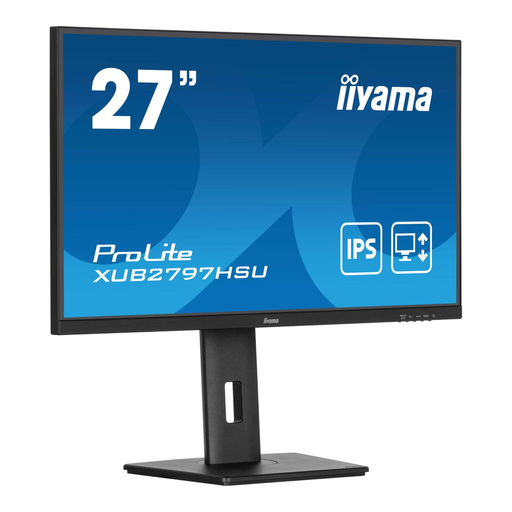
Why it suits this profile: A 27-inch Full HD screen with 100Hz for everyday use, entertainment and accessible gaming.
The product information clearly lists the Full HD resolution and 100Hz, so you don’t pay for features you don’t need.
IPS panel, height adjustment, USB hub, built-in speakers and VESA 100 × 100 mm.
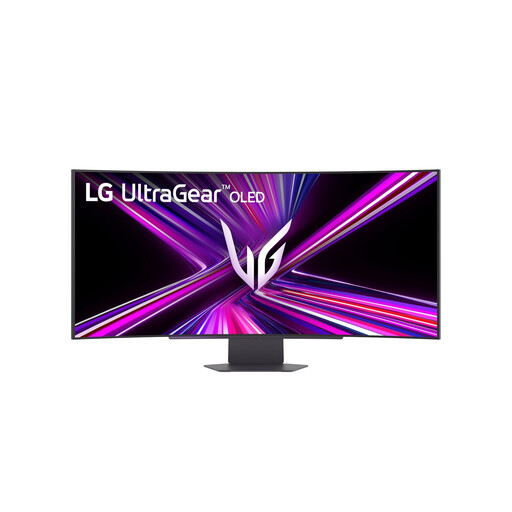
Why it suits this profile: Designed for gamers and creators looking for a large ultrawide picture, an OLED panel and plenty of connectivity options.
The specifications list more than just 240Hz: they also include 3440 × 1440, 21:9, 800R and the available HDMI 2.1, DisplayPort and USB-C connections.
OLED panel, 240Hz, 0.03 ms GTG, G-SYNC Compatible, FreeSync Premium Pro and USB-C with up to 65W Power Delivery.
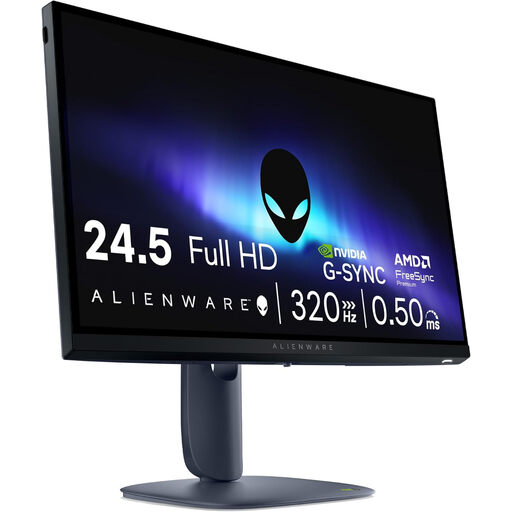
Why it suits this profile: For competitive players who want a Full HD screen with a very high refresh rate and a compact viewing distance.
The combination of a 24.5-inch screen and 1920 × 1080 resolution puts less strain on your graphics card than a comparable QHD or ultrawide screen.
320Hz, IPS panel, DisplayPort 1.4, HDMI 2.1, height adjustment and support for FreeSync Premium and G-SYNC Compatible.
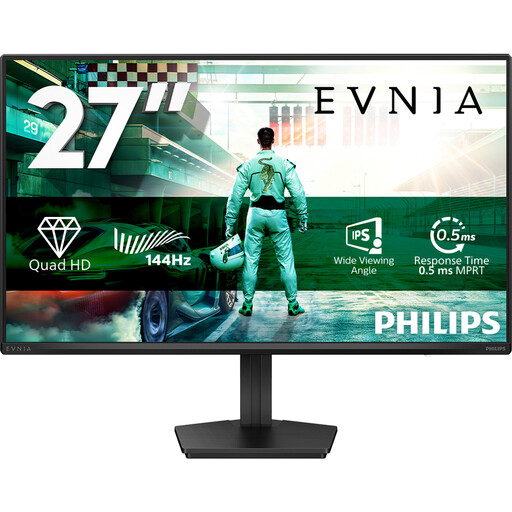
Why it suits this profile: A well-balanced choice for gamers who want to combine QHD detail, 144Hz and an IPS panel with everyday use.
The product details list QHD, 144Hz, Adaptive Sync and HDR10 separately, so you can assess each feature on its own merits.
27 inches, IPS, 2560 × 1440, 144Hz, 0.5 ms Smart MBR, HDR10 and DisplayPort 1.4.
We’ve put together a complete, up-to-date list of products that meet these strict selection criteria and the applicable European safety regulations.
For many gamers, 144Hz offers a practical balance between smooth motion and system demands. For competitive games, 180Hz, 240Hz or 320Hz may be worth considering, but only if your PC can produce enough frames per second. Check your graphics card’s performance and your preferred in-game settings.
Lifespan depends on use, heat, transport and maintenance. Use the monitor as directed in the manual, keep the ventilation openings clear and clean the screen with a soft, dry cloth. If you have an OLED gaming monitor, it’s a good idea to use pixel maintenance and screen protection features if the manufacturer provides them.
Power consumption varies by screen size, panel type, brightness and HDR use. A large ultrawide screen or OLED model may use a different amount of power from a 24-inch Full HD monitor. Compare the stated power consumption and energy rating, and switch the screen off when you won’t be using your computer for a while.
