
Vandaag of morgen in huis

Kwaliteit gegarandeerd

Welkomstaanbiedingen ontgrendelen: GRATIS bezorging | Tot 80% korting | Gratis 30 dagen JoyPlus-proefperiode
Download de app
Buying a gaming monitor seems straightforward until you start comparing specifications. 144Hz, 240Hz, IPS, VA, HDR10, FreeSync and different resolutions are often listed side by side, but they don’t automatically tell you whether a screen is right for your PC or the way you play.
The most common buying mistakes usually come down to three pitfalls:
So start by thinking about how you’ll use your monitor, your hardware and your desk. Then you can compare computer monitors with a clearer idea of what you need.
A 24-inch monitor is practical for a compact desk and works well for competitive games. Full HD, usually 1920 × 1080 pixels, keeps the demands on your graphics card relatively low. A 27-inch monitor gives you more screen space, but Full HD can look less sharp at this size than Quad HD.
For a 27-inch monitor, Quad HD, at 2560 × 1440 pixels, is a sensible middle ground for gaming, films and productivity. A 4K monitor offers 3840 × 2160 pixels and plenty of detail, but will usually need a more powerful graphics card.
A 34-inch ultrawide monitor often uses a resolution of 3440 × 1440 pixels and a 21:9 aspect ratio. It’s handy for having two windows side by side, or for games that support ultrawide. Just check that your desk can accommodate a width of around 80 centimetres. For example, the LG 34WR50QK-B is 809 mm wide and has a curved 34-inch VA screen with a resolution of 3440 × 1440 pixels.
Refresh rate is measured in hertz:
A 144Hz monitor refreshes the image up to 144 times per second. Motion will generally look smoother than at 60Hz, but the difference also depends on the game, your settings and your graphics card.
When it comes to response time, check how it was measured. MPRT and GtG aren’t directly comparable, so a lower quoted figure doesn’t guarantee less motion blur. Also look for support for FreeSync, G-Sync Compatible or another form of Adaptive Sync. These features match the screen’s refresh rate to the graphics card’s output and can help reduce tearing.
An IPS monitor is known for its wide viewing angles and consistent colour reproduction, making IPS suitable for gaming, working from home and image editing. According to product specifications, a VA monitor often offers higher static contrast, which can make dark scenes stand out more. An OLED monitor uses self-lit pixels and can display very deep blacks. If you’re considering OLED, check the warranty terms and guidance on displaying static images for long periods.
A curved monitor can feel more immersive when you’re using a wide screen, but curvature is a matter of personal preference. Curvature of 1500R or 1800R is common on 34-inch ultrawide models.
Also check:
For working from home, a built-in USB hub or network port may be more useful than an extremely high refresh rate. The Dell Pro Plus P2725DE, for example, has a 27-inch IPS panel with Quad HD, 100Hz, USB-C with up to 90W Power Delivery and an RJ45 connection.
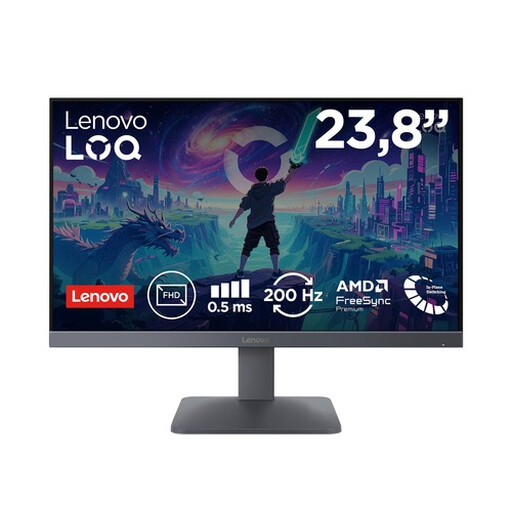
Why it suits this type of user: Its 23.8-inch size takes up little space and combines Full HD with 200Hz. That makes it a good first monitor for competitive and casual games.
Full HD puts less demand on your graphics card than Quad HD or 4K, while 200Hz is more than just a marketing number if you’re used to 60Hz.
Fast IPS, 1920 × 1080, 200Hz, AMD FreeSync Premium and HDMI 2.1, according to the product information.
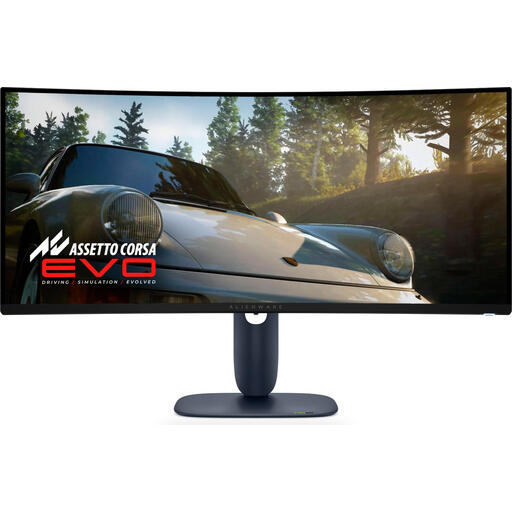
Why it suits this type of user: This 34-inch curved ultrawide screen is aimed at gamers and creators looking for plenty of screen space, a high resolution and OLED technology.
The combination of 3440 × 1440 and 240Hz makes it easier to assess whether this is the right choice for you. Just check in advance that your PC can support these settings.
QD-OLED panel, 21:9 aspect ratio, 240Hz, HDR10 support, plus DisplayPort, HDMI and USB connections.
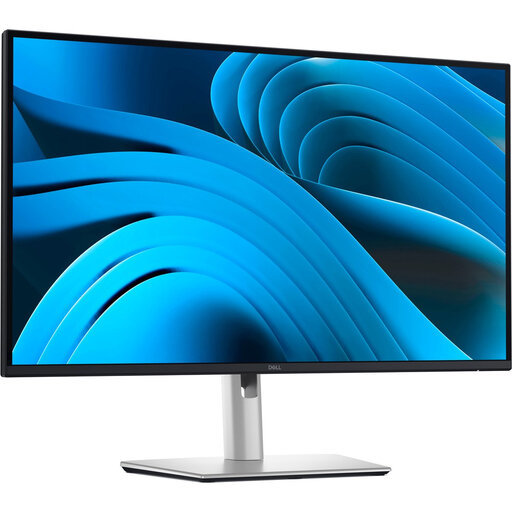
Why it suits this type of user: For working from home, spreadsheets, video calls and everyday computer use, USB-C, ergonomic features and a built-in network port are practical additions.
You’re not paying solely for a high gaming refresh rate. You also get connections and adjustability that can make a difference every day.
27-inch IPS, Quad HD, 100Hz, USB-C with up to 90W Power Delivery, RJ45 and height adjustment.
We’ve put together a complete, up-to-date list of products that meet these strict selection criteria and the current European safety regulations.
For casual gaming and many competitive games, a 144Hz monitor is a practical choice. Check that your PC can deliver enough frames per second in the games you want to play. A 240Hz or 320Hz monitor is mainly worthwhile when your system and game settings can make proper use of the higher frame rate.
Lifespan depends on usage, heat, power supply and how well you look after it. Place your monitor on a stable surface, keep the ventilation openings clear and clean the screen with a soft, dry cloth. If you have an OLED monitor, it’s a good idea to follow the manufacturer’s guidance on static images and screen care.
It varies depending on the size, panel type, brightness and HDR mode. A larger ultrawide screen will generally use more power than a compact Full HD monitor. Check the energy label and the stated power consumption in SDR. Switch the screen off when you’re not using it, and use energy-saving mode if available.
