
Vandaag of morgen in huis

Kwaliteit gegarandeerd

Welkomstaanbiedingen ontgrendelen: GRATIS bezorging | Tot 80% korting | Gratis 30 dagen JoyPlus-proefperiode
Download de app
A new gaming monitor may seem easy to choose on paper. A high refresh rate, low response time and impressive HDR specification all sound appealing. However, these figures can give a misleading impression. For example, a 320Hz screen offers little benefit if your PC cannot achieve a high frame rate in the games you play. And a large Full HD panel may look less sharp than a smaller QHD screen.
Joybuy Product Recommendation Officer filters the key product specifications out of the marketing claims. This helps you compare gaming monitors based on the features that really make a difference in a Dutch PC setup.
A 240Hz gaming monitor, 300Hz gaming monitor or 320Hz gaming monitor refreshes the image 240, 300 or 320 times per second respectively. This can make movement appear smoother, but only when the computer also produces a comparable frame rate.
In demanding games at QHD or 4K, a stable 240 fps cannot be taken for granted. A high refresh rate can be relevant for competitive players with a powerful PC. For casual gaming, streaming and office work, 100Hz to 180Hz can already offer a practical balance.
A claim of 1ms, 0,5ms or even 0,03ms does not always tell the whole story. Manufacturers use, among other things, GtG (Gray-to-Gray) and MPRT (Moving Picture Response Time). These values cannot be compared directly.
Therefore, pay attention to:
HDR10 support means that a screen can process HDR signals. It does not automatically mean that its brightness, contrast and local dimming are comparable to those of a more advanced HDR screen. Similarly, a high percentage of sRGB or DCI-P3 describes colour coverage, but does not necessarily indicate colour calibration.
Therefore, check the complete combination of panel type, brightness, contrast, resolution and colour coverage. An OLED gaming monitor can offer deep blacks and high contrast, while a VA panel often emphasises contrast and an IPS panel viewing angles and colour consistency.
With a 27-inch Full HD gaming monitor, individual pixels may be more visible than on a 24-inch model. A 27-inch QHD monitor generally has a finer pixel density. Also check whether your graphics card and connections support the desired resolution and refresh rate.
VA generally offers high static contrast and deep dark tones. This suits films, RPGs and use in a less brightly lit room. IPS typically provides wide viewing angles and consistent colours, which is useful for esports, productivity and creative applications. OLED uses self-emissive pixels and can display exceptionally deep blacks. When displaying static images for long periods, it is advisable to follow the manufacturer's instructions on screen maintenance and pixel protection.
A monitor with Adaptive Sync adjusts its refresh rate to match the graphics card's frame rate. This can help reduce tearing and stuttering, but always check which technology is officially supported, such as FreeSync, G-SYNC Compatible or VESA Adaptive Sync.
Also look for:
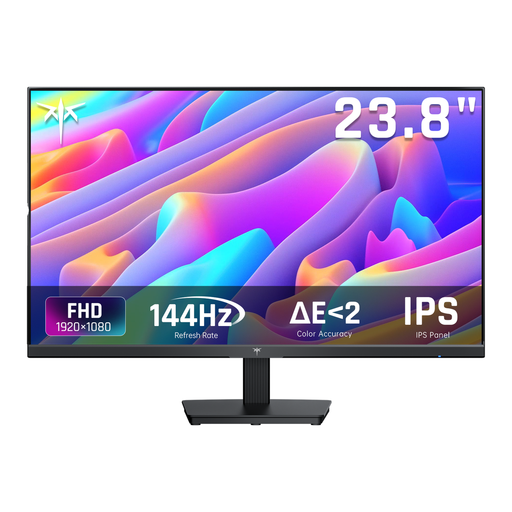
Why it suits this profile: A 24-inch Full HD gaming monitor with 144Hz suits an entry-level PC and requires less graphics power than QHD or 4K.
The specifications combine a manageable screen size with a clear 1080p resolution and Adaptive Sync, without focusing solely on an extreme hertz figure.
IPS panel, 144Hz, 1920 × 1080, HDMI, DisplayPort and audio output.
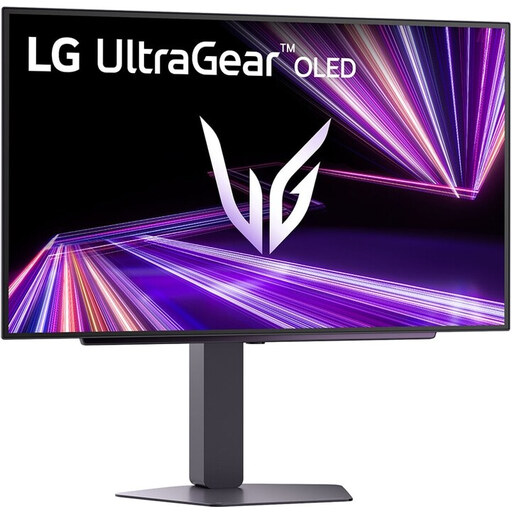
Why it suits this profile: This OLED gaming monitor is ideal for players and creative users looking for QHD detail, high contrast and fast image rendering.
Alongside 240Hz and 0,03ms, the product information lists QHD, OLED, HDR True Black 400 and support for G-SYNC Compatible and FreeSync Premium Pro.
2560 × 1440, 240Hz, HDMI 2.1, adjustable stand and 98,5% DCI-P3 according to the product specifications.
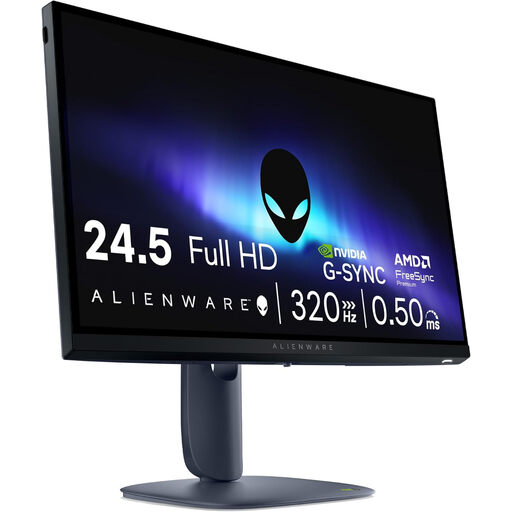
Why it suits this profile: Ideal for esports enthusiasts and competitive players who prefer a 320Hz gaming monitor and a compact 24,5-inch screen.
The 320Hz specification is accompanied by Full HD, DisplayPort 1.4, HDMI 2.1 and official FreeSync Premium and G-SYNC Compatible support.
Fast IPS panel, 320Hz, 400 cd/m² brightness, height adjustment and USB 3.2 hub.
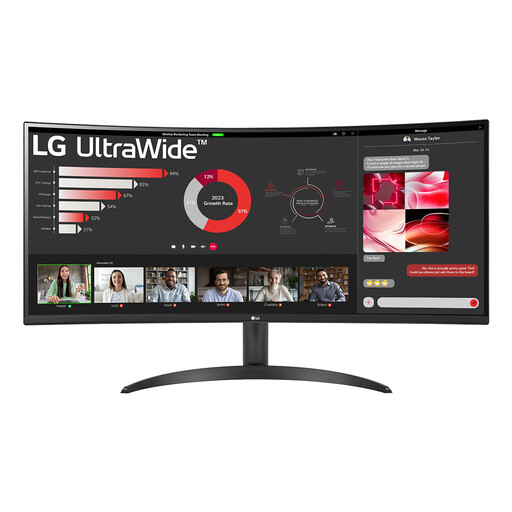
Why it suits this profile: The 21:9 aspect ratio provides room for multiple windows, widescreen games and productivity on a single screen.
The 100Hz refresh rate is paired with 3440 × 1440, a VA panel, FreeSync and an 1800R curvature.
34 inches, 3440 × 1440, Picture-by-Picture, HDR10 and 99% sRGB according to the product information.
We've put together a complete, up-to-date list of products that fully meet these strict selection criteria and the applicable European safety regulations.
It depends on your game, graphics card and settings. In fast-paced esports games, 240Hz can deliver smoother visuals when the PC also achieves a high frame rate. In graphically demanding games, QHD at 144Hz or 180Hz may be a more logical combination.
A curvature such as 1500R or 1800R can suit a wide viewing setup. However, check that your software and windows work well with the aspect ratio. For text-based work, an adjustable stand is often more important than the curvature alone.
Power consumption varies depending on the panel, brightness setting, HDR use and size. Check the stated typical and maximum power consumption on the product label or in the product specifications. A larger 4K, OLED or ultrawide model may use a different amount of power from a compact Full HD monitor. Switch the screen off when you are not using the PC for an extended period; sleep mode reduces consumption, but does not always switch it off completely.
