
Map and text reader
You mainly play information-heavy strategy games and use the same screen for your studies. So, alongside speed, consider resolution, readability and positioning.


Choose a compact Full HD monitor if desk space is your priority, a 27-inch QHD monitor if you want extra pixels for maps and coursework, or an ultrawide if your desk is wide enough and your game supports the format. Also check what your PC can handle through your chosen connection; a higher refresh rate alone isn’t a good reason to give up extra screen space.
You mainly play information-heavy strategy games and use the same screen for your studies. So, alongside speed, consider resolution, readability and positioning.
You share a limited workspace with your PC and study materials, and want to find out first which screen and stand will fit.
You want more horizontal screen space, but first need to assess the width of your desk and whether your own game supports it.
Start with the desk space available and the readability you need. Then check whether your PC and game can handle your chosen resolution and display format.
Best for: a desk where a smaller screen is preferable.
Bear in mind: Full HD has fewer pixels than the QHD models reviewed; check how text and game panels look from your usual viewing distance.
Best for: anyone with room for a 27-inch screen who wants extra pixels for maps, information panels and coursework.
Bear in mind: check that your PC and connection support your chosen resolution and refresh rate; stand adjustment varies by model.
Best for: a wide workspace and a game that supports the ultrawide format you want.
Bear in mind: this size needs more desk width; the monitor specification doesn’t guarantee that every game interface will display correctly.
| Factor to consider | What should you check? | Who is this important for? |
|---|---|---|
| Readability and workspace | Compare screen size and native resolution; assess the interface from your intended viewing distance. | If I’m reading maps, information panels and study materials, I want to know that everything will remain comfortable to read. Around 36% of consumers put readability and workspace first. |
| Fit and adjustability | Measure the available width and depth, and check the stand and adjustment options for the exact model. | If I have a shared or small desk, I want to know that the screen will fit and can be positioned properly. Around 29% of consumers put physical fit first. |
| PC, port and game compatibility | Check which resolution and Hz combinations are supported by each input; check ultrawide support for each game. | If I choose a new resolution or a wider picture, I want to know in advance whether my PC, connection and game can handle it. Around 21% of consumers put compatibility first. |
| Energy information and aftercare | Compare the energy label for the exact model and read the terms of any additional services. | Anyone considering energy information and aftercare will want to compare the product information and warranty terms. Around 14% of consumers consider these their main priorities. |
The stated maximum doesn’t tell you which combination your PC and chosen input will actually support. For an information-heavy game, readability may matter more.
Check the port specifications and your PC settings before taking refresh rate into account.
A 34-inch ultrawide with 3440 × 1440 needs more space than the 27-inch options reviewed. The monitor specification doesn’t tell you how every game interface will appear.
Measure your desk and check support and interface display in the specific game you play.
Philips warns that Smart MBR on the 27M2N3500NF/00 limits brightness and may cause flickering.
Assess the monitor using the settings you actually intend to use, and don’t treat a stated millisecond figure as a complete picture-quality assessment.
ACM ConsuWijzer clarifies that your statutory guarantee applies alongside a manufacturer’s or seller’s warranty. If a product is faulty, the seller is your point of contact.
First read about your statutory rights, then compare the additional cover and terms of any service on offer.
The models reviewed offer a range of options: compact Full HD, 27-inch QHD IPS, 27-inch QHD Fast VA and 34-inch ultrawide.
The Q27G4XF is an example of a 27-inch QHD IPS monitor.
The G2725D shows why you should check the connections and stand adjustment for each model.
The UltraGear 27GS75Q-B is an example of a 27-inch QHD IPS model with several adjustment options.
This selection features 27-inch QHD monitors for grand strategy and coursework. For each model, check the panel type, connections and adjustment options to make sure they suit your setup.
 No image available
A 27-inch QHD option to compare if you want extra pixels for maps and information panels.
2560 × 1440, VA panel and 180 Hz; HDMI 2.0 and DisplayPort 1.4.
 No image available
A 27-inch IPS option if you want to compare QHD for maps and coursework with the monitor’s positioning options.
2560 × 1440, 144 Hz, HDMI 2.0 and DisplayPort 1.4; the product information also lists a tilting stand and VESA mounting. Philips says Smart MBR limits brightness and may cause flickering.
 No image available
A 27-inch QHD option to consider if stand adjustability is important for your workspace.
2560 × 1440, Fast IPS and 240 Hz; HDMI 2.0 and DisplayPort 1.4. The description lists height, tilt, swivel and pivot adjustment.
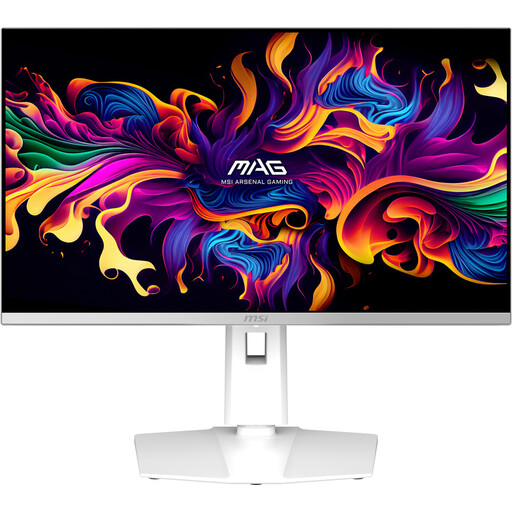 No image available
A 27-inch QHD option to compare with other panel types, based on your own needs and connections.
2560 × 1440, QD-OLED and 280 Hz; HDMI 2.1, DisplayPort 1.4a and USB-C with DisplayPort Alt Mode. The description lists height, tilt, swivel and pivot adjustment, as well as VESA mounting.
 No image available
A 27-inch QHD option to include in your comparison of resolution, panel type and connections.
2560 × 1440, OLED and 240 Hz; HDMI 2.1 and DisplayPort 1.4. The description lists an adjustable stand and VESA mounting.
Not necessarily. First compare resolution, interface readability, desk space and what your PC can run. A high Hz figure alone won’t tell you whether the screen suits your game and workspace.
Check the specifications for the input you’re using, then set the resolution and refresh rate on your PC. For example, Dell lists QHD up to 180 Hz via DisplayPort and up to 144 Hz via the specified HDMI connections for the G2725D.
Adjust a height-adjustable stand to suit your workspace, and consult the manual for your exact model for maintenance advice. Philips says Smart MBR on the 27M2N3500NF/00 limits brightness and may cause flickering.
No. Your statutory guarantee applies alongside a manufacturer’s or seller’s warranty. ACM ConsuWijzer says the seller is your point of contact if a product is faulty; there is no single fixed statutory warranty period for every monitor.
For distance purchases from a business, you generally have a 14-day cooling-off period. The Dutch government lists some exceptions and distinguishes between a business and a private seller, so check the terms of the specific purchase.