Who is this for?

Video analyst working with a timeline

You review tournament footage alongside a timeline or notes, and want to assess details without losing sight of your work windows. The resolution of the footage and your preview settings matter too; Adobe explains how to set the display quality for source and programme monitors.

Reviewer who also plays competitively

You use the same screen for recorded footage and live games. Compare the refresh rate at each resolution and through each connection: ASUS lists different maximum refresh rates for the VG27AQ3A over DisplayPort and HDMI, while Dell specifies two separate resolution and refresh rate modes for the AW2725QF.

Home worker with fixed work windows

During longer work sessions, you might leave a timeline or scoreboard in the same place, so consider screen positioning and panel type. LG warns that displaying the same image for long periods on OLED monitors can cause faint marks.

What should you look for?

QHD IPS

A good fit if: you combine video with work windows and don’t need 4K to assess your source footage.

Trade-off: QHD displays fewer pixels than 4K. ASUS lists up to 180 Hz over DisplayPort and 144 Hz over HDMI for the VG27AQ3A; the included stand isn’t height-adjustable.

4K IPS with a separate gaming mode

A good fit if: fine detail in 4K footage matters and you also want to play live games on the same screen.

Trade-off: Dell lists the AW2725QF as offering 4K at 180 Hz or Full HD at 360 Hz. The highest refresh rate is therefore available at Full HD, not 4K.

OLED

A good fit if: you’re choosing an OLED model deliberately and its specified resolution and refresh rate suit the way you use it.

Trade-off: LG warns that displaying the same image for long periods can cause faint marks. Check the care advice and terms for the exact model.

What to consider What should you check? Who should pay particular attention?
Detail and workspace Check the resolution of your source files, your preview settings and the native resolution of the exact model. If I want to assess individual frames while also having room for video, a timeline and notes, I prioritise detail and workspace. Around 33% of consumers say checking detail is their main concern.
Motion for mixed use Compare the frame rate of your footage with your live gaming needs, and check the resolution and refresh rate for each input. If you also use the same screen for competitive gaming, you’ll want to know which mode and connection to use. Around 27% of consumers give smooth motion for mixed use top priority.
Positioning on your desk Measure the space available for the screen and stand; check whether the exact model has height adjustment or a VESA mount. For long review sessions, I want to position the screen comfortably without the stand restricting my desk layout. Around 20% of consumers prioritise desk positioning and adjustability.
OLED and fixed interfaces Consider how long fixed elements stay on screen, and read the panel care and warranty information for the full model code. If my timeline or other work windows stay in the same place for long periods, I factor panel type and care into my decision. Around 20% of consumers say this is their main concern.

Common buying mistakes

  • Looking only at the highest Hz figure

    The stated refresh rate can depend on the resolution and connection. Dell lists 360 Hz at Full HD for the AW2725QF, while 4K is specified at 180 Hz. ASUS lists up to 180 Hz over DisplayPort and 144 Hz over HDMI for the VG27AQ3A.

    For the exact model, compare the resolution, refresh rate and input you actually plan to use.

  • Assuming all footage will display in full 4K

    A lower playback or paused resolution in editing software can make details harder to see, even on a higher-resolution screen. Adobe explains the display quality settings for source and programme monitors.

    Check your source details and preview settings before blaming the monitor for a lack of sharpness.

  • Choosing OLED without considering fixed work windows

    LG warns that displaying the same image for long periods on OLED monitors can cause faint marks.

    Compare your daily usage pattern with the care instructions and warranty terms for the exact model.

  • Judging a model variant by a refresh rate in isolation

    Joybuy’s listing for the Samsung Odyssey G60SD includes 240 Hz in the title, while Samsung lists 360 Hz for model code LS27DG602SUXEN.

    Check the full model code and the manufacturer’s specifications before comparing different versions.

Brands to compare

Dell Alienware

The AW2725QF is a 27-inch IPS model with 4K and Full HD modes, for anyone looking to combine video review and live gaming on one screen.

  • Dell lists 4K at 180 Hz and Full HD at 360 Hz.
  • The 360 Hz mode is Full HD, not 4K.

ASUS TUF Gaming

The VG27AQ3A is a QHD Fast IPS model for anyone looking to combine work windows and live gaming on one screen.

  • ASUS lists up to 180 Hz over DisplayPort and 144 Hz over HDMI; the monitor has a 100 × 100 mm VESA mount.
  • According to ASUS, the included stand isn’t height-adjustable.

Samsung Odyssey

The Odyssey G60SD is a QHD OLED model for anyone weighing up this panel type and the refresh rate specified by Samsung.

  • Samsung lists 360 Hz and its OLED Safeguard+ panel care technology.
  • A panel care feature doesn’t prove that image retention is impossible; check the full model code.

LG UltraGear

The 27GS95QE-B is a QHD OLED model with a 240 Hz refresh rate, but LG marks this specific model as discontinued.

  • The stated resolution and refresh rate apply to the 27GS95QE-B.
  • Don’t treat these model specifications as proof of current availability or the features of a successor.

BenQ MOBIUZ

The European specifications for the EX2710Q describe a QHD IPS model with features for desk use.

  • BenQ lists 165 Hz, height adjustment and built-in speakers.
  • BenQ gives response times as 1 ms MPRT and 2 ms GtG. These use different measurement methods, so the figures aren’t directly comparable.

Joybuy monitors for reviewing and gaming

These gaming monitors are suited to reviewing footage at 4K or QHD resolution, with options for a mix of gaming and desk use.

LG UltraGear 27G810A-B 27-inch 4K UHD 180Hz IPS gaming monitor

LG UltraGear 27G810A-B 27-inch 4K UHD 180Hz IPS

Could suit you if you review 4K footage and want to adjust the monitor’s position at your desk.

The product description lists 4K at 180 Hz and Full HD at up to 360 Hz, HDMI 2.1, DisplayPort 1.4 with DSC, and a stand with height, tilt, swivel and pivot adjustment.

Joybuy

KTC M27P6 27-inch 4K MiniLED Dual Mode gaming monitor, white

KTC M27P6 27-inch 4K MiniLED Dual Mode, white

Could suit you if you want to consider a 4K mode for reviewing and a separate Full HD mode for live gaming.

The product description lists Fast IPS, 4K at 160 Hz and Full HD at 320 Hz, along with USB-C with 65 W, KVM and an adjustable stand.

Joybuy
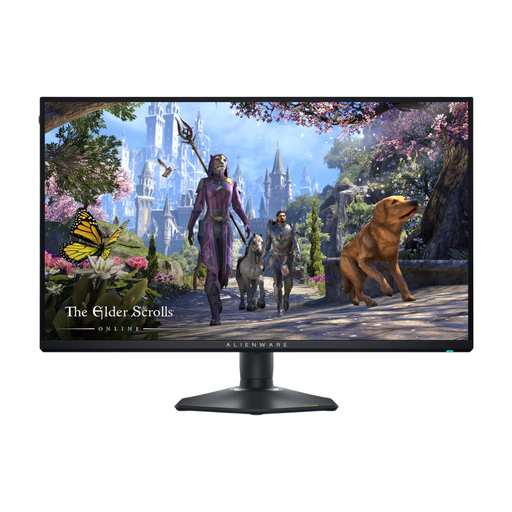
Alienware AW2725QF 27-inch 4K Ultra HD IPS monitor

Alienware AW2725QF 27-inch 4K IPS

Could suit you if you review 4K footage and also want to use the same screen for live gaming.

Dell lists 4K at 180 Hz or Full HD at 360 Hz for this model. The product description mentions HDMI and DisplayPort.

Joybuy

MSI MAG 322UP QD-OLED E16 31.5-inch 4K UHD gaming monitor

MSI MAG 322UP QD-OLED E16 31.5-inch 4K UHD

Could suit you if you’re looking for a 4K QD-OLED monitor and want to factor in the possibility of fixed interfaces remaining on screen for long periods.

The product description lists 4K UHD, 165 Hz, USB-C, and a stand with height, tilt, swivel and pivot adjustment. LG warns that displaying the same image for long periods on OLED monitors can cause faint marks.

Joybuy

INNOCN 2751S PLUS 27-inch QHD Mini LED IPS gaming monitor

INNOCN 2751S PLUS 27-inch QHD Mini LED IPS

Could suit you if you want to combine QHD work windows with gaming and need a height-adjustable stand.

The product description lists 2560 × 1440, 275 Hz and a height-adjustable stand.

Joybuy

Frequently asked questions

Do I need 360 Hz to review recorded tournament footage?

Not just because of the monitor’s refresh rate. First, check the frame rate and resolution of the source file; Adobe explains where to find these properties in Premiere. A higher refresh rate is a separate consideration if you also play live.

Why does a paused image look less sharp than expected?

In Premiere, check both the playback and paused resolutions. Adobe explains that a lower playback resolution can reduce image quality, and that you can set the paused resolution to full to assess detail.

What should I check when connecting and positioning a monitor?

Check the resolution and refresh rate you want for each input, and measure the space available for the screen and stand. ASUS lists up to 180 Hz over DisplayPort and 144 Hz over HDMI for the VG27AQ3A; the included stand isn’t height-adjustable.

How should I account for fixed work windows on an OLED monitor?

Read the care instructions for the full model code. LG warns that displaying the same image for long periods can cause faint marks on OLED monitors; the measures described aren’t a guarantee that marks won’t appear.

Which EU rules are relevant to a monitor in the Netherlands?

The European Commission outlines rules for electronic displays, including energy labels on an A–G scale. This alone doesn’t establish whether a particular model on sale meets all requirements; check the product information for the exact version.
