What should you look for?
Start by checking your computer’s video and power capabilities. Then decide how much room you need for the map and interface, and check the refresh rate and power consumption of the exact model.
| What to consider |
What to look for |
Who is this important for? |
| Power and plugs |
Check USB-C video support, the power required and supplied, the cable and how the monitor is powered. |
If I have few sockets, I want to know whether a connection really makes a power plug unnecessary and whether my laptop will get enough power. Around 36% of consumers are most concerned about the number of plugs they need when buying. |
| View of the game map |
Compare screen size, resolution, desk space and viewing distance; also check that your computer supports the resolution you want. |
I want a clear view of the map and interface, and weigh extra screen space against how much room the display takes up. For around 29% of consumers, seeing the map clearly is the top priority. |
| Picture and connection |
Check the supported resolution and refresh rate for each input, as well as USB-C video if you want to use that connection. |
If I want to use a particular display setting, I want to make sure my computer, cable and chosen input all support it. Around 21% of consumers prioritise smooth, compatible picture quality. |
| Power consumption |
Compare the EU energy label and specifications for the exact models, preferably in the same picture mode. |
I want to take power consumption into account when choosing; needing fewer power plugs doesn’t, by itself, tell me how much electricity a monitor uses. Around 14% of consumers make power consumption their main buying concern. |
Joybuy monitors for this setup
These product picks include portable screens for a compact setup and larger gaming monitors that offer more room for the map and interface. For USB-C models, check that your computer supports video and provides enough power through the connection you plan to use.
 No image available
Samsung Odyssey G5 G50F 32-inch IPS 180 Hz LS32FG502EUXEN
The 32-inch QHD display suits anyone looking for more physical space for the map and interface.
IPS panel and up to 180 Hz, according to the product description.
The description mentions height, swivel and tilt adjustment.
Joybuy
 No image available
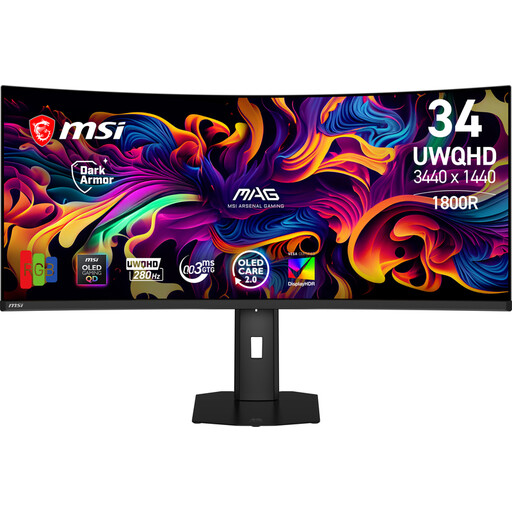
MSI MAG 341CQP QD-OLED X28 34,18-inch UWQHD 280 Hz 9S6-3DE39T-001
The 34.18-inch ultrawide format may suit anyone who wants plenty of room for the map and interface and has space for a large screen.
QD-OLED, 3440 × 1440 and up to 280 Hz.
USB-C with DisplayPort Alternate Mode and up to 15 W Power Delivery; this output isn’t automatically enough to power a laptop.
Joybuy
 No image available
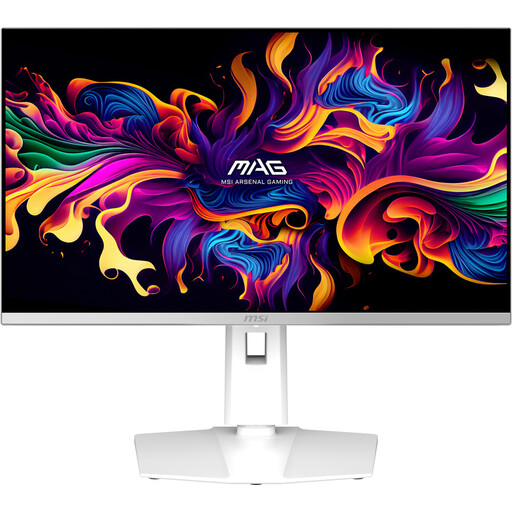
MSI MAG 272QPW QD-OLED X28 27-inch QHD 280 Hz
The 27-inch QHD format is a desktop option for anyone who wants to view the game map and interface on a larger screen.
2560 × 1440 and up to 280 Hz.
USB-C with DisplayPort Alt Mode and up to 15 W Power Delivery; check that this output is suitable for your laptop.
Joybuy
 No image available
Philips Evnia 3000 34M2C3500L 34-inch WQHD
The 34-inch ultrawide screen may suit anyone looking for more room for the map and interface; make sure you have enough desk space.
WQHD, 3440 × 1440. The stated refresh rate varies by connection: 180 Hz via DisplayPort and 100 Hz via HDMI.
The description mentions a tilt-adjustable stand.
Joybuy
 No image available
UPERFECT 16-inch 2K 144 Hz Portable Monitor
The portable size may suit a compact setup; the 16-inch screen offers less physical space for the map and interface than larger displays.
2560 × 1600, 16:10 aspect ratio and up to 144 Hz.
USB-C for video and power is listed. This may eliminate the need for a separate monitor power supply if your computer provides video and enough power. Mini HDMI is also listed.
Joybuy
Frequently asked questions
Does a USB-C monitor always save a socket?
No, it depends on the connections and power supplies of your equipment. With a suitable setup, USB-C can carry video and power between a laptop and monitor. You may only be able to do without a separate laptop charger if the power output is suitable for your laptop. Also check how the monitor itself is powered.
Can I use any USB-C port for video?
No. Check that your computer’s port and the connection you’ve chosen support video, for example through DisplayPort Alt Mode. The USB-C plug’s shape alone doesn’t confirm this.
How can I connect equipment safely when sockets are scarce?
Follow the connection and power specifications for your equipment and extension lead. Brandweer Nederland recommends plugging high-power appliances directly into a socket where possible, fully unwinding cable reels and leaving enough space around equipment for ventilation. This is safety advice, not a statement that every gaming monitor legally needs its own wall socket.
How can I compare monitors’ power consumption?
Compare the EU energy labels for the exact models and, if needed, consult EPREL for further information, including standby power consumption. Needing fewer plugs doesn’t, by itself, measure electricity use.
What are my rights in the Netherlands when I buy a monitor online?
For a standard online purchase, you generally have up to 14 days from delivery to change your mind; ACM ConsuWijzer lists some exceptions. You also have a legal guarantee if, under normal use, the product doesn’t do what you could reasonably expect. A manufacturer’s warranty doesn’t replace this right.


