A monitor with USB-C video and sufficient Power Delivery could eliminate the need for a separate laptop charger with a compatible gaming laptop. Built-in speakers could also save you from needing a separate speaker system. This won’t automatically save you a plug socket, though: the monitor still needs mains power, and with a PC or console, the benefit depends largely on having suitable connections and built-in audio.
Who is this choice relevant to?
Laptop gamer with one spare socket
You may want to leave the laptop charger at home, so you’re looking for USB-C video with Power Delivery that’s suitable for your laptop. LG lists 65 W USB-C Power Delivery for the 34GX900A-B; whether that’s enough while gaming depends on your laptop and how you use it.
PC explorer focused on visuals
You may prefer detail, contrast or a wider view to the highest possible refresh rate, while keeping your PC’s performance in mind. Philips lists a resolution of 2560 × 1440 pixels and up to 165 Hz for the Evnia 27M1N3500LS/00.
Console gamer without separate speakers
You’re looking for suitable HDMI picture quality and built-in sound, so you don’t have to connect a separate speaker system. Dell lists 4K at up to 120 Hz and two 5 W speakers for the S2725QC; the console and monitor still each need their own power connection.
Which features should you prioritise?
Start with the connection on your gaming device, then decide whether power delivery, picture quality or built-in sound matters most for your setup.
| Feature to consider |
What should you check? |
Who will value this most? |
| Saving a plug socket |
Check whether the USB-C port supports video and how much Power Delivery the monitor provides; compare this with your laptop’s requirements. |
I don’t want to need a separate laptop charger while gaming, but only if my laptop gets both picture and enough power over USB-C. Around 36% of consumers give avoiding that extra plug socket top priority. |
| Detail and atmosphere |
Compare the resolution and screen size with your game settings and your PC’s performance. |
If I mainly want to take in landscapes and game worlds, I look for detail and screen space rather than just the highest refresh rate. Around 29% of consumers put visual experience first. |
| Sound without a speaker system |
Check whether the exact model has speakers and whether your gaming device’s audio can connect to them. |
I don’t want to connect a separate speaker system, so I want to know whether monitor audio will work for my setup. Around 21% of consumers give built-in audio top priority. |
| Connecting to your gaming device |
Check which HDMI, DisplayPort or USB-C video connection you need, and which display modes your source supports. |
When I play on a specific PC or console, I want to know in advance whether the desired resolution and refresh rate will work through the right port. Around 14% of consumers start by checking compatibility. |
Common buying mistakes
-
Assuming USB-C provides full laptop power
A USB-C connection may support video without providing enough power to replace your laptop charger while gaming. ASUS lists 7.5 W Power Delivery for the ROG Strix XG27ACS, while LG lists 65 W for the 34GX900A-B. Neither figure proves that you can leave your charger behind without checking your laptop’s specifications.
Compare the video function and stated charging power of the exact monitor port with your laptop’s requirements.
-
Assuming different model codes refer to the same screen
The Dell S2725QC and S2725DC are different models. Dell lists 4K at up to 120 Hz for the S2725QC and QHD at 144 Hz for the S2725DC; features of one model don’t automatically apply to the other.
Check the full model code and compare the relevant specifications before making your choice.
-
Connecting extension leads to each other
Brandweer Nederland advises against connecting extension leads or power strips to each other, and against overloading a power strip; overloading can cause a fire.
Count the connected devices and their power load, use undamaged connection equipment and follow the stated maximum limit.
Brands to compare
Dell
The Plus series includes several 27-inch models for comparing resolution, refresh rate and built-in sound.
- Dell lists QHD, 144 Hz, USB-C and speakers for the S2725DC, and 4K, 120 Hz and two 5 W speakers for the S2725QC.
- The S2725DC and S2725QC are different models, so check which model code has the features you want.
LG
The UltraGear 34GX900A-B is a 34-inch ultra-wide OLED monitor with USB-C Power Delivery and built-in audio.
- LG lists 3440 × 1440 pixels, up to 240 Hz, 65 W USB-C Power Delivery and speakers for this model.
- Whether 65 W can replace your laptop charger depends on your laptop and how you use it. The ultra-wide format also needs to suit your game and workspace.
ASUS
The ASUS models mentioned offer a range of options for USB-C video, laptop power and built-in audio.
- ASUS lists 65 W USB-C Power Delivery and speakers for the VU34WCIP-W.
- According to ASUS, the ROG Strix XG27ACS has USB-C video with 7.5 W Power Delivery and no speakers. Don’t confuse the features of these models.
Philips
The Evnia 27M1N3500LS/00 is a 27-inch QHD gaming monitor for comparing resolution and refresh rate.
- Philips lists 2560 × 1440 pixels and up to 165 Hz for this model.
- Resolution and refresh rate alone don’t tell you whether the monitor has built-in audio or can power a laptop; check these features separately.
Joybuy product picks
These product picks include 4K and QHD screens for PC or console use, as well as ultra-wide options with USB-C power for compatible laptops. Check that the connections, display mode and aspect ratio suit your gaming device and games.
 No image available
Philips 32E1N1800LA 32-inch 4K UHD monitor
An option for console gaming if you’re looking for 4K resolution and built-in speakers.
VA panel; 3840 × 2160 pixels; 60 Hz; built-in speakers; HDMI and DisplayPort.
View at Joybuy
 No image available
AOC Gaming Q27G42XNE 27-inch Quad HD monitor
A QHD option for PC gamers weighing up resolution and a high stated refresh rate against their PC’s capabilities.
VA panel; 2560 × 1440 pixels; 180 Hz; HDR10; FreeSync Premium; HDMI 2.0 and DisplayPort 1.4.
View at Joybuy
 No image available
TECLAST V16Q portable monitor
A portable option if you’re looking for a QHD-like 16:10 picture and built-in stereo speakers for use with a PC, laptop or console.
2560 × 1600 pixels; 144 Hz; IPS; two USB-C ports; Mini HDMI; built-in stereo speakers.
View at Joybuy
 No image available
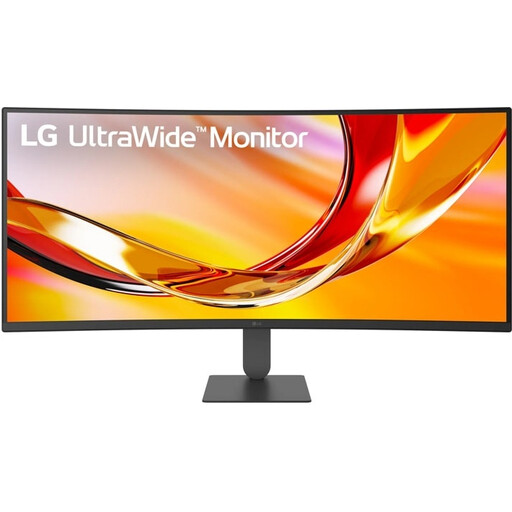
LG UltraWide 34U640B-B 34-inch WQHD monitor
An ultra-wide option for a compatible laptop. Check that the 21:9 aspect ratio suits your game and that 65 W is enough for your laptop.
VA panel; 3440 × 1440 pixels; 144 Hz; 21:9; USB-C video with 65 W Power Delivery.
View at Joybuy
 No image available
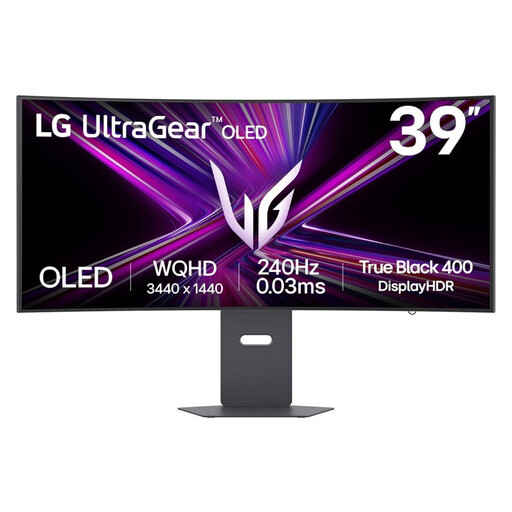
LG UltraGear 39GX900A-B 39-inch OLED monitor
An ultra-wide OLED option if you can check the aspect ratio, PC or laptop compatibility and laptop power requirements in advance.
3440 × 1440 pixels; 21:9; up to 240 Hz; OLED; USB-C video with 65 W Power Delivery; HDMI 2.1 and DisplayPort.
View at Joybuy
Frequently asked questions
Does USB-C always mean you only need one plug socket?
No. The monitor needs power too. You may be able to leave the separate laptop charger behind only if your laptop supports video through that USB-C connection and the charging power suits your laptop. With a console, USB-C Power Delivery won’t provide this benefit.
What should you check when connecting and using your monitor?
Check that your PC or console’s video output matches the monitor connection and the display mode you want. Keep ventilation openings clear; Brandweer Nederland advises allowing electrical appliances to release heat. If you’re using a power strip, also check the total load and don’t connect power strips to each other.
How do you compare monitors’ running costs?
Compare the EU energy label and product information sheet for the exact models. The European Commission states that the energy label for electronic displays can also show information about HDR use. Running costs depend on factors such as how long you use the monitor, your settings and your electricity tariff.
Does an extended warranty replace your statutory rights in the Netherlands?
No. According to the Dutch government, you’re entitled to a product that works as it should when you buy as a consumer in the Netherlands. A manufacturer’s, seller’s or additional warranty is on top of this; there is no fixed statutory warranty period in the Netherlands that applies to all products.
Do monitors have an energy label in the Netherlands?
Yes. The European Commission includes computer monitors among the electronic displays that carry an energy label on a scale from A to G. This labelling rule applies to the products concerned and their sellers; buyers aren’t required to choose a particular energy class.


