What should you consider when choosing?
First, measure the space on your desk. Then check which resolution and refresh rate your device supports through the connection you plan to use. Lenovo Netherlands and Tweakers discuss screen size, viewing distance and panel type as relevant considerations. The percentages below show the main buying priorities for this choice.
| Consideration |
What to look for |
Who is it important to? |
| Detail and screen size |
Compare the screen size and resolution with your available desk space and your PC’s performance. |
I want to see distant details in exploration games, as long as my device can handle the chosen resolution. Around 33% of consumers give picture detail their highest priority. |
| Space for studying |
Measure the available desk width and check the dimensions, including the stand. |
If I also use my desk for study materials and other essentials, I want to know how much space the monitor actually takes up. Around 27% of consumers prioritise having free desk space. |
| Connection and refresh rate |
Check your PC or console’s video output, and the resolution and Hz supported by each monitor connection. |
I want my existing device to support the picture setting I want through the cable I use. Around 20% of consumers make device compatibility their top priority. |
| Contrast in dark scenes |
Compare panel types. For OLED, also consider how you’ll use the screen for text and check the warranty terms for the exact model. |
Dark game worlds matter to me, but the screen also needs to suit my study habits. Around 20% of consumers give contrast their highest priority. |
Joybuy monitors for gaming and studying
These models are aimed at anyone who wants QHD detail for gaming as well as a screen they can use at a desk for studying. Check that the port and picture setting on your chosen monitor suit your PC or console.
 No image available
AOC Gaming Q27G42XNE
The 27-inch QHD version is an option for combining detail in games with a screen size suited to desk use.
VA panel; 2560 × 1440; 180 Hz; 1 ms; FreeSync Premium; HDR10.
Connections: 2 × HDMI 2.0 and 1 × DisplayPort 1.4.
Joybuy
 No image available
Philips Evnia 27M2N3500NF
The combination of a 27-inch screen and QHD resolution suits anyone who wants to enjoy game details on the same screen they use at their desk.
IPS panel; QHD 2560 × 1440; 144 Hz; 0.5 ms Smart MBR; HDR10; Adaptive Sync.
Connections: DisplayPort 1.4 and HDMI 2.0.
Joybuy
 No image available
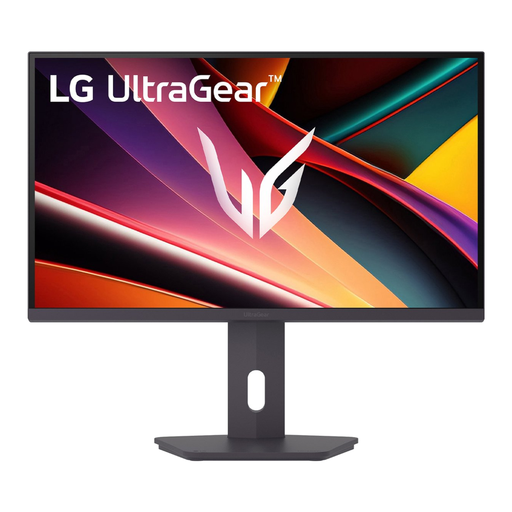
LG UltraGear 27G610A-B
The 27-inch QHD screen is an option for anyone who wants to use one monitor for both gaming and studying.
IPS panel; QHD; 200 Hz.
Joybuy
 No image available
KTC H27E6S
The QHD version is an option for anyone who values detail in games; check that your device can handle your preferred setting through the connection you use.
27 inch; QHD 2560 × 1440; Fast IPS; 240 Hz, overclocked to 275 Hz.
The title lists a height-adjustable stand, HDMI 2.0 and DisplayPort 1.4.
Joybuy
 No image available
LG UltraGear 27GX704A-B.AEU
OLED may suit you if dark game worlds matter. Tweakers highlights text clarity and burn-in as considerations for extended study use; check how they apply to the exact model.
27 inch; QHD 2560 × 1440; OLED; 240 Hz; Display HDR 400 True Black.
Connections: 2 × HDMI 2.1 and 1 × DisplayPort 1.4.
Joybuy
Frequently asked questions
Should you automatically choose the highest refresh rate for exploration games?
No. First check that the screen size and resolution suit your desk and device. Then see which refresh rate is supported by the input you plan to use. For example, Dell lists different QHD maximum refresh rates for DisplayPort and HDMI on the G2725D.
What should you measure before putting a monitor on your student room desk?
Measure the available space, including the stand, and check the dimensions and adjustment options for the exact model. Gigabyte publishes these details for the MO27Q2A; they do not automatically apply to other monitors.
What should you consider if you also use an OLED monitor for long study sessions?
Check how text looks and read the care and warranty terms for the exact model. Tweakers highlights differences in text clarity and the risk of burn-in as considerations for OLED; any cover depends on the warranty terms.
Am I always entitled to exactly two years of statutory warranty in the Netherlands?
No. According to the Dutch government, the Netherlands has no fixed statutory warranty period: a product must meet the standard you can reasonably expect of it. If a product is faulty, you should contact the retailer about your statutory rights; a manufacturer’s or extended warranty may apply in addition.
What energy-use information can I compare for a monitor?
The European Commission states that electronic displays, including computer monitors, have an energy label on a scale from A to G. Compare the label or EPREL information for the exact model; the label also includes information about energy use in HDR mode.


