
Vandaag of morgen in huis

Kwaliteit gegarandeerd

Welkomstaanbiedingen ontgrendelen: GRATIS bezorging | Tot 80% korting | Gratis 30 dagen JoyPlus-proefperiode
Download de app
Buying a gaming monitor seems straightforward until you start comparing the specifications. 240Hz, 1ms, HDR10, FreeSync and G-SYNC all sound appealing, but they only matter if they suit your PC, console and the games you play. A screen that looks fast on paper may be less suitable in practice because of the wrong resolution, limited connections or an awkward stand.
A 240Hz gaming monitor can display movement more smoothly than a 60Hz or 144Hz screen. However, your PC also needs to deliver enough frames per second. You may not reach 240 fps in a graphically demanding game, so you won't get the most out of the panel.
A high refresh rate can make a difference in competitive shooters and esports. For casual gaming, strategy games and story-driven games, a QHD gaming monitor with a lower refresh rate may offer a better balance between sharpness and price.
A specification such as 1ms gaming monitor doesn't always refer to the same measurement method. MPRT and GTG are different measurements and may be tested using different settings. Check which response time applies to each overdrive or motion mode. Overly aggressive overdrive can actually cause visible image artefacts.
HDR10 means a monitor can process HDR10 signals. It doesn't automatically mean the screen has high brightness, local dimming or a wide contrast range. Also check the brightness in cd/m², the panel type and any HDR certification. Contrast works differently on an OLED screen than on a VA or IPS panel.
A Full HD gaming monitor with 1920 × 1080 pixels puts less demand on your graphics card. This makes Full HD a practical choice for high frame rates and systems with an entry-level or mid-range GPU. At 24 inches, the pixel density is also reasonably well balanced.
A QHD gaming monitor with 2560 × 1440 pixels shows more detail and works well at 27 inches. The higher resolution does require more graphics processing power. A 27-inch gaming monitor with Full HD may look less sharp at close viewing distances than a 24-inch Full HD model.
Choose 4K if detail, single-player games and creative applications matter more to you than the highest possible frame rate. The AOC AGON PRO AG326UD, for example, combines 3840 × 2160 pixels with a 165Hz refresh rate and a QD-OLED panel, according to its product specifications. Check beforehand that your PC or console can support this combination.
A curved screen, such as a curved gaming monitor with 1500R curvature, can create a more immersive viewing experience. It mainly comes down to viewing distance, desk size and personal preference. For colour-critical work, a flat IPS screen may be more practical.
A FreeSync monitor synchronises its refresh rate with the frame rate of a compatible AMD GPU. A G-SYNC monitor or G-SYNC Compatible monitor is designed for systems using NVIDIA technology. Always check official compatibility and the supported range.
The connection is just as important as the monitor itself. Check the HDMI and DisplayPort versions, and the maximum resolution at your preferred refresh rate. For example, the Titan Army C24A1H lists HDMI 2.0 and DisplayPort 1.2, with support for 1920 × 1080 at 240Hz. Use the right cable, then enable 240Hz and FreeSync in your operating system and graphics card settings.
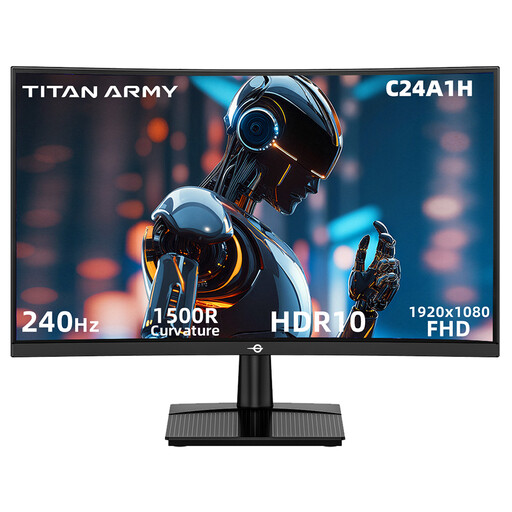
Why it suits this type of user: This 23.6-inch Full HD screen combines a VA panel, 240Hz and 1500R curvature for anyone looking for high speed without stepping up to QHD or 4K.
The specifications list 240Hz, 1ms MPRT, FreeSync Compatible and HDR10 separately. This lets you assess these features alongside your hardware and cable choice, rather than relying on a marketing label alone.
Full HD, 240Hz, VA panel, HDMI 2.0, DisplayPort 1.2 and VESA 100 × 100 mm.
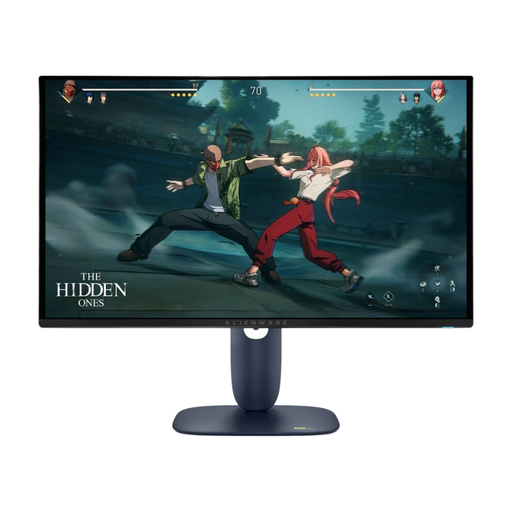
Why it suits this type of user: For gamers and creators who value QHD detail and OLED contrast. The model lists 2560 × 1440, 280Hz, HDR True Black 400 and a QD-OLED panel.
The technical information lists brightness, response time, resolution and connections alongside HDR10. Be sure to check the manufacturer's guidance on extended use and image retention.
QD-OLED, QHD resolution, 280Hz, stated response time of 0.03ms, and support for FreeSync Premium Pro and G-SYNC Compatible.
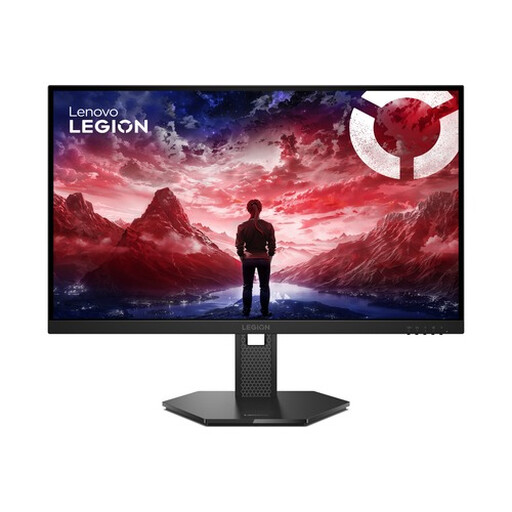
Why it suits this type of user: This model is aimed at competitive gamers, streamers and creators who want to combine QHD clarity, 240Hz and an adjustable seating position.
The product specifications list the native 240Hz refresh rate, 0.5ms MPRT, 1ms overdrive, and support for FreeSync Premium, G-SYNC Compatible and VESA Adaptive Sync separately.
27-inch IPS, QHD, 240Hz, HDR10, HDMI 2.1, DisplayPort 1.4 and a stand with height, swivel, tilt and pivot adjustment.
We've put together a complete, up-to-date list of products that meet these strict selection criteria and the applicable European safety regulations.
After connecting your monitor, you may need to select your preferred refresh rate manually in Windows or in your graphics card menu. Also check that HDR and Adaptive Sync are enabled in the right settings. For consoles, use the recommended HDMI port and check the maximum resolution and refresh rate supported by your console.
An adjustable stand helps you position the screen directly in front of your eyes. If the model only has tilt adjustment, a VESA 100 × 100 mm mount can give you more flexibility. Also consider ventilation, cable quality and energy consumption. Higher brightness and longer hours of use can affect power consumption.
It can be, particularly in fast-paced games with a high frame rate. The difference depends on your PC, game settings and reaction time. If you usually play at 60 fps, you'll get less benefit from a 240Hz gaming monitor.
That depends on the laptop's video output and the cable you use. Check whether USB-C, HDMI or DisplayPort supports your preferred resolution and refresh rate. Without enough graphics performance, QHD may result in a lower frame rate.
Lifespan varies depending on the panel, hours of use and conditions. Keep the ventilation openings clear, clean the screen with a soft cloth, and follow the manufacturer's care and safety instructions. For OLED models, it's a good idea to use the pixel maintenance and image retention features as directed.
