
Dark-room gamer
You mainly play with the lights off and focus on black levels and contrast. Compare OLED with high-contrast LCD options; RTINGS.com discusses the differences between these panel types.


Choose a monitor that makes small text and map details easy to read from your usual viewing distance, then assess how the panel displays dark images. OLED can be appealing for deep blacks, but if menus stay on screen for hours, you’ll need to consider the risk of burn-in. A VA or mini-LED LCD is an alternative worth comparing, while IPS may suit you if readability and a flat screen matter more than the deepest possible blacks.
You mainly play with the lights off and focus on black levels and contrast. Compare OLED with high-contrast LCD options; RTINGS.com discusses the differences between these panel types.
You keep maps, menus and status bars on screen for long periods and want to factor in the risk of static elements when choosing a panel. RTINGS.com identifies this as something to consider with OLED.
You want to read small labels and see enough of the map at once. Compare screen size, resolution and text rendering from your usual viewing distance; RTINGS.com notes that text sharpness is partly subjective.
Start by checking text and map visibility from your usual viewing distance. Then compare performance in a dark room, and consider interface elements that stay on screen for long periods, along with connectivity.
| What to consider | What should you check? | Who is this important for? |
|---|---|---|
| Contrast in a dark room | Check reviews of black levels and local dimming for the exact model. | If I mainly play with the lights off, I want to judge dark scenes clearly and compare panel types on the specific model. Around 33% of consumers prioritise contrast in a dark room. |
| Game interface on screen for long periods | For OLED, read the care instructions and warranty terms; assess LCD models individually for contrast. | If menus and status information stay visible for hours, I want to factor in the OLED risk associated with recurring static images. Around 27% of consumers prioritise an interface that stays visible for long periods. |
| Readable text and map visibility | Compare text rendering, screen size and resolution from your usual viewing distance; also check which display modes your computer supports. | If I want to read small labels and see more of the map at once, I focus on the combination of screen size, resolution and text rendering. Around 27% of consumers prioritise readability and map visibility. |
| Connectivity and running costs | Check the ports at both ends and the EU energy label for the exact model. | If I want to know which display mode my computer can output and how models compare for energy use, I check the connections and energy label details. Around 13% of consumers prioritise connectivity and running costs. |
The benefits of high refresh rates also depend on the type of game and the display mode supported. Tweakers and RTINGS.com identify the game and the preferred display mode as relevant factors when choosing.
Start with text, map visibility and performance in a dark room. Then compare speed with what your computer and any other games you play require.
Prolonged exposure to the same static elements is a known OLED risk, as described by RTINGS.com.
Read the care instructions and warranty terms for the specific model, and compare it with an LCD option too.
Text sharpness depends on more than just resolution. For example, Tweakers reports colour fringing around text on the Gigabyte MO27Q2A.
Look for a review or demonstration showing small text at a similar viewing distance.
These examples refer to specific models or product ranges; always check the model number and configuration.
The MO27Q2A is a 27-inch QHD QD-OLED example for anyone considering an OLED screen for use in a dark room.
The Odyssey Neo G7 G75NB is an example of a 32-inch 4K mini-LED LCD option.
The Q27G4ZR is a QHD IPS example for anyone weighing up text readability, a flat screen and versatile use.
The AW3225QF is a 32-inch 4K QD-OLED example for anyone considering a larger, high-resolution screen.
The UltraGear range includes different panel types, giving you models to compare side by side.
These models include VA and mini-LED LCD options, as well as a QD-OLED option, to compare for dark-room performance, map visibility and game interfaces that stay on screen for long periods.
 No image available
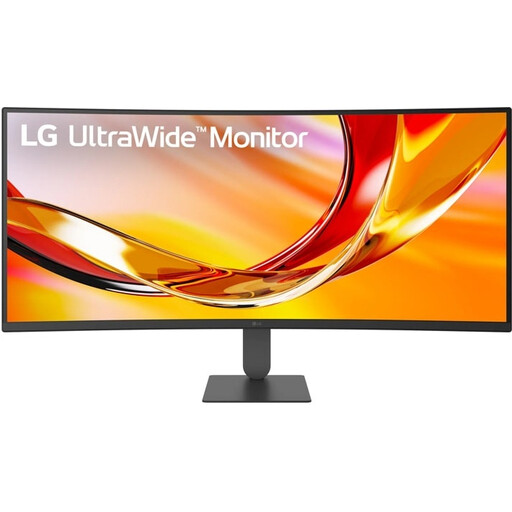
The VA configuration is an LCD option worth comparing if you’re considering contrast in a dark room; its ultra-wide 34-inch screen gives you plenty of space.
34 inches; WQHD 3440 × 1440; VA panel; curved; 144 Hz.
 No image available
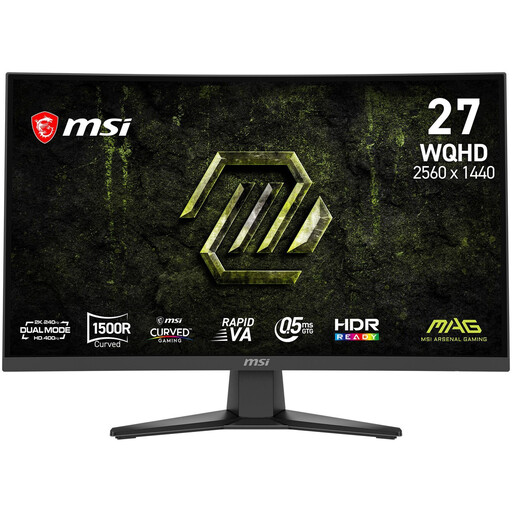
This 27-inch Rapid VA configuration is a curved LCD option worth comparing if you’re considering QHD resolution and dark-room performance.
27 inches; WQHD 2560 × 1440; Rapid VA; 1500R curvature; 240 Hz.
 No image available
The stated mini-LED backlighting and local dimming make this an LCD option worth comparing for use in a dark room.
27 inches; QHD 2560 × 1440; IPS; mini-LED with 1152 zones; 275 Hz.
 No image available
This mini-LED configuration is an LCD option worth comparing if you want to factor 4K resolution and local dimming into your choice for map details.
27 inches; 4K UHD; Fast IPS; 1152 local dimming zones; dual mode: 4K 160 Hz or FHD 320 Hz; USB-C 65 W.
 No image available
This QD-OLED configuration is worth considering if deep blacks are important to you; the risk of burn-in remains a consideration when static elements stay on screen for long periods.
31.5 inches; 4K UHD; QD-OLED; flat screen; 165 Hz; USB-C.
If static images stay on screen for long periods, follow the model-specific recommendations for brightness and OLED care.
Not as your starting point. First choose a screen size, resolution and dark-room performance that suit how you play; a higher refresh rate may matter more for fast-paced, reactive games. Check that your computer supports the display mode you choose.
OLED can deliver deep blacks, but prolonged exposure to the same static elements carries a risk of burn-in. RTINGS.com describes this risk for OLED; also read the care instructions and warranty terms for the specific model.
Compare how the exact model displays small text from a viewing distance that suits your desk. Resolution and pixel density both matter, but RTINGS.com notes that text sharpness is also subjective.
Check the energy rating and consumption figures on the EU energy label for the exact monitor. To work out your own costs, you’ll also need your usage time and electricity tariff.
Connect the monitor to a port that supports your preferred resolution and refresh rate, then select that display mode on your computer. For an OLED model, also check the relevant screen care settings.