
Student who designs and games
Wants to combine fine design details, readable windows and smooth gaming on one screen. The resolution and panel type need to suit what their computer can handle.


A 27-inch QHD monitor is a practical starting point if you want to design and game at the same desk: QHD offers more detail than Full HD and, according to RTINGS.com, puts less demand on your computer than 4K. Choose 4K OLED if extra detail and contrast matter more to you than the higher system requirements and the risk of burn-in when static windows remain on screen for long periods. Also check that your computer can support your chosen resolution and refresh rate through the input you plan to use, and that the stand will fit on your desk.
Wants to combine fine design details, readable windows and smooth gaming on one screen. The resolution and panel type need to suit what their computer can handle.
Needs to leave room for a keyboard and study materials alongside the monitor. The stand and any height adjustment matter too, not just the screen size.
Is looking for a workable balance between design detail and gaming, without paying extra for screen features their computer cannot make use of.
Suitable for: design windows, text and games on one screen, without moving up to 4K.
Bear in mind: blacks are not as deep as on OLED. Also check the output available from each input; this varies by model. RTINGS.com describes QHD as less demanding on your computer than 4K.
Suitable for: those who prefer a lower graphics workload and purchase price, provided they are happy with the lower pixel density.
Bear in mind: at the same screen size, fine lines and text are less sharp than on QHD, according to RTINGS.com.
Suitable for: those who value extra detail, contrast and dark game scenes, and have a computer that can handle the 4K output they want.
Bear in mind: 4K requires more processing than QHD. Showing the same static elements for long periods can cause burn-in on OLED; a screen protection feature does not automatically eliminate this risk.
| What to consider | What to look for when buying | Who should pay particular attention? |
|---|---|---|
| Sharpness and workspace | Compare the native resolution at the same screen size and check which resolution your computer can output. | If I want to keep fine lines and several design windows clear and readable, I prioritise detail. Around 28% of consumers put design detail first. |
| Desk space | Measure the available width and depth, then compare the monitor’s dimensions with the stand included; check the adjustment options the model offers. | At a small desk, I also need room for my keyboard and study materials, so the stand has to fit the available space. Around 22% of consumers prioritise how well it fits on their desk. |
| Spending and useful features | Set your own spending limit, then check that your computer, resolution, input and refresh rate all work together. | With a fixed budget, I want enough detail for design work and useful gaming performance within that limit. Around 22% of consumers prioritise their spending limit. |
| Smooth gaming | Check the maximum resolution and refresh rate for each input, as well as your computer’s video output and any support for variable refresh rates. | For gaming, I want to be able to use the stated motion performance with my own computer and connection. Around 17% of consumers prioritise smooth visuals. |
| Contrast and static work | Weigh up dark scenes against how long fixed design windows stay open, and check the usage advice and warranty terms for the exact model. | If dark game scenes matter to me, I also want to know what long periods with visible toolbars mean for my choice. Around 11% of consumers prioritise contrast. |
The maximum refresh rate may not be available through every input at the same resolution. For example, Dell lists a maximum of 180 Hz via DisplayPort and 144 Hz via HDMI at QHD for the G2725D.
Before choosing a model, check the resolution and refresh rate available through each input, your computer’s video output and the cable.
At the same screen size, Full HD has fewer pixels for fine lines and text. RTINGS.com describes 1440p as sharper than 1080p.
Compare the native resolutions at your intended screen size and assess readability from your usual viewing distance.
According to RTINGS.com, prolonged exposure to the same static elements can cause burn-in on OLED. A feature that turns the screen black when you are away does not eliminate the risk during other types of use.
Consider how long fixed toolbars and windows will be visible, and check the usage advice and warranty terms for the exact model.
The stand also takes up desk space, and adjustment options vary by model.
Measure the space available and compare it with the dimensions including the stand.
The Q27G4XF is a specific 27-inch QHD IPS model to compare for design work and gaming.
The MAG 274QRF QD E2 is a WQHD option for those considering both resolution and a high stated refresh rate.
The ROG Swift OLED PG27UCDM is a 27-inch 4K QD-OLED option for those who place a high value on detail and contrast.
The G2725D shows why you should consider the input when choosing a 27-inch QHD gaming monitor.
The 27GS75Q-B is an example of a 27-inch QHD IPS screen with an adjustable stand.
This selection features 27-inch QHD gaming monitors for those who want to design and game on one screen. Check the panel type, stand specifications and input your computer can use for each model.
 No image available
An option to compare if you want QHD design detail and a high stated refresh rate on one screen.
27 inches; WQHD (2560 × 1440); Rapid IPS; 200 Hz.
 No image available
A QHD model to include in your comparison for design work and gaming; check that the connections suit your computer.
2560 × 1440; VA panel; 180 Hz; 1 ms; FreeSync Premium; HDR10; 2× HDMI 2.0 and 1× DisplayPort 1.4.
 No image available
An option to compare if QHD detail and a height-adjustable stand are important for your desk.
2560 × 1440; Fast IPS; 240 Hz native; height-adjustable stand; HDMI 2.0 and DisplayPort 1.4.
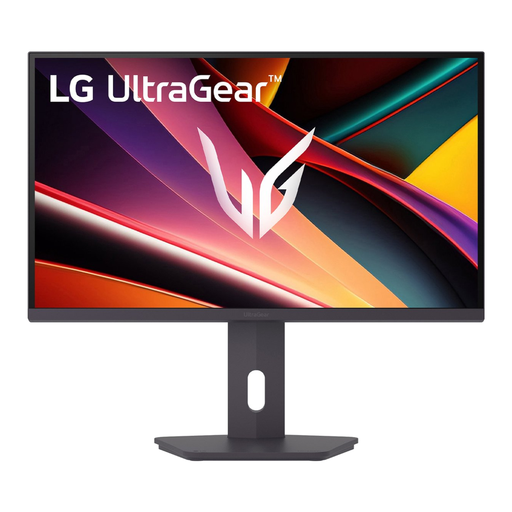 No image available
A QHD IPS option to compare if you want to combine design work and gaming on one screen.
2560 × 1440; IPS; 200 Hz; HDMI 2.0 and DisplayPort 1.4.
 No image available
An option to compare if you want to combine QHD design detail with a high stated refresh rate.
2560 × 1440; Fast IPS; 240 Hz, with an overclocking option up to 275 Hz; height-adjustable stand; HDMI 2.0 and DisplayPort 1.4.
Check your computer’s video output, the cable and the maximum resolution and refresh rate available for each input. For the G2725D at QHD, Dell lists a maximum of 180 Hz via DisplayPort and 144 Hz via HDMI; then select the available setting on your computer.
It depends in part on how long the same static elements remain visible. RTINGS.com notes that OLED carries a risk of burn-in from prolonged exposure to the same elements. ASUS lists a feature for the PG27UCDM that turns the screen black when no user is detected, but this does not eliminate every risk associated with use.
Compare the energy label for the exact models. The European Commission uses a scale from A to G for electronic displays; do not estimate a specific electricity cost without model-specific consumption figures and details of how long you use the monitor.
For a standard online purchase, you generally have a statutory cooling-off period of up to 14 days after delivery, subject to legal exceptions. You also have a statutory guarantee if a product does not meet what you could reasonably expect when used normally; according to ACM ConsuWijzer, the seller must offer a solution under the applicable terms. A manufacturer’s guarantee does not replace this statutory right.