What should you look for when choosing?
Start with text display, native resolution and screen size, then check that your PC and connections are suitable for the monitor you choose.
27-inch QHD
Choose this if: you want to read menus and map details on a standard screen and don’t need extra width.
Bear in mind: you’ll have less horizontal space than with ultrawide and fewer pixels than with 4K.
34-inch ultrawide
Choose this if: you want a wider view of your city or room for extra windows, and your desk has enough space.
Bear in mind: the screen takes up more physical space, and not every game displays its interface in the same way.
4K or OLED
Choose 4K if: you want more pixel detail and your PC can run the game at that resolution.
Bear in mind: 4K puts more strain on your graphics card than QHD. With OLED, prolonged static images can cause burn-in, as RTINGS explains.
| Factor |
What to look for |
Who this matters to |
| Readability |
Compare screen size, native resolution and text display at your usual viewing distance. |
If I want to read menus and map details clearly, text display comes first; around 36% of consumers share this priority. |
| Overview and space |
Measure your desk and check how the ultrawide format works in the game you play. |
If I want a wider view of the city or more horizontal space, screen width matters more; around 29% of consumers put this first. |
| Headphone connection |
Decide whether to connect your headphones to your PC or monitor, and check the audio and microphone connections separately. |
If I want to use my headphones through the monitor, I check what audio the output carries; around 21% of consumers put the audio connection first. |
| PC load and panel |
Match the resolution and refresh rate to your PC and the input you’re using; weigh up IPS and OLED for static menus. |
If I want to know whether my PC can handle the chosen resolution and find a suitable panel, those are my main questions; around 14% of consumers prioritise PC and panel compatibility. |
Joybuy monitors for this use case
The models below include 27-inch QHD monitors, a 34-inch ultrawide and a 27-inch 4K monitor for anyone looking for more detail and able to handle the higher graphics load.
 No image available
LG UltraGear 27G810A-B 27-inch 4K UHD 180Hz IPS gaming monitor
An option if you want 4K detail and your PC can run the game at that resolution.
27 inch; 3840 × 2160 pixels; 180 Hz; IPS; headphone output.
Joybuy
 No image available
Philips Evnia 27M2N3500NF 27-inch QHD IPS gaming monitor
A standard 27-inch QHD option for viewing menus and map details. Check that the display is comfortable to use at your viewing distance.
2560 × 1440 pixels; IPS; 144 Hz; the product description lists a headphone output.
Joybuy
 No image available
Philips Evnia 3000 34M2C3500L 34-inch ultrawide gaming monitor
A wide-screen option if you want more horizontal space and have a desk big enough for it; the interface display can vary from game to game.
3440 × 1440 pixels; Fast VA; up to 180 Hz via DisplayPort and 100 Hz via HDMI.
Joybuy
 No image available
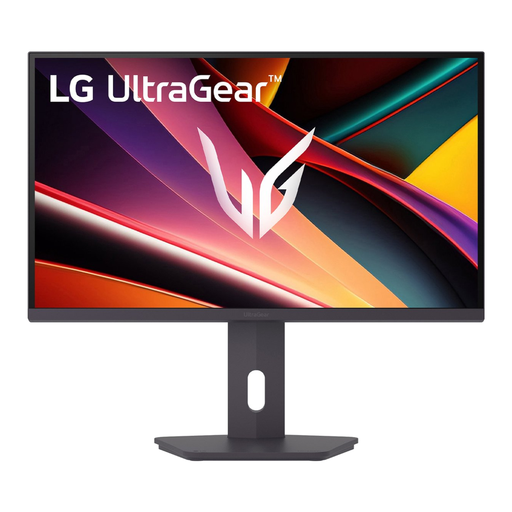
LG UltraGear 27G610A-B 27-inch QHD IPS gaming monitor
A 27-inch QHD option if you don’t need an ultrawide format and the resolution suits your PC and game.
2560 × 1440 pixels; IPS; 200 Hz.
Joybuy
 No image available
KTC H27E6S 27-inch QHD Fast IPS gaming monitor
A 27-inch QHD option if you’re looking for a standard screen size; match the refresh rate to your PC and the input you’re using.
2560 × 1440 pixels; Fast IPS; 240 Hz, overclockable to 275 Hz; height-adjustable stand.
Joybuy
Frequently asked questions
Do I really need 180 Hz or more for a city-building game?
No, that isn’t determined by the game genre. First choose a resolution and screen size that suit your interface and PC, then check the achievable frame rate and the video input you’re using. For example, ASUS lists different maximums for HDMI and DisplayPort on the VG27AQ3A.
Will my headset microphone work through the monitor’s headphone output?
Don’t assume that it will. LG describes the output on the 27GP850P-B as audio only. Check the manuals for your monitor and headset, and connect the microphone to a suitable PC or audio input.
What should I set up after connecting the monitor?
Use the native resolution and select your preferred video and audio outputs on your PC. Also check which refresh rates are available with the cable and input you’re actually using, as the maximum can vary between inputs.
What should I consider for prolonged use?
If the same menus or other fixed elements remain visible for long periods, factor in the risk of OLED burn-in when making your choice. Also compare text display at your usual viewing distance: resolution alone doesn’t determine how readable text is.
What are my rights when buying online in the Netherlands?
According to ACM ConsuWijzer, for a standard online purchase of goods you’ll generally have up to 14 days from delivery to change your mind; legal exceptions apply. Separately, the seller is responsible if a product doesn’t meet what you could reasonably expect from normal use. A commercial guarantee is separate from this.


