What should you look for when choosing?
First, work out whether you’ll be using a laptop or desktop: only a compatible laptop might be able to use USB-C instead of its power adapter. Then consider the type of display you want, the connections available and any panel care requirements.
| What to consider |
What should you check? |
Who is this important for? |
| Laptop power |
Check for USB-C DisplayPort Alt Mode and the monitor’s charging power, then compare it with your laptop’s power requirements while gaming. |
If I play on a laptop and want to keep one socket free, I need to know whether USB-C can provide enough power during a match. Around 36% of consumers make laptop power their top buying priority. |
| Smooth visuals |
Check the resolution and refresh rate for each input, and what your computer can output in the games you play. |
For ranked matches, I want to know the refresh rate my computer can actually achieve through the connection I’m using. Around 29% of consumers prioritise a usable refresh rate. |
| Map visibility |
Compare the screen size and resolution with the space available on your desk, and check that your games support the aspect ratio you want. |
If I want to see more of the map at once, the aspect ratio needs to work well in my games. Around 21% of consumers give extra screen space and clear detail top priority. |
| Power consumption and panel care |
Compare energy data for specific models under similar conditions; if you’re considering OLED, read the care instructions. |
For long gaming sessions, I want to consider power consumption and persistent on-screen elements. Around 14% of consumers put power consumption and panel care first. |
Gaming monitors on Joybuy
These gaming monitors offer options for QHD detail, a more compact Full HD screen, extra ultrawide space and high refresh rates; some models also list USB-C power delivery. Check whether the connections and charging power of each model suit your laptop or desktop.
 No image available
AOC Gaming Q27G42XNE 27-inch QHD gaming monitor
A good fit if you’re looking for a 27-inch QHD screen and a high refresh rate for ranked play.
Joybuy’s product information lists 2560 × 1440, 180 Hz, two HDMI 2.0 connections and DisplayPort 1.4.
View on Joybuy
 No image available
AOC G4 Q27G4ZR 27-inch QHD gaming monitor
A good fit if you want a 27-inch QHD playing area with an emphasis on a high refresh rate.
Joybuy’s product information lists 2560 × 1440, 240 Hz, HDMI 2.0 and DisplayPort 1.4.
View on Joybuy
 No image available
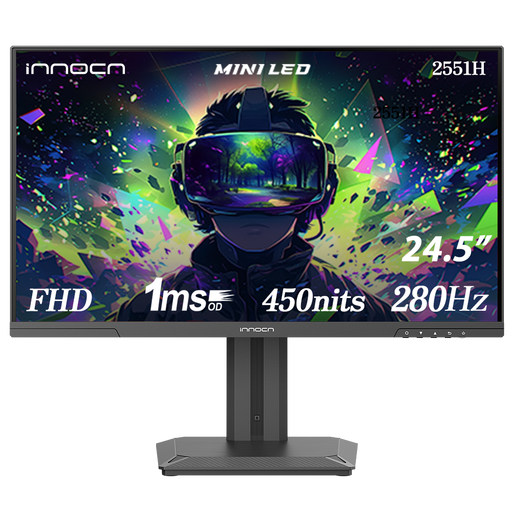
INNOCN 2551H 24.5-inch Mini LED gaming monitor
A good fit if you’re looking for a more compact Full HD screen with a high stated refresh rate.
Joybuy’s product information lists Full HD, an IPS panel, 280 Hz, and HDMI and DisplayPort connections.
View on Joybuy
 No image available
KTC M27P6 27-inch 4K Mini LED gaming monitor, white
A good fit if you want to choose between detailed 4K visuals and a higher refresh rate in Full HD.
Joybuy’s product information lists 4K at 160 Hz or Full HD at 320 Hz, plus USB-C Power Delivery up to 65 W. Check whether that’s enough to charge your laptop.
View on Joybuy
 No image available
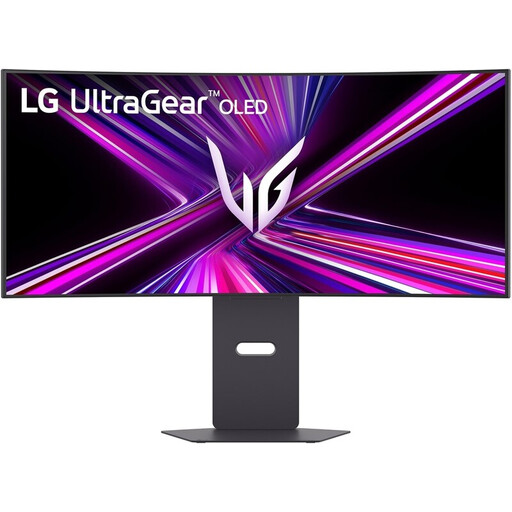
LG UltraGear 34GX900A-B 34-inch curved WQHD OLED gaming monitor
A good fit if you want extra horizontal screen space and play games that support the ultrawide view you’re after.
Joybuy’s product information lists 3440 × 1440, 21:9, 240 Hz and USB-C Power Delivery up to 65 W. LG specifies 240 Hz via DisplayPort 1.4 or HDMI 2.1 and recommends taking care with static elements that remain on an OLED screen for a long time.
View on Joybuy
Frequently asked questions
Does every USB-C gaming monitor save you a plug socket?
No, it depends on the monitor’s video support and charging power, as well as your laptop. ASUS specifies 7.5 W USB-C Power Delivery for the XG27ACS, while BenQ specifies 65 W for the EX271Q; check whether that’s enough while gaming. The monitor itself still needs to be connected to the mains.
What should I check if I want to use the maximum refresh rate?
Check the specification for the input you’ve chosen, then set your desired resolution and refresh rate on your computer. ASUS lists up to 180 Hz via USB-C or DisplayPort for the XG27ACS, and up to 144 Hz via HDMI.
What should I consider when choosing an ultrawide OLED monitor?
Check that your games support the aspect ratio you’ve chosen, and read the care instructions for the specific panel. LG warns that static elements left on an OLED screen for a long time can cause temporary marks, and describes screen cleaning for its monitors.
Can I connect extension leads together if I have limited sockets?
No, Brandweer Nederland advises against connecting extension leads together because of the risk of overloading and fire. Check the permitted load and use a socket that’s in good condition.
How do I compare monitor power consumption?
Compare the energy data and labels for the specific models, making sure the conditions are comparable. The European Commission states that electronic displays, including computer monitors, have an energy label on a scale from A to G; don’t use a stated maximum power figure to calculate the cost of a gaming session directly.


