
Vandaag of morgen in huis

Kwaliteit gegarandeerd

Welkomstaanbiedingen ontgrendelen: GRATIS bezorging | Tot 80% korting | Gratis 30 dagen JoyPlus-proefperiode
Download de app
Buying a gaming monitor might seem straightforward – until you start comparing refresh rates, resolution, panel types and connectivity. A 300Hz screen isn’t automatically right for every gamer. Likewise, a large curved monitor can be impractical on a small desk.
So don’t just focus on eye-catching marketing claims. Instead, check whether the specifications actually match your graphics card, the games you play and your daily use. Below, you’ll find the key points to consider, along with some popular choices for different user profiles.
A 240Hz or 300Hz gaming monitor can display motion more smoothly than a 60Hz or 144Hz model. However, your PC also needs to produce enough frames per second. If your game typically runs at around 90 fps, you won’t be making the most of a 240Hz screen.
So first, check your graphics card’s performance in the games you play. For competitive shooters, 200Hz, 240Hz or 300Hz can be worthwhile. For story-driven games, simulations and general use, a 144Hz or 165Hz gaming monitor will often be more than adequate.
Manufacturers often quote a response time of, say, 0.5ms or 1ms. Check whether this refers to MPRT or GtG. These measurement methods are not the same and don’t give a directly comparable indication of motion handling.
Also look at real-world specifications such as overdrive settings, Adaptive Sync and potential ghosting. A short stated response time doesn’t automatically mean every picture mode delivers the same performance.
A Full HD gaming monitor is clear and places less demand on your graphics card. On a 24-inch screen, 1920 × 1080 generally offers a usable pixel density. On a 32-inch screen, the same resolution can look less sharp when viewed up close.
A QHD gaming monitor with 2560 × 1440 gives you more detail and workspace, but also requires a more powerful graphics card. So decide on the combination of screen size, resolution and hardware first, and only then consider extra features like HDR.
The refresh rate tells you how many times per second the screen can display a new image. A monitor with a high refresh rate can show motion more smoothly, provided your computer delivers enough frames.
Pay attention to the connection you use. Different HDMI and DisplayPort versions affect which resolution and refresh rate are achievable. Where possible, use the cable supplied, or check the manual to confirm your cable supports the settings you want.
A 27-inch gaming monitor with Full HD can be a practical choice for high frame rates, but check whether you find the pixel structure comfortable at your viewing distance. A 27-inch QHD screen shows more detail and offers extra room for windows.
A 32-inch gaming monitor gives you a larger picture, but takes up more desk space. With a widescreen monitor, such as a 34-inch curved gaming monitor at 3440 × 1440 pixels, you get extra horizontal space for multitasking and games that support ultrawide. Check the width of your desk beforehand: a 34-inch screen is roughly 81 cm wide, without accounting for cables and viewing distance.
An IPS panel is generally known for wide viewing angles and consistent colour reproduction. VA panels, according to their product specifications, often offer higher static contrast, which can benefit dark scenes. The choice depends on your priorities: fast competitive games, films, colour-critical work, or a mix.
A monitor with Adaptive Sync matches the refresh rate to the frame rate of your graphics card. This can help reduce tearing and stuttering. Check whether FreeSync, FreeSync Premium or another variant is supported by your graphics card.
HDR10 support means the screen can process HDR signals. The actual HDR performance also depends on brightness, contrast, local dimming and the game or video you’re viewing. So treat HDR as an extra feature, not a guarantee of a specific picture quality.
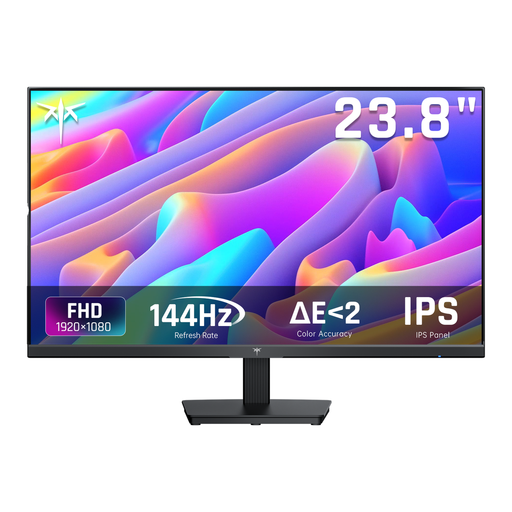
Why this fits the profile: This 24-inch screen combines Full HD, 144Hz, an IPS panel and Adaptive Sync for PC gaming and everyday use.
The 144Hz specification is more realistically matched to typical gaming PCs than extremely high refresh rates that may not be fully utilised.
24 inch, 1920 × 1080, IPS, 144Hz, HDMI and DisplayPort.
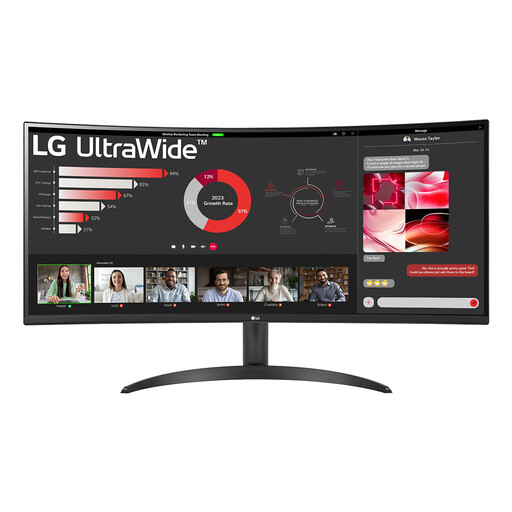
Why this fits the profile: For users who combine gaming with working from home, spreadsheets and multiple windows, the 21:9 format offers extra horizontal space.
The product specifications clearly state the actual size, the 3440 × 1440 resolution and the 100Hz refresh rate, so you can match your choice to your desk and hardware.
34 inch, 3440 × 1440, VA panel, 1800R curvature, PBP and DisplayPort 1.4.
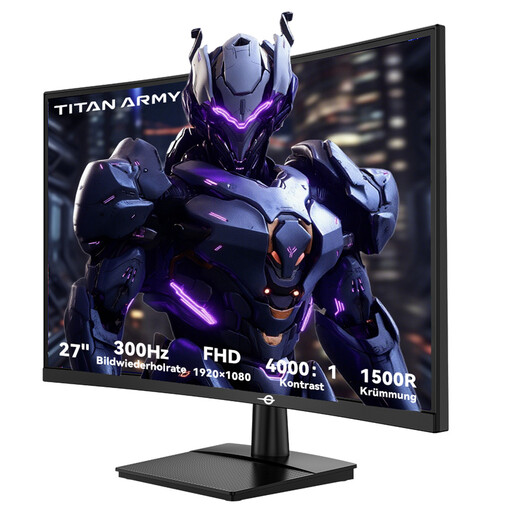
Why this fits the profile: This model is aimed at esports and fast-paced PC games where a high frame rate and short image cycles are important.
The combination of 300Hz, 1ms GTG and Adaptive Sync is clearly stated. Just check that your PC can actually deliver that frame rate.
27 inch, Full HD, 300Hz, 1ms GTG, FreeSync Compatible, two HDMI 2.0 and two DisplayPort 1.4 connections.
We’ve put together a full, up-to-date list of products that fully meet these strict selection criteria and comply with current European safety regulations.
For many gamers, yes. 144Hz can provide a smooth experience when your PC achieves the necessary frame rate. Players of competitive games with a powerful graphics card may opt for 200Hz, 240Hz or 300Hz, but the difference becomes most noticeable at high fps and with a suitable connection.
It can be, especially with an ultrawide screen. A 1500R or 1800R curvature can support the viewing experience on a wide screen. However, do check your desk depth, the screen width and whether text remains comfortable to read from your normal seated position.
Power consumption depends on screen size, brightness, resolution and HDR usage. Check the energy label and the stated consumption per 1,000 hours. A larger QHD or ultrawide screen may use more power than a compact Full HD model. Enable automatic sleep mode when you’re not using the monitor.
Check the maximum resolution and refresh rate of your console, as well as the available HDMI version. Not every 240Hz or 300Hz gaming monitor will make full use of that speed with a console. A model with Full HD, HDMI and Adaptive Sync can be more practical for console use than a screen primarily designed for PC frame rates.
