
Vandaag of morgen in huis

Kwaliteit gegarandeerd

Welkomstaanbiedingen ontgrendelen: GRATIS bezorging | Tot 80% korting | Gratis 30 dagen JoyPlus-proefperiode
Download de app
Buying a gaming monitor seems straightforward until you start comparing the specifications. A high refresh rate, low response time and HDR all sound appealing, but they only matter if they suit your games, graphics card and desk. A screen that looks impressive on paper might be too large, too dim or difficult to connect in practice.
Here are some common pitfalls to watch out for:
Resolution determines how many pixels the screen displays. Full HD (1920 x 1080) is a practical choice for an affordable gaming monitor, especially at 24 or 27 inches. At 27 inches, however, Full HD may look less sharp than WQHD (2560 x 1440).
A WQHD monitor gives you more space and detail without the high graphics demands of 4K. For a 27-inch screen, WQHD is a sensible choice for PC gaming, streaming and everyday use. A 4K monitor with 3840 x 2160 pixels shows more detail, but also puts greater demands on your graphics card.
An ultrawide gaming monitor with 3440 x 1440 pixels, such as a 34-inch model, gives you extra horizontal space for racing games, simulations, open-world games and multitasking. Before you buy, check that your desk can accommodate the width of the screen, with room left for speakers and cables.
Refresh rate is measured in hertz. A 60Hz monitor refreshes the image 60 times per second; a 175Hz gaming monitor or 240Hz gaming monitor can display motion more smoothly, provided your PC can deliver enough frames.
A high refresh rate monitor can be useful for competitive shooters. For story-driven games or work, 144Hz to 180Hz is often a practical choice. Also look out for variable synchronisation:
IPS panels are generally known for their wide viewing angles and consistent colours. VA panels often offer higher static contrast. An OLED monitor uses pixels that can switch off individually, allowing dark areas to appear very deep according to the product specifications. If you display static images for long periods, it’s a good idea to use the brand’s OLED protection features.
A QD-OLED gaming monitor combines OLED technology with quantum dots. For example, the MSI MAG 272QP QD-OLED X24 lists a WQHD resolution, 240Hz, 0,03 ms GtG, HDR True Black 400, FreeSync Premium and G-Sync Compatible. When checking HDR, look at both the certification and the stated brightness. Certification alone doesn’t describe the full viewing experience.
Connections are particularly important for laptops and home working. USB-C with Power Delivery can combine a video signal and charging, but check the maximum wattage. HDMI 2.1 is relevant for modern consoles and higher resolutions or refresh rates. An adjustable stand, VESA support and a USB hub can make more of a difference day to day than built-in lighting.
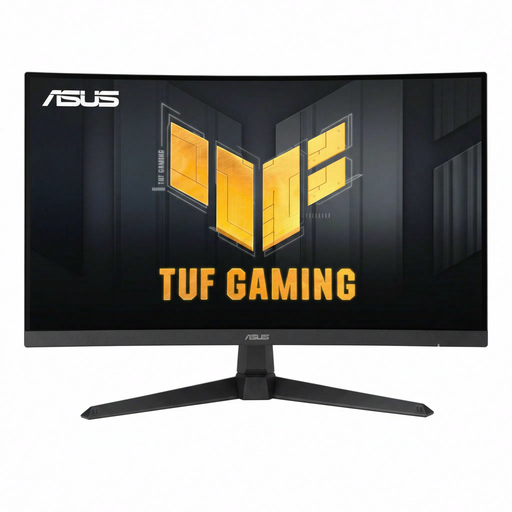
Why it suits this profile: This 27-inch Full HD model combines a curved VA panel with 180Hz. It’s a good fit for gamers who want a manageable screen size without stepping straight up to WQHD or OLED.
The product specifications list both 180Hz and FreeSync support. This lets you assess the relevant features together instead of relying on a standalone 1ms claim.
27 inches, Full HD, 180Hz, 1500R curvature and a tilt-adjustable stand. The monitor has HDMI, DisplayPort and VESA support.
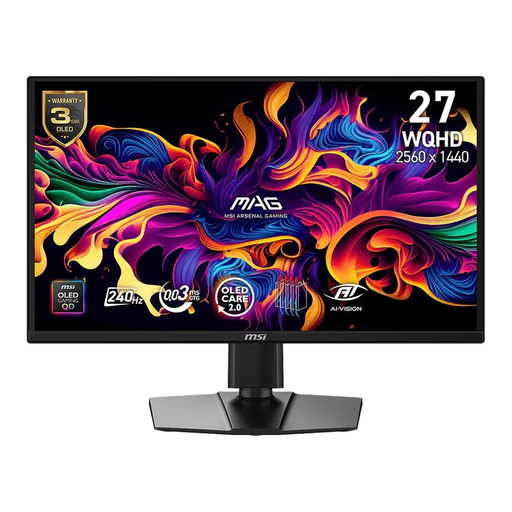
Why it suits this profile: This QD-OLED monitor is aimed at gamers looking for WQHD detail, a high refresh rate and OLED contrast in a 16:9 format.
The product specifications list the HDR certification, panel type and synchronisation technologies separately. OLED Care features are also listed for use with static elements.
WQHD, 240Hz, 0,03 ms GtG, QD-OLED, HDR True Black 400, FreeSync Premium and G-Sync Compatible.
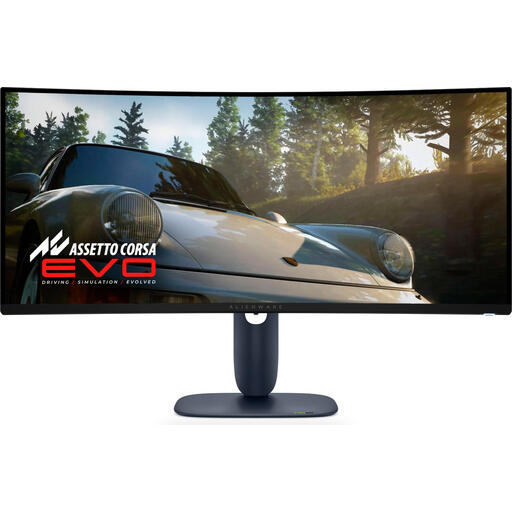
Why it suits this profile: For simulations, ultrawide games and multitasking, this 34-inch curved gaming monitor offers a wide 21:9 view with QD-OLED technology.
The resolution, aspect ratio and dimensions are clearly listed. Measure your desk beforehand and check that your graphics card can drive 3440 x 1440 at 240Hz.
34 inches, 3440 x 1440, 21:9, QD-OLED, 240Hz, 0,03 ms and support for HDMI, DisplayPort and USB.
We’ve put together a complete, up-to-date list of products that meet these strict selection criteria and current European safety regulations.
Not necessarily. A 240Hz gaming monitor is most relevant for esports and fast-paced shooters if your PC can also deliver frame rates of around 240fps. For single-player games, work and general use, 144Hz to 180Hz can offer a practical balance between smooth visuals and system demands.
An OLED monitor can be suitable for gaming and creative work, but it’s worth taking care with static elements such as taskbars and programme windows. Use the built-in pixel protection, avoid leaving the screen on the same still image for too long, and follow the manufacturer’s care instructions.
Power consumption varies depending on the panel type, brightness, resolution and HDR mode. Check the energy label and the stated figures for SDR and HDR. A large ultrawide screen may use more energy than a compact Full HD model. Switch the screen off when you’re not using your PC for an extended period.
