
Vandaag of morgen in huis

Kwaliteit gegarandeerd

Welkomstaanbiedingen ontgrendelen: GRATIS bezorging | Tot 80% korting | Gratis 30 dagen JoyPlus-proefperiode
Download de app
Buying a gaming monitor seems straightforward, until you realise that a high refresh rate, HDR and a low response time don’t always mean the same thing. A screen might, for example, advertise 240Hz, while your PC can barely deliver enough frames per second in your favourite games. And a larger screen isn’t automatically sharper or more practical.
For PC gamers, students, home workers and content creators, there are three main pitfalls to watch out for: marketing terms without context, a poor match between resolution and screen size, and ports that aren’t compatible with your computer. Read on to find out how to compare gaming monitors in practical terms.
A 144Hz gaming monitor, 240Hz gaming monitor or even a 320Hz model can display smooth motion, but the effect also depends on your graphics card, game settings and connection. A 240Hz monitor is most useful when your PC can also achieve a high frame rate in competitive games.
So check:
A response time of 1ms MPRT isn’t directly comparable with 1ms GTG. So don’t just look at the smallest number in the product title.
A 32-inch monitor with Full HD can be attractively priced for gaming, but pixels are more noticeable across a larger screen than on a 24-inch display. For a 27-inch monitor, QHD is often a practical middle ground: more detail than Full HD without the graphics demands of ultra-high resolutions.
As a rule of thumb:
HDR10 means that a screen can process this HDR signal. However, the final picture also depends on brightness, contrast, panel technology and the HDR support offered by the game or video. So, according to the manufacturer’s product specifications, HDR10 doesn’t automatically mean that every source will show visibly greater contrast or detail.
Also consider the panel type:
A Full HD monitor with 1920 × 1080 pixels puts less demand on your PC and works well with a 24-inch screen. A QHD monitor with 2560 × 1440 pixels gives you more workspace and sharper detail at 27 or 32 inches. Ultrawide screens, for example, come in resolutions such as 3440 × 1440 or 5120 × 1440. Check in advance that your graphics card can handle the resolution at your desired refresh rate.
Refresh rate is measured in hertz. 100Hz, 144Hz, 180Hz and 240Hz can display smoother motion than 60Hz, provided the source delivers enough frames. Adaptive Sync, such as FreeSync, matches the screen’s refresh rate to the graphics card’s frame output. This can help reduce tearing and stuttering, but check compatibility and the supported range.
Don’t just look at the number of ports; check their version and bandwidth too. HDMI 2.0, HDMI 2.1 and DisplayPort versions can support different combinations of resolution and refresh rate.
These features are also useful for extended use:
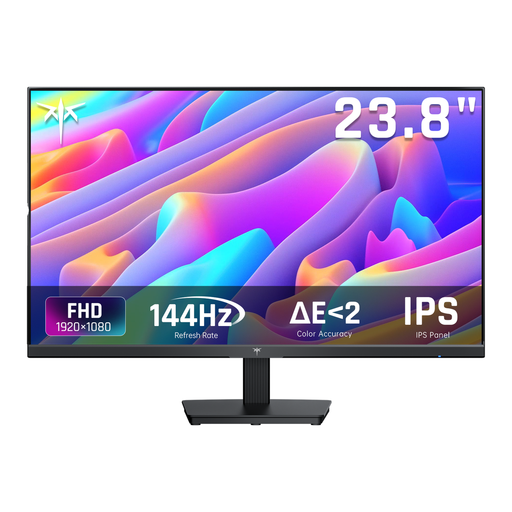
Why it suits this user: The 24-inch Full HD size fits a compact desk setup and demands less graphics processing power than QHD or ultrawide. The 144Hz specification is useful for fast-paced PC games.
The combination of a 24-inch screen and 1920 × 1080 resolution avoids choosing a large screen with a relatively low pixel density. Adaptive Sync and HDMI/DisplayPort are listed in the specifications.
IPS panel, 144Hz, 5ms MPRT, Adaptive Sync and tilt adjustment from -5° to 15°.
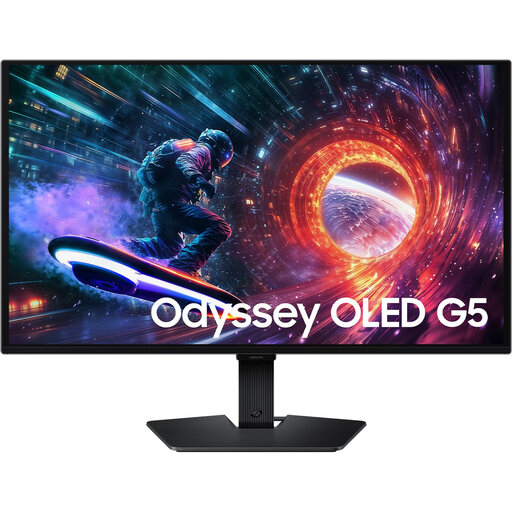
Why it suits this user: This 27-inch QHD OLED model combines 2560 × 1440 pixels with 180Hz. It’s a good fit for gamers and creators looking for a sharp picture and an OLED panel in a relatively compact size.
The product specifications list not just OLED and HDR10, but also QHD resolution, 180Hz, HDMI 2.0 and DisplayPort 1.2. Check that these ports support your preferred settings.
QHD OLED panel, 180Hz, HDR10, FreeSync, G-SYNC Compatible and VESA 100 × 100 mm.
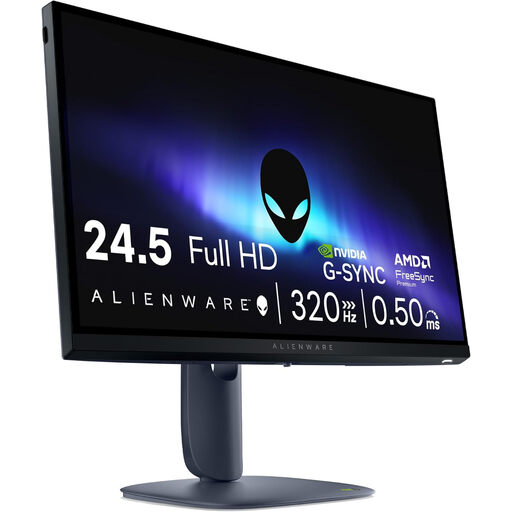
Why it suits this user: Competitive players who prioritise a high refresh rate can make targeted use of the stated 320Hz and Full HD resolution, provided their PC can deliver enough frames.
The high refresh rate is paired with HDMI 2.1, DisplayPort 1.4 and Adaptive Sync. This lets you match the connection to a powerful PC, but be sure to check the settings and cables.
320Hz, IPS panel, 0.5ms GTG according to the specifications, height adjustment, pivot and VESA 100 × 100 mm.
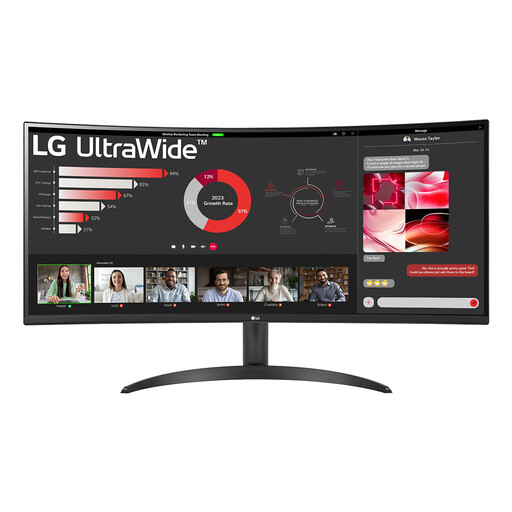
Why it suits this user: The 21:9 aspect ratio and 3440 × 1440 pixels give you room for side-by-side windows, spreadsheets, editing and expansive games, without needing two separate screens.
The wide screen is matched with a Wide Quad HD resolution. The monitor also features PBP, allowing two sources to be displayed side by side.
34 inches, VA panel, 100Hz, 1800R curvature, HDR10, FreeSync and DisplayPort 1.4.
We’ve put together a complete, up-to-date list of products that meet these strict selection criteria and the applicable European safety regulations.
For many players, 144Hz is a practical choice. The difference compared with 60Hz can be noticeable during fast movement, as long as your PC delivers enough frames. 240Hz or higher may be worth considering for competitive games, but the benefit depends on your frame rate, game and budget.
At 27 inches, QHD generally offers more pixels per inch than Full HD. This can be useful for text, detailed games and multitasking. Full HD puts less demand on your graphics card and may be a better fit if your main aim is to achieve high frame rates.
Power consumption varies depending on the panel, brightness, size and refresh rate. Check the stated typical power consumption and energy rating. A large ultrawide or OLED screen may use a different amount of power from a compact Full HD monitor. Turn on energy-saving features and switch the screen off when you’re not using it.
