
Vandaag of morgen in huis

Kwaliteit gegarandeerd

Welkomstaanbiedingen ontgrendelen: GRATIS bezorging | Tot 80% korting | Gratis 30 dagen JoyPlus-proefperiode
Download de app
Buying a gaming monitor seems straightforward until you compare refresh rate, response time, panel type, connections and resolution. A high number on the box does not tell the whole story. A 300Hz gaming monitor offers little extra value if your computer cannot achieve a high frame rate in your favourite game. And a screen with HDR10 is not automatically bright enough to deliver convincing HDR.
As a Joybuy Product Recommendation Officer, I filter product information according to practical specifications. This makes it easier to see which screen suits competitive gaming, casual use, working from home or entertainment.
240Hz and 300Hz sound appealing for fast-paced shooters, but the experience also depends on your graphics card, game settings and connection. Check that the HDMI or DisplayPort version supports the desired resolution and refresh rate. A screen may, for example, advertise 240Hz while requiring DisplayPort or a specific HDMI setting to achieve it.
A monitor with a 1ms response time may use different measurement methods, such as GTG or MPRT. These values are not directly comparable. MPRT is often linked to motion clarity and may depend on a strobing or backlight mode. Also look at ghosting, overdrive settings and Adaptive Sync. A low quoted figure is therefore a technical specification, not a guarantee of the same image quality in every game.
HDR10 indicates that the screen supports this HDR format. However, the final display quality also depends on brightness, contrast, local dimming and panel type. According to the product information, the LG 34WR50QK-B, Lenovo LOQ 27-10 and AOC Q27G42XNE are among the models that support HDR10. Also check the quoted brightness and contrast. A VA panel, for example, often has higher static contrast than IPS, while IPS generally offers wide viewing angles.
A Full HD monitor with 1920 × 1080 pixels places less demand on your graphics card and is well suited to competitive games. On a 24-inch screen, the pixel density is usually comfortable. A 27-inch monitor can still work well with Full HD, but text and fine details appear less sharp than on QHD.
A QHD monitor with 2560 × 1440 pixels offers more detail and workspace. The AOC Q27G42XNE combines 27 inches, QHD and 180Hz. This is appealing if you want to combine gaming and productivity, although you will need more graphics processing power.
An ultrawide monitor often uses a 21:9 aspect ratio. The LG 34WR50QK-B has a 34-inch screen, 3440 × 1440 pixels and a fixed 1800R curvature. This provides room for two windows side by side and is practical for spreadsheets, video editing and wide game views. Check beforehand that your desk can accommodate at least 81cm of screen width, plus room for the stand.
Do not choose based solely on whether a monitor uses IPS or VA. Consider the complete combination of contrast, brightness, response time, refresh rate and connections.
A FreeSync monitor can match its refresh rate to the frame rate of a compatible AMD graphics card. This can help reduce tearing and juddering, but check the supported frequency range and connection port. G-Sync support is not guaranteed. The LG 34WR50QK-B, for example, is not officially G-Sync Compatible; enabling it is done at your own risk.
Also consider the stand. Height adjustment, tilting and VESA compatibility make a greater difference to everyday use than decorative lighting. For working from home, a matte finish, reading mode, flicker-free technology and sufficient connections are practical features worth checking. Product descriptions from brands may mention eye-comfort features; these are usage features, not medical claims.
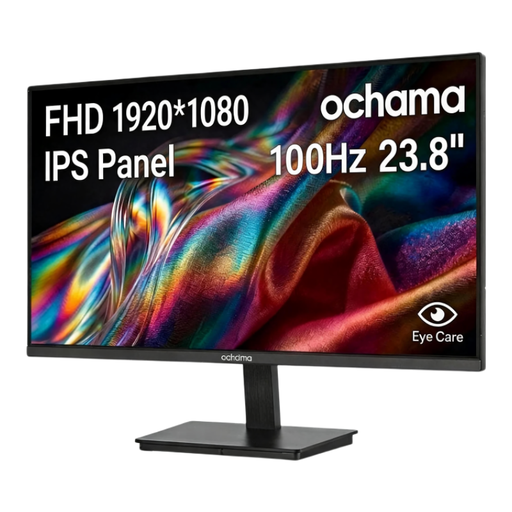
Why it suits this profile: The combination of 23.8 inches, 1080p and 100Hz is suitable for everyday computer use, streaming and casual gaming without immediately moving to a high-resolution screen.
The specifications clearly show that this is a 100Hz Full HD screen, rather than a model marketed solely on the basis of a high response time.
23.8 inches, 1920 × 1080 pixels, 100Hz and a slim three-sided bezel.
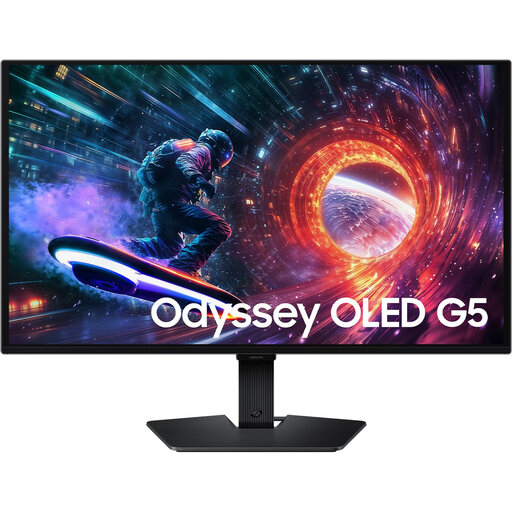
Why it suits this profile: This model is aimed at gamers looking for QHD resolution, OLED technology and a high refresh rate in a single 27-inch screen.
Alongside 180Hz, the product information lists QHD, HDMI 2.0 and DisplayPort 1.2, allowing you to check the connections you need.
2560 × 1440 pixels, OLED panel, 180Hz and support for FreeSync and G-Sync Compatible according to the product description.
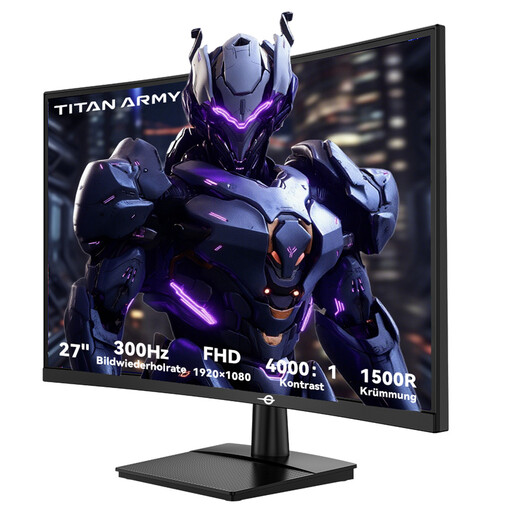
Why it suits this profile: For competitive players looking for a 300Hz gaming monitor and a 27-inch curved gaming monitor with Full HD.
The manufacturer lists 300Hz, 1ms GTG, FreeSync Compatible and HDR10 separately. This allows you to compare these features individually rather than treating them as a single performance claim.
27 inches, VA panel, 1920 × 1080, 300Hz, 1ms GTG and VESA 100 × 100mm.
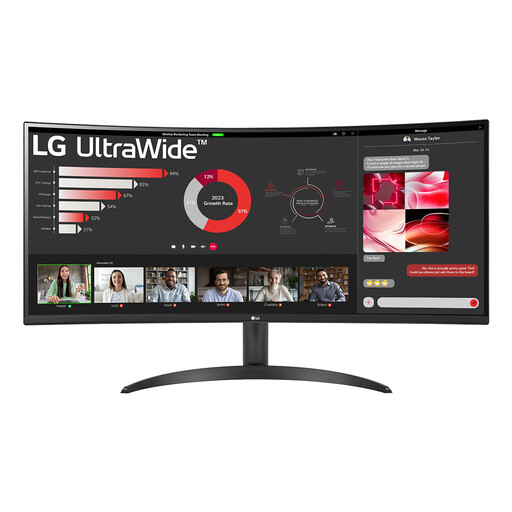
Why it suits this profile: The 21:9 format and PBP function are practical for multiple windows, spreadsheets and entertainment from a single desk.
The specifications list 100Hz, 5ms, VA, 300 cd/m², DisplayPort 1.4 and two HDMI 2.0 ports. This lets you weigh workspace and display performance in concrete terms.
34 inches, 3440 × 1440 pixels, 21:9, 100Hz, HDR10 and Picture-by-Picture.
We have put together a complete, up-to-date list of products that fully meet these strict selection criteria and the applicable European safety regulations.
Not always. A 240Hz gaming monitor or 300Hz gaming monitor delivers its best results when your computer can produce a similar number of frames per second in the game you have chosen. For single-player games, films and office work, 100Hz to 180Hz may already be suitable.
QHD displays more detail, particularly on screens measuring 27 inches or larger. Full HD places less demand on your graphics card and can therefore make a higher frame rate possible. Consider your graphics card, viewing distance and the games you play before deciding.
Power consumption varies by model, brightness and HDR mode. Check the energy label and the quoted SDR and HDR values. A screen with higher brightness or a larger size may use more power. Switch the screen off when you are not using it, and use sleep mode during longer breaks.
