
Vandaag of morgen in huis

Kwaliteit gegarandeerd

Welkomstaanbiedingen ontgrendelen: GRATIS bezorging | Tot 80% korting | Gratis 30 dagen JoyPlus-proefperiode
Download de app
Buying a gaming monitor seems simple until you have to choose between Full HD, QHD, IPS, VA, OLED, 144Hz and all sorts of synchronisation technologies. Marketing terms don’t always tell you what you actually need, either. A high refresh rate, for example, is of little use if your graphics card can’t deliver enough frames per second. And a large screen can be awkward on a small desk.
With this guide, you can compare gaming monitors based on verifiable features. That way, you can avoid paying for functions that don’t suit your PC, workspace or gaming style.
A 144Hz gaming monitor can refresh the image up to 144 times per second. This can make movement look smoother than at 60Hz, but the result also depends on your PC’s performance. For competitive games, 180Hz, 240Hz or 320Hz may be worth considering. For office work, films and general gaming, 100Hz to 144Hz is often a practical middle ground.
Check the connections, too. Make sure HDMI or DisplayPort supports your chosen resolution and refresh rate. A monitor with HDMI and DisplayPort gives you more flexibility when connecting a PC, laptop or console.
A response time of, for example, 0.3ms, 0.5ms or 1ms sounds appealing, but manufacturers may use different measurement methods, such as GtG or MPRT. So don’t compare the number alone. Consider the panel type, refresh rate and Adaptive Sync support as well.
A 34-inch ultrawide monitor or 49-inch superwide monitor takes up a lot of desk space. Measure the available width and depth, and check your desk’s weight capacity before you buy. Also check whether the stand is adjustable and whether a VESA mount will fit. A large screen isn’t automatically more practical if you’re sitting too close to it.
A Full HD monitor with 1920 × 1080 pixels puts less strain on your graphics card and works well on 24- or 25-inch screens. A QHD monitor with 2560 × 1440 pixels displays more detail and is a sensible choice for a 27-inch screen. Ultrawide monitors often have a resolution of 3440 × 1440 pixels, while superwide models may use 5120 × 1440 pixels.
Higher resolutions do put more strain on your graphics card, though. Make sure your PC can run the resolution you want at your preferred refresh rate.
Colour coverage, brightness and factory calibration matter more for photo and video work than the panel’s marketing name alone. Some models, for example, list sRGB or DCI-P3 coverage in their product information. Always check which standard and measurement method are being used.
A monitor with Adaptive Sync can match its refresh rate to the frame output of your graphics card. According to the product information, this is designed to reduce tearing and stuttering. Check that the feature is compatible with your graphics card and find out which connection it works through.
For a versatile setup, DisplayPort and HDMI are useful. Also look out for USB-C, a USB hub, built-in speakers, a headphone output and VESA support. These extras may matter more than a small difference in response time.
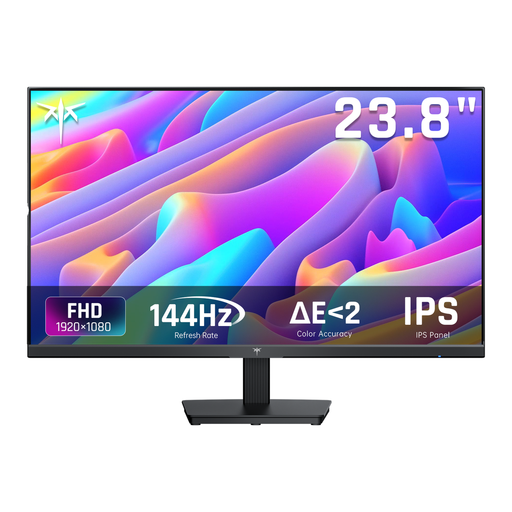
Why it suits this profile: This 24-inch IPS screen combines Full HD with 144Hz, making it a straightforward choice for a first PC gaming setup or a student desk.
The specifications list 144Hz, IPS, Adaptive Sync, HDMI and DisplayPort. So you don’t have to jump straight to a large or ultrawide screen.
24 inches, 1920 × 1080, IPS panel, 144Hz, HDMI, DisplayPort and tilt-adjustable stand.
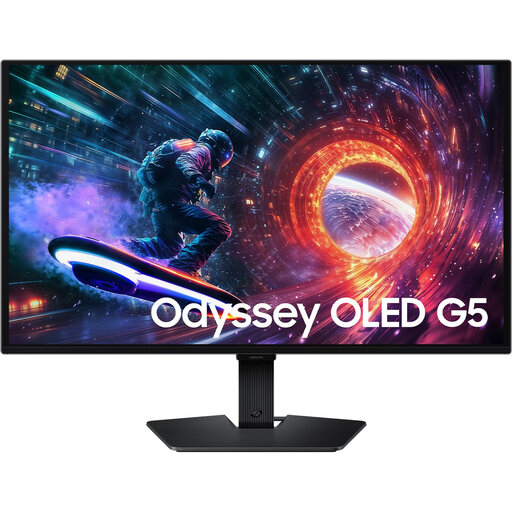
Why it suits this profile: This 27-inch QHD OLED model is aimed at people who value detail, contrast and a high refresh rate for gaming and entertainment.
You get more than just a high Hz figure: there’s also QHD resolution, an OLED panel, HDMI 2.0, DisplayPort 1.2 and synchronisation, according to the product information.
2560 × 1440, 180Hz, OLED, HDR10, Adaptive Sync and VESA 100 × 100 mm.
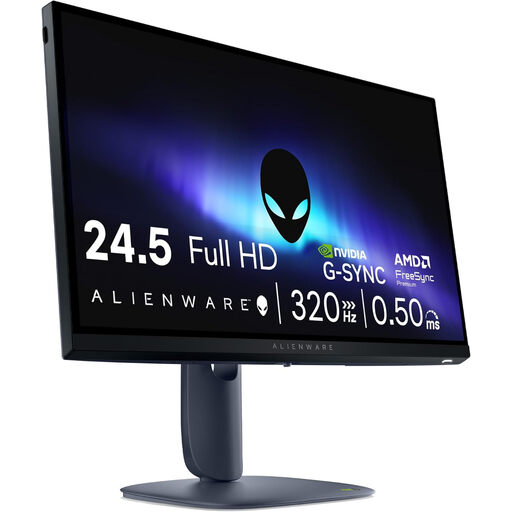
Why it suits this profile: For esports fans who mainly play fast-paced Full HD games, this compact screen offers a stated refresh rate of 320Hz.
It’s a focused choice: Full HD on a 24.5-inch screen puts less strain on your graphics card than QHD or ultrawide. Just make sure your PC can actually achieve high frame rates.
320Hz, IPS panel, HDMI 2.1, DisplayPort 1.4, G-SYNC Compatible and FreeSync Premium, according to the product specifications.
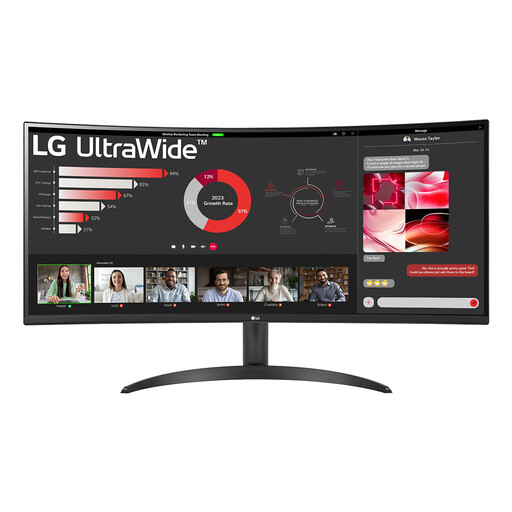
Why it suits this profile: The 21:9 aspect ratio gives you room to place windows side by side, making this screen useful for office work, spreadsheets and downtime.
The 100Hz refresh rate isn’t just geared towards competitive gaming. Picture-by-Picture, HDR10 and flexible positioning support a range of uses.
34 inches, 3440 × 1440, 21:9, 100Hz, VA panel, two HDMI ports and DisplayPort.
We’ve put together a complete, up-to-date list of products that meet these strict selection criteria and the applicable European safety regulations.
An eye-friendly monitor doesn’t make a good workspace any less important. Position the screen directly in front of you, about an arm’s length away, and adjust the top edge to around eye level. Set the brightness to suit the room and, if you like, switch on the built-in low-blue-light or reading mode. Take regular breaks if you’re looking at the screen for long periods; these features aren’t a substitute for resting your eyes.
For PC gaming, DisplayPort is often a practical choice for high resolutions and refresh rates. Ideally, use the supplied cable or one that meets the required standard. Once connected, check in Windows and your graphics card’s driver software that the refresh rate you want is actually enabled.
Yes. 144Hz can make movement and scrolling look smoother than 60Hz. It isn’t essential for office work, but you may find it more comfortable. The difference it makes depends on your preferences, PC and budget.
Not necessarily. QHD offers more detail, particularly on screens of 27 inches or larger, but it puts more strain on your graphics card. Full HD can be a practical choice for esports, older PCs or a compact screen. Match the resolution to your hardware and the games you play.
Lifespan depends on usage, ventilation, power supply and panel type. Place the screen on a stable surface, keep the ventilation openings clear and clean it with a soft, dry cloth. For OLED models, it’s a good idea to follow the manufacturer’s care instructions, especially if the screen displays static images for long periods.
