
Vandaag of morgen in huis

Kwaliteit gegarandeerd

Welkomstaanbiedingen ontgrendelen: GRATIS bezorging | Tot 80% korting | Gratis 30 dagen JoyPlus-proefperiode
Download de app
Buying a gaming monitor seems straightforward until you have to choose between 144Hz, 240Hz, QHD, OLED, curved screens and Adaptive Sync. Manufacturers often highlight one impressive figure, even though other features can be just as important. A high refresh rate, for example, is of little use if your PC can’t deliver that frame rate.
So, look out for these three common pitfalls:
A Full HD gaming monitor with 1920 × 1080 pixels puts less demand on your graphics card than a QHD screen with 2560 × 1440 pixels. Full HD is a good fit for esports, entry-level PCs and monitors with a high refresh rate. However, Full HD can look less sharp at 27 inches than it does at 24 or 25 inches.
A QHD gaming monitor offers more detail and screen space. That’s useful for modern games, photo and video editing, and multitasking. Before you buy, check whether your graphics card can run QHD at your desired refresh rate.
An ultrawide monitor, such as a 21:9 model, gives you extra horizontal space for simulation games, productivity and multiple windows. Just check that your desk is deep and wide enough.
Refresh rate is measured in hertz:
Response time indicates how quickly pixels can change colour. Look for the MPRT or GTG label. A lower figure on the product page doesn’t automatically guarantee less motion blur at every setting.
An IPS gaming monitor is generally known for its wide viewing angles and consistent colour reproduction. A VA panel often places more emphasis on contrast. An OLED gaming monitor uses self-lit pixels to produce deep blacks, but check the warranty and usage information regarding prolonged display of static images.
With Adaptive Sync, AMD FreeSync or G-SYNC Compatible, the monitor can better match its refresh rate to the graphics card’s output. This can help reduce tearing and stuttering, but support depends on the monitor, graphics card, cable and settings.
Check the connections too. HDMI 2.0, HDMI 2.1 and DisplayPort don’t all support the same resolutions and refresh rates. If you want a monitor for both PC and console, check which port supports the desired display mode for each device. If you’re connecting several devices, you could also choose a monitor with HDMI.
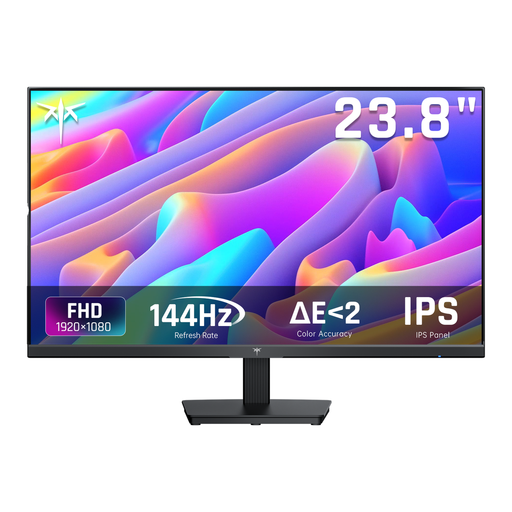
Why it suits this profile: This 24-inch Full HD screen combines 144Hz with an IPS panel, making it suitable for gaming and everyday office work.
The product information lists both 144Hz and Adaptive Sync, so you don’t have to judge it on response time alone.
24 inches, 1920 × 1080, 144Hz, IPS, HDMI and DisplayPort.
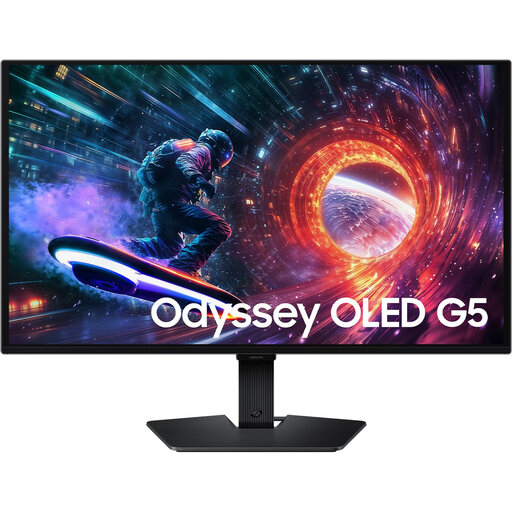
Why it suits this profile: The combination of OLED, QHD and 180Hz is a good fit for gamers and creators who value contrast and detail.
The resolution, panel technology, HDR10 support and sync technologies are listed separately. Before buying, check the guidance on prolonged display of static images.
27 inches, 2560 × 1440, OLED, 180Hz, HDR10 and Adaptive Sync.
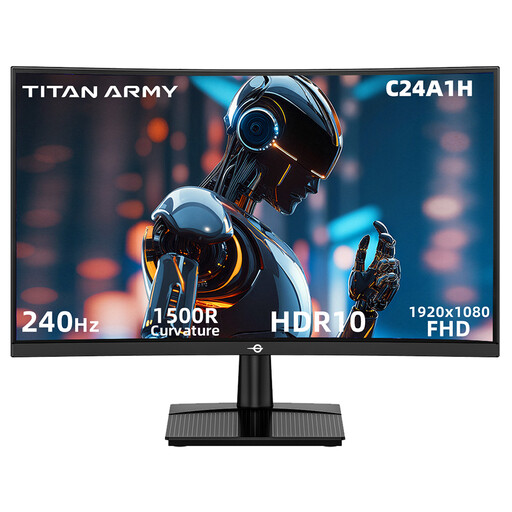
Why it suits this profile: This curved gaming monitor is aimed at players looking for a high refresh rate and a compact 23.6-inch screen.
The specifications list the connections that support 240Hz at Full HD. HDR10 is included, but the final HDR picture also depends on the source material and settings.
240Hz, VA panel, 1500R curvature, FreeSync Compatible, HDMI 2.0 and DisplayPort 1.2.
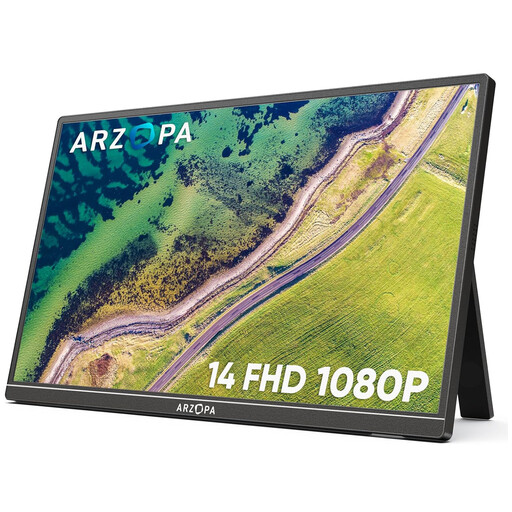
Why it suits this profile: A portable monitor is handy for working from home, studying, travelling or adding a second screen alongside a laptop.
The product details list its weight, built-in stand and connections. At 60Hz, this model is designed primarily as a flexible second screen, not an esports monitor.
14 inches, Full HD, IPS, around 600 grams, built-in stand, two USB-C ports and Mini HDMI.
We’ve put together a complete, up-to-date list of products that meet these strict selection criteria and current European safety regulations.
For many PC gamers, 144Hz is a practical balance between smooth movement, price and the hardware required. 240Hz or higher may be worth considering for competitive shooters, but only if your PC can consistently deliver the frame rate needed.
Yes, as long as the connections and supported display modes are compatible. Check the HDMI version, maximum resolution and refresh rate of both the console and the monitor. A monitor for PC and console can be useful if it has multiple HDMI ports or a combination of HDMI and DisplayPort.
Power consumption depends on the screen size, brightness, HDR use, panel type and settings. Check the energy label and product specifications. A larger OLED or ultrawide screen may use a different amount of power from a compact Full HD gaming monitor. Turn the screen off completely if you’re not going to use it for a while.
