
Vandaag of morgen in huis

Kwaliteit gegarandeerd

Welkomstaanbiedingen ontgrendelen: GRATIS bezorging | Tot 80% korting | Gratis 30 dagen JoyPlus-proefperiode
Download de app
Buying a gaming monitor seems straightforward until you start comparing the specifications. 144Hz, 180Hz, 240Hz, HDR10, FreeSync, G-SYNC and different panel types are often listed side by side without clear explanations. As a result, buyers sometimes pay for features their PC cannot take advantage of, or choose a screen that does not suit their games or desk.
The main pitfalls are:
Refresh rate is measured in hertz. A 144Hz gaming monitor displays up to 144 refreshes per second; with a 180Hz gaming monitor, that increases to 180. 240Hz, 300Hz and 320Hz models are mainly designed for fast-paced competitive games.
You should also check:
A 320Hz screen may be worthwhile for esports, for example, but 100Hz to 180Hz is often sufficient for story-driven games, video streaming and office work. Your graphics card, processor and game settings ultimately determine how much benefit you will notice from the higher speed.
A Full HD gaming monitor generally uses 1920 × 1080 pixels. This requires relatively little graphics processing power and works well at 24 or 24.5 inches. A QHD gaming monitor uses 2560 × 1440 pixels, providing noticeably more workspace and detail. QHD is a popular combination for a 27-inch gaming monitor.
A 4K gaming monitor offers 3840 × 2160 pixels, but places greater demands on your graphics card. Check in advance that your hardware, cable and games console support this resolution at the desired refresh rate.
If you use several windows side by side, an ultrawide monitor could be worth considering. A 34-inch model with 3440 × 1440 pixels provides extra horizontal space for productivity and games that support 21:9.
An IPS gaming monitor is generally known for its wide viewing angles and consistent colour reproduction. A VA gaming monitor usually places more emphasis on contrast. An OLED gaming monitor uses pixels that emit their own light, but with this type of screen, make sure you check the warranty terms, brightness and recommended usage settings.
Adaptive synchronisation matches the screen’s refresh rate to the graphics card’s frame rate. A monitor with FreeSync is designed for AMD hardware and compatible systems. A monitor with G-SYNC or G-SYNC Compatible is aimed at Nvidia systems. Always check the official compatibility and available connections; a statement that a screen may work is not the same as official certification.
HDR10 also deserves a closer look. HDR support does not automatically mean that every screen delivers the same brightness or contrast. Check the stated brightness in nits and whether there is a DisplayHDR certification. According to its own product information, for example, the AOC AGON PRO AG346UCD supports HDR True Black 400; the actual image quality also depends on the source material and settings.
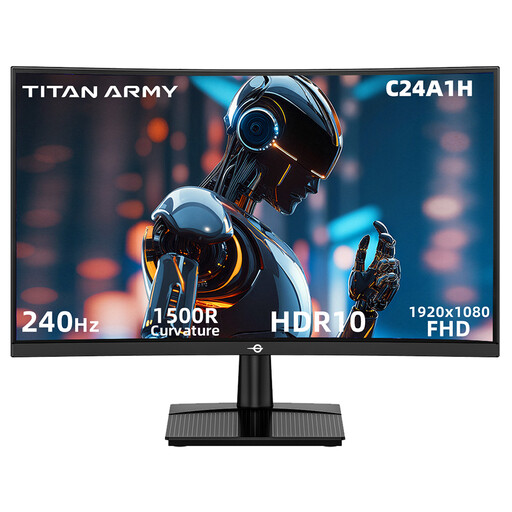
Why it suits this profile: This 23.6-inch Full HD model combines a 240Hz refresh rate with a curved VA panel. It is therefore suitable for gamers looking for high speed without moving straight to QHD or 4K.
The specifications separately list 240Hz, 1ms MPRT, Full HD and HDR10. However, check that your PC can deliver 240 frames per second and use the correct connection.
240Hz, 1920 × 1080 resolution, VA panel, 1500R curvature and FreeSync Compatible.
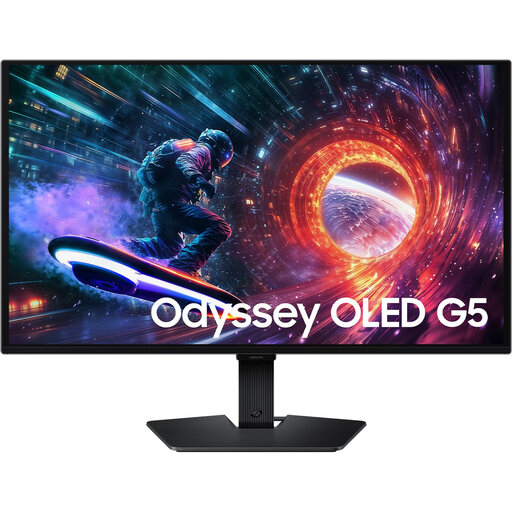
Why it suits this profile: This 27-inch QHD OLED screen is aimed at gamers and creators who want to combine high resolution and OLED technology with a compact desktop setup.
The combination of QHD and 180Hz is clearly specified. Before buying, check the OLED usage guidelines and connections: HDMI 2.0 and DisplayPort 1.2.
2560 × 1440 pixels, OLED panel, 180Hz, HDR10, FreeSync and G-SYNC Compatible.
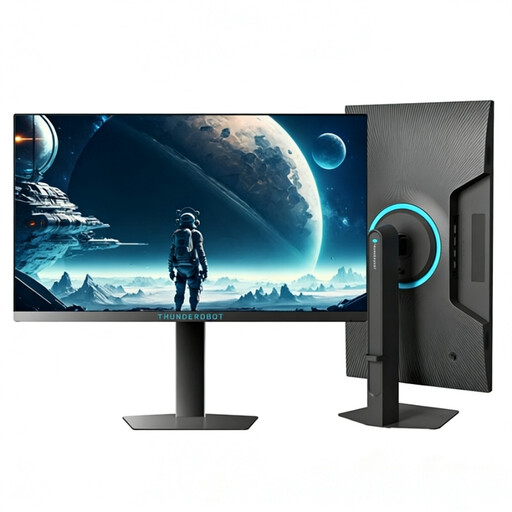
Why it suits this profile: Esports enthusiasts playing at very high frame rates on a PC can make full use of the 320Hz specification. The adjustable, swivel stand is also well suited to a permanent gaming setup.
The target audience can choose the high speed for a specific purpose rather than simply focusing on a large screen or marketing term. The maximum resolution remains Full HD.
24.5 inches, 1920 × 1080, 320Hz, 450 nits brightness and a height-adjustable, swivel stand.
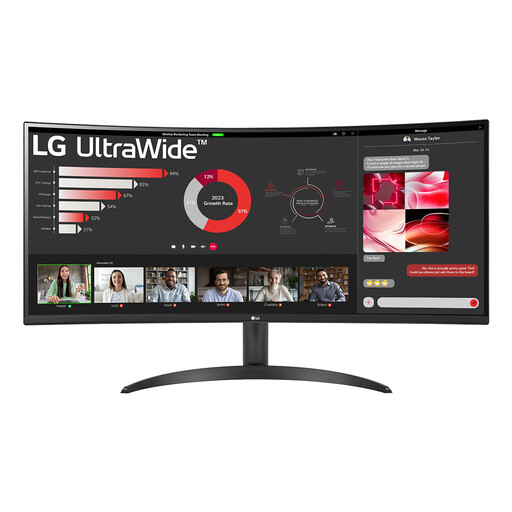
Why it suits this profile: This curved 21:9 screen provides space for work windows, content creation and games without requiring two separate monitors.
The 3440 × 1440 resolution and 100Hz refresh rate are clearly stated. Check beforehand that your desk can accommodate the 81cm screen width and the required viewing distance.
34 inches, WQHD, 100Hz, VA panel, 1800R curvature, HDR10 and Picture-by-Picture.
We have put together a complete, up-to-date list of products that fully meet these strict selection criteria and the applicable European safety regulations.
Use this short checklist:
For many gamers, a 144Hz gaming monitor is a practical choice. Images move noticeably more smoothly than at 60Hz, while the hardware requirements remain lower than with 240Hz or 320Hz. If you mainly play competitive shooters and have a powerful PC, you may want to consider a higher refresh rate.
QHD displays more pixels and therefore more detail at 27 inches. Full HD may be more appealing if you want to achieve a higher frame rate with a less powerful graphics card. The right choice depends on your hardware, games and viewing distance.
This varies depending on the screen size, panel type, brightness and HDR setting. Check the stated typical and maximum power consumption. Switch the screen off when you are not using the PC for an extended period, and use the power-saving mode where available.
