
Vandaag of morgen in huis

Kwaliteit gegarandeerd

Welkomstaanbiedingen ontgrendelen: GRATIS bezorging | Tot 80% korting | Gratis 30 dagen JoyPlus-proefperiode
Download de app
Buying a gaming monitor seems simple until you start comparing the specifications. You’ll see 100 Hz, 144 Hz, 240 Hz and even 320 Hz, while terms such as IPS, VA, Adaptive-Sync and 1 ms don’t always mean the same thing. For PC gaming, it’s especially important to consider the combination of screen size, graphics card, connections and how you plan to use your monitor.
Watch out for these three common pitfalls:
Refresh rate is measured in hertz. A 100 Hz monitor refreshes the image more often than a 60 Hz model. For casual gaming and everyday use, 100 or 120 Hz can already make the picture noticeably smoother. Competitive players may want to consider a 240 Hz gaming monitor or 320 Hz gaming monitor, provided their computer can handle it.
A high-refresh-rate monitor is particularly useful for fast-paced PC games. Also check:
Always consider a quoted response time of 0.5 or 1 ms alongside its measurement method. A low figure doesn’t automatically mean every transition will be equally fast at every setting.
Full HD, or 1920 × 1080 pixels, remains a practical choice for a 24-inch monitor. It’s less demanding on your graphics card than Quad HD, making it a good match for high refresh rates. A 24-inch monitor is also a good fit for a smaller desk.
A 27-inch monitor is still perfectly usable with Full HD, but its pixel density is lower than that of a 24-inch model. If you sit closer to the screen, you may notice individual pixels more easily. A 27-inch screen can be more comfortable for work, films and expansive game worlds, while 24 or 24.5 inches is often a sensible choice for competitive gaming.
An IPS monitor is generally known for its wide viewing angles and consistent colour reproduction. That’s useful if you also work, look at photos or watch the screen with other people.
A VA monitor often offers higher contrast on paper, which can make dark scenes look different from those on an IPS screen. But contrast isn’t the only thing to consider: response time, refresh rate and connections are just as important.
With Adaptive-Sync, the monitor can match its display output to your graphics card. This can reduce tearing when the frame rate fluctuates. Check that the monitor is compatible with your graphics card, and whether you need to enable the feature in the menu and driver.
The recommendations below are based on specifications that can be checked against the product information. Features such as HDR, colour coverage and synchronisation are listed as stated by the manufacturer or product page; the results in practice may depend on settings, cables and your PC configuration.
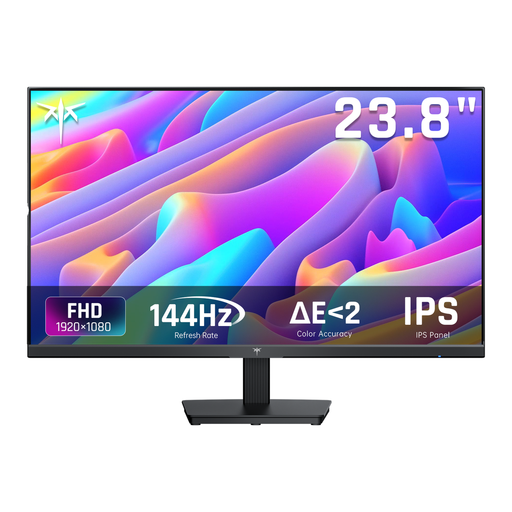
Why it suits this profile: The combination of a 24-inch screen, Full HD and 144 Hz is a good match for anyone looking for a fast monitor for PC gaming without jumping straight to the highest refresh rate.
The specifications list 144 Hz, 5 ms MPRT, Adaptive-Sync, HDMI and DisplayPort. This makes the key connection and synchronisation details easier to check.
A 24-inch Full HD IPS panel, 144 Hz and a tilting stand. The product information also lists HDMI, DisplayPort and a headphone connection.
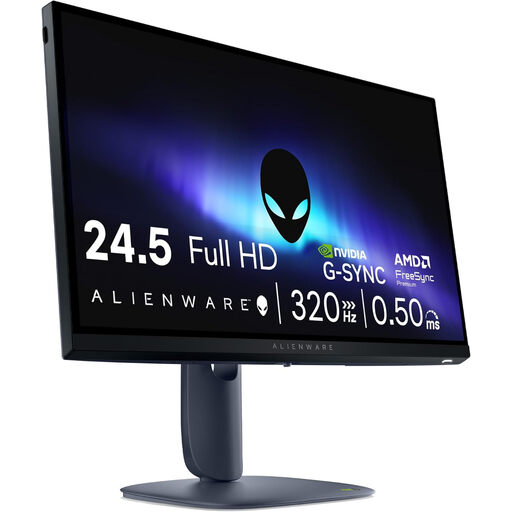
Why it suits this profile: This model is designed for users looking for a combination of high speed, adjustability and modern synchronisation options in one monitor.
As well as 320 Hz, the product information lists HDMI 2.1, DisplayPort 1.4, G-SYNC Compatible and FreeSync Premium. Check which connection your PC uses before you buy.
A Fast IPS panel, Full HD resolution, 320 Hz and a quoted response time of 0.5 ms GTG. The stand is height-adjustable, swivels and tilts.
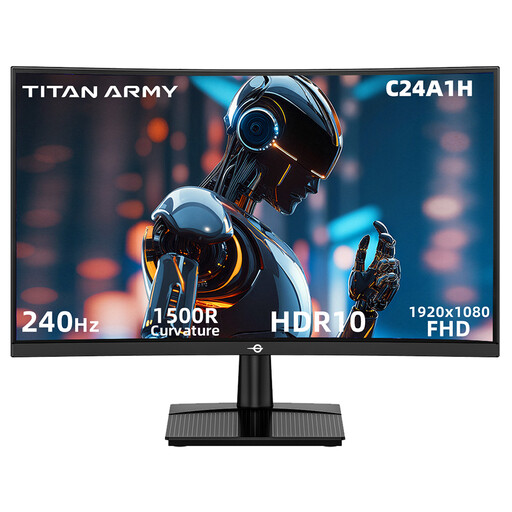
Why it suits this profile: This 23.6-inch curved gaming monitor is aimed at players who want to combine a compact setup, high speed and a curved screen.
The product page lists the 240 Hz refresh rate, 1 ms MPRT, HDMI 2.0 and DisplayPort 1.2 separately. This lets you check your chosen connection and settings in advance.
A VA panel, 1500R curvature, Full HD and FreeSync Compatible. The monitor also has a 100 × 100 mm VESA mount.
We’ve put together a complete, up-to-date list of products that meet these strict selection criteria and the applicable European safety regulations.
After buying your monitor, it’s worth checking a few settings. In Windows or your operating system, manually set the desired refresh rate to 100, 144, 240 or 320 Hz. Then check the monitor menu to make sure Adaptive-Sync is active. Ideally, use the connection and cable that support your desired resolution and refresh rate.
An adjustable stand helps you position the screen directly in front of you. If you use it for long periods, remember to take regular breaks and keep it securely positioned. A 100 × 100 mm VESA mount is found on several gaming monitors, but always check the weight limit and compatibility of any monitor arm.
It depends on the games you play, your graphics card and your personal preference. The difference matters most when your PC consistently produces high frame rates. For office work, films and casual gaming, 100 or 144 Hz may be enough.
Not in every situation. IPS can be appealing for its viewing angles and colour reproduction. VA may offer higher quoted contrast. Also compare response time, refresh rate, brightness and connections.
Its lifespan depends on daily use, heat, transport, and the quality of its power supply and connections. Place the screen securely, keep the vents clear and don’t use damaged cables. Before you order, also check the statutory guarantee and returns policy.
