
Vandaag of morgen in huis

Kwaliteit gegarandeerd

Welkomstaanbiedingen ontgrendelen: GRATIS bezorging | Tot 80% korting | Gratis 30 dagen JoyPlus-proefperiode
Download de app
Buying a gaming monitor seems straightforward until you start comparing specifications. A 240Hz screen sounds appealing, but it isn’t automatically right for your PC. Terms such as HDR10, 1ms and Adaptive Sync only tell you so much unless the rest of your setup is a good match.
The most common buying mistakes come down to three pitfalls:
A Full HD gaming monitor with 1920 × 1080 pixels puts relatively little strain on your graphics card. That makes Full HD a practical choice for esports, older systems and players who want a high refresh rate without placing too much demand on their system.
A QHD gaming monitor with 2560 × 1440 pixels displays more detail. At 27 inches, QHD is a popular choice for PC gaming and productivity. At 32 inches, QHD gives you a large viewing area, but the pixel density is lower than at 27 inches.
An ultrawide monitor, such as a 21:9 or 32:9 model, is a great option for simulation games, multitasking and video editing. Check in advance that your graphics card and games support the wider resolution.
The refresh rate determines how many times per second the screen can display a new image:
A higher refresh rate only makes a difference if your computer can generate enough frames per second. You’ll also need a cable and connection that support your chosen resolution and refresh rate. The stated response time can depend on the overdrive or motion mode selected, so don’t compare products based only on the lowest figure in the product title.
An IPS gaming monitor generally offers wide viewing angles. This is useful if you don’t sit directly in front of the screen, or if you also use the monitor for photo editing and office work.
A VA gaming monitor often offers higher contrast and deeper blacks, according to the product specifications. This makes it a good fit for films, dark games and curved screens. The experience with moving images can vary between models and settings.
An OLED gaming monitor uses self-illuminating pixels. According to the specifications of the models in question, this delivers deep blacks and a very low stated response time. If you’re considering OLED, it’s worth checking the maintenance features, user guide and warranty terms.
Adaptive Sync matches the refresh rate to your graphics card’s frame rate. A monitor with FreeSync is primarily aimed at AMD systems, while one with G-SYNC or G-SYNC Compatible is designed for NVIDIA setups. Always check the compatibility list for your graphics card and the connection you want to use.
HDR10 can expand the range of colours and brightness on screen, but the final HDR experience also depends on brightness, contrast, local dimming and the game or video itself. So an HDR10 label alone won’t tell you how noticeable the effect will be in practice.
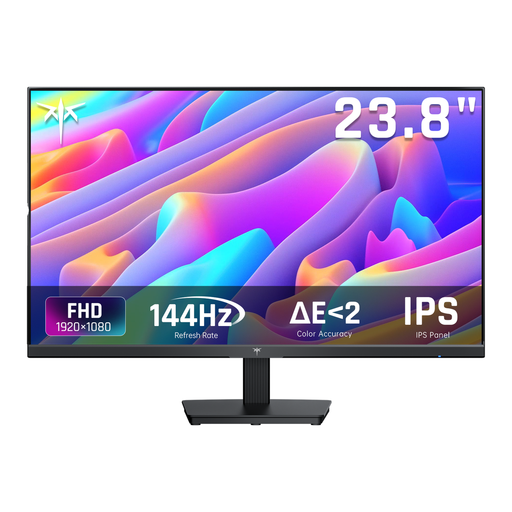
Why it suits this profile: The 24-inch Full HD screen is a manageable size for a first PC or desk setup. Its 144Hz refresh rate suits many gaming PCs, and the monitor has HDMI, DisplayPort and a tilt-adjustable stand.
Full HD puts less demand on your graphics card than QHD, making the 144Hz mode achievable for more systems. The stated response time is 5ms MPRT, so compare it fairly with other measurement methods.
24 inches, 1920 × 1080, IPS panel, Adaptive Sync, HDMI, DisplayPort and VESA support.
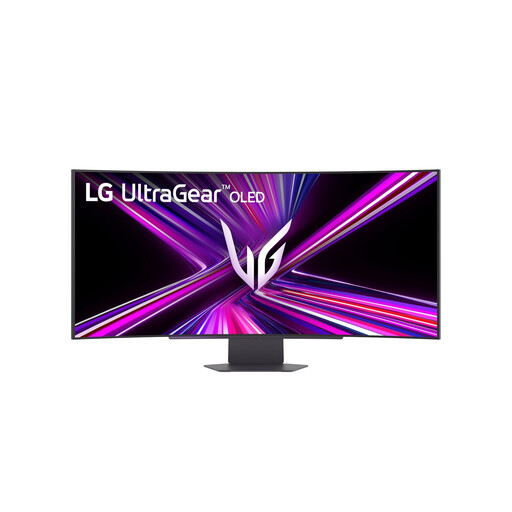
Why it suits this profile: This ultrawide model combines a large 21:9 screen with OLED technology and QHD resolution. It’s a good fit for gamers, streamers and content creators who make the most of extra screen space.
The specifications list 3440 × 1440, 240Hz, 0.03ms GTG and support for G-SYNC Compatible and FreeSync Premium Pro. However, check that your desk, graphics card and games can accommodate the ultrawide format.
OLED panel, 800R curve, DisplayHDR True Black 400, USB-C with up to 65W Power Delivery and an adjustable stand.
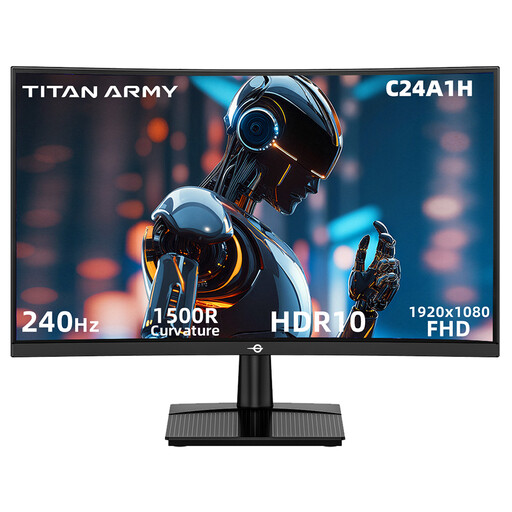
Why it suits this profile: This compact curved screen is designed for fast Full HD gameplay. It’s a good choice for players who mainly play competitive games and are looking for a 240Hz gaming monitor.
The resolution remains 1920 × 1080, so 240Hz puts less strain on your graphics card than QHD at 240Hz. The monitor uses HDMI 2.0 or DisplayPort 1.2 for 240Hz and supports FreeSync Compatible.
23.6-inch VA panel, 1500R curve, 240Hz, 1ms MPRT, HDR10 support and 100 × 100mm VESA mounting.
We’ve put together a complete, up-to-date list of products that meet these strict selection criteria and the applicable European safety regulations.
For many PC gamers, 144Hz is a practical choice. Motion looks noticeably smoother than at 60Hz, while the demands on your graphics card are usually lower than with 240Hz. A higher refresh rate may be appealing for esports, provided your system can produce enough frames per second.
Lifespan depends on usage, heat, settings and panel type. Keep the ventilation openings clear, use the correct power supply and follow the maintenance instructions. If you’re considering an OLED gaming monitor, it’s worth checking its built-in panel maintenance features and warranty terms in advance.
Power consumption varies by size, brightness, resolution and panel type. Large ultrawide and OLED models can use more power than a compact Full HD monitor. So, if you’ll use the monitor every day, compare its stated typical power consumption and energy rating.
