
Vandaag of morgen in huis

Kwaliteit gegarandeerd

Welkomstaanbiedingen ontgrendelen: GRATIS bezorging | Tot 80% korting | Gratis 30 dagen JoyPlus-proefperiode
Download de app
Buying a gaming monitor seems straightforward until you have to choose between 144Hz, 240Hz, QHD, 4K, OLED, VA and IPS. Marketing copy often focuses on one impressive figure, even though other features can be just as important. A high refresh rate, for example, won’t help much if your PC can’t deliver the frames or you don’t have the right cable.
This buying guide will help gamers, PC users, content creators and people working from home assess specifications in practical terms. We’ll also look at when a large smart TV might be an alternative to a monitor for PC gaming.
A 144Hz gaming monitor refreshes the image more often than a standard 60Hz screen. This can make movement look smoother in fast-paced games, but the difference depends on your computer’s frame rate. A 240Hz gaming monitor also needs a PC that can produce a high frame rate at your chosen resolution.
So check:
Some screens have different refresh rates depending on the connection used, so don’t rely on the product title alone.
A figure such as 0.3 ms or 1 ms sounds appealing, but the measurement method matters. MPRT and GtG are not the same. MPRT is often associated with motion blur and may be linked to a backlight strobing mode. GtG describes how quickly pixels change colour.
Also consider how response time, overdrive and image quality work together. An aggressive overdrive setting can cause visible image artefacts. In practice, a screen with a slightly higher quoted GtG figure may look better than a model with an eye-catching low marketing figure.
HDR10 support means a monitor can process HDR signals. It doesn’t automatically mean the screen will show deep blacks or bright highlights. So check the brightness, panel type and whether local dimming is available.
On an OLED gaming monitor, each pixel is lit individually. According to the product specifications, this can contribute to deep blacks. LCD and VA screens use different contrast and backlighting systems. Treat manufacturer claims about image quality as marketing, and always check the technical details and compatibility with your PC.
Full HD, at 1920 × 1080, is often a good fit for a 24-inch screen and puts relatively little strain on a graphics card. QHD, or 2560 × 1440, offers a noticeably higher pixel density on a 27-inch screen. It’s a practical middle ground for gaming, photo editing and everyday work.
A 4K gaming monitor displays 3840 × 2160 pixels, but needs more graphics processing power. 4K can be appealing if you sit further from the screen. If you sit close, QHD may offer a better balance between sharpness and frame rate.
An ultrawide monitor often has a 21:9 aspect ratio, such as 3440 × 1440. This gives you more room for windows and a wider field of view in games that support the format. Check in advance that your desk is deep and wide enough.
A monitor with Adaptive Sync matches its refresh rate to the graphics card’s output. This can help reduce tearing and stuttering. Check whether the screen supports AMD FreeSync, NVIDIA G-SYNC Compatible or another standard, and which connection you need to use it.
Also check for:
For consoles, HDMI 2.1 can be relevant for 4K at high refresh rates. According to its product specifications, the TCL 75Q7C has HDMI 2.1, 4K at 120 fps, ALLM and VRR. However, it’s a 75-inch smart TV with Google TV, not a desktop monitor. Also consider your viewing distance and the space available.
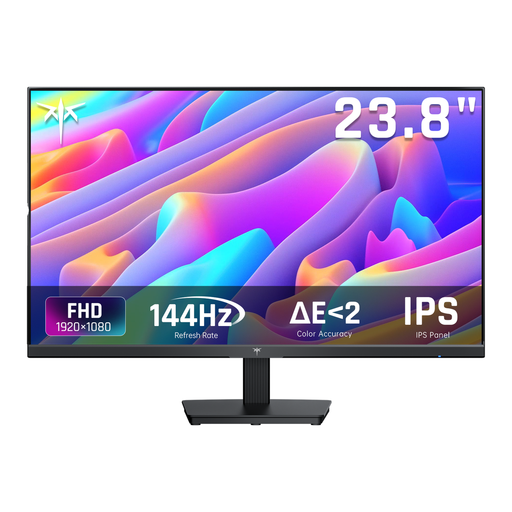
Why it suits this user: The 24-inch Full HD format fits a compact desk and needs less graphics processing power than QHD or 4K.
The product information lists 144Hz, Adaptive Sync, HDMI and DisplayPort. Make sure the connection you use supports the refresh rate you want.
24 inches, Full HD, IPS panel, 144Hz and a tilt range of -5° to 15°.
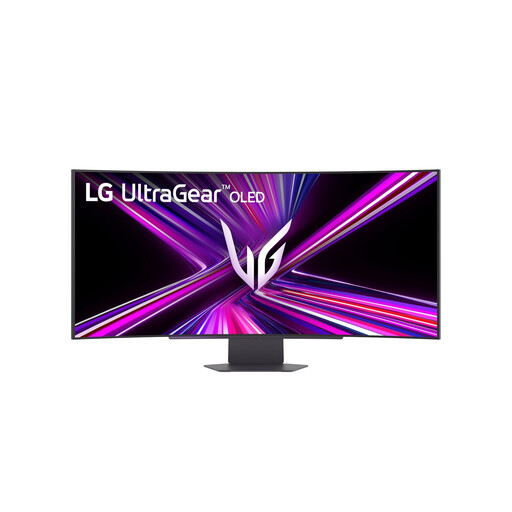
Why it suits this user: This model is aimed at users who want to combine a large ultrawide screen with high speed and OLED technology.
The specifications list not only OLED and 240Hz, but also 3440 × 1440, HDMI 2.1, DisplayPort 1.4 and Adaptive Sync. This makes the key requirements clear.
45 inches, 21:9, 240Hz, 0.03 ms GtG, USB-C with up to 65W Power Delivery and an adjustable stand.
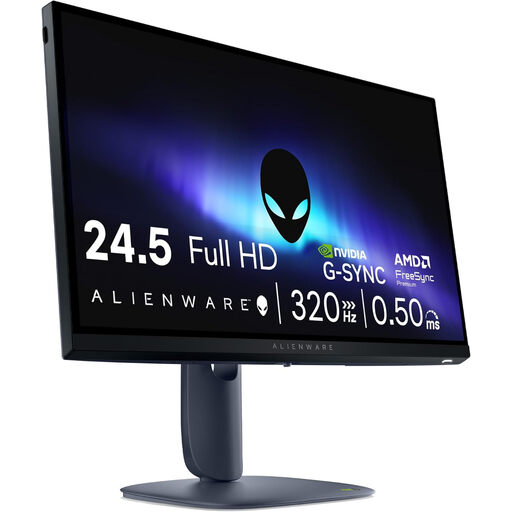
Why it suits this user: For competitive PC gaming, the combination of Full HD, a 320Hz refresh rate and a Fast IPS panel is designed for fast image display.
The product specifications give the full combination: 320Hz, HDMI 2.1, DisplayPort 1.4, FreeSync Premium and G-SYNC Compatible.
320Hz, 0.5 ms GtG according to the product information, adjustable stand, pivot function and two USB 3.2 ports.
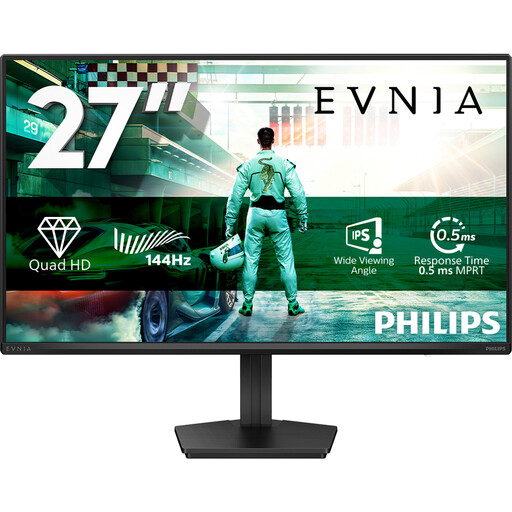
Why it suits this user: QHD on a 27-inch screen combines detail with a workload that’s more manageable for many modern PCs than 4K.
The specifications list 2560 × 1440, 144Hz, Adaptive Sync, HDMI 2.0 and DisplayPort 1.4. You can check how they work with your graphics card.
27-inch IPS, QHD, 144Hz, HDR10, 0.5 ms Smart MBR and VESA 100 × 100 mm.
We’ve put together a complete, up-to-date list of products that meet these strict selection criteria and the current European safety regulations.
Once connected, select your preferred refresh rate in Windows or in your graphics card’s driver software. Then check Adaptive Sync in both the screen menu and the AMD or NVIDIA software. For high resolutions and refresh rates, use a cable that matches the connection.
Power consumption depends on screen size, brightness, HDR and panel type. A large OLED or ultrawide screen may use more power than a compact Full HD model. Check the stated power consumption and energy rating, but bear in mind that your daily use and brightness settings determine the actual cost.
For many players, 144Hz is a practical choice. It offers a higher refresh rate than 60Hz without putting the graphics card under the same strain as 240Hz or 320Hz. For competitive games, a higher refresh rate may be worthwhile if your PC can maintain that frame rate consistently.
It depends on your graphics card, screen size and viewing distance. QHD gives you a sharp picture on a 27-inch screen, usually with a lower processing load. 4K is a good option for games with lots of detail, creative work and larger screens, but it requires more performance.
Lifespan depends on use, heat, brightness, transport and panel technology. Use the energy-saving features, make sure the screen has good ventilation and move it carefully. If you have an OLED model, follow the manufacturer’s care and usage instructions.
