
Vandaag of morgen in huis

Kwaliteit gegarandeerd

Welkomstaanbiedingen ontgrendelen: GRATIS bezorging | Tot 80% korting | Gratis 30 dagen JoyPlus-proefperiode
Download de app
Buying a gaming monitor might seem straightforward – until you have to choose between 24 or 27 inches, Full HD or QHD, 144Hz or 300Hz, and IPS or VA. Marketing copy often focuses on an ultra-low response time or a high refresh rate. Yet no single number determines whether a monitor is right for your games, your PC and your workspace.
In this buying guide, we explain which specifications you really need to check. After that, you’ll find practical recommendations for different user profiles.
A 240Hz gaming monitor or 300Hz gaming monitor can display incredibly smooth images, but only if your computer can deliver enough frames per second. If you’re playing a game that runs at around 100 fps, you won’t be making the most of a 300Hz screen. So first, check the performance of your graphics card in the games you play.
For competitive shooters and esports, a high refresh rate can certainly be relevant. For casual gaming, films, study and working from home, 100Hz to 165Hz is often a practical step up from 60Hz.
Manufacturers use different measurement methods, such as GtG and MPRT. A value of 1ms MPRT is therefore not directly comparable to 1ms GtG. Also look at the connections, the panel type and the overdrive settings. An extremely low stated figure on its own tells you very little about overall image quality.
A 27-inch gaming monitor with Full HD offers a large screen area, but has a lower pixel density than a 24-inch Full HD gaming monitor. Text and fine details can therefore look less sharp when you’re sitting close to the screen. For a 27-inch or larger screen, QHD (2560 × 1440) is often a logical choice, provided your PC can handle it.
The refresh rate is expressed in hertz. A 200Hz gaming monitor refreshes the image up to 200 times per second; a 300Hz model up to 300 times. This can make motion appear smoother, especially during fast camera movements.
A monitor with Adaptive Sync matches the refresh rate to the image output of your graphics card. This can help reduce tearing and stuttering. Check whether your PC and graphics card are compatible. With a monitor with FreeSync, this refers to AMD’s synchronisation technology. A mention such as “FreeSync Compatible” refers to the compatibility stated in the product specifications; how well it works can depend on the combination of monitor, cable and graphics card.
An IPS gaming monitor is generally known for wide viewing angles and consistent colours. That’s practical if you also use the monitor for photos, study, office work or content creation.
A VA gaming monitor often offers a higher contrast ratio according to the stated product specifications. Dark scenes can therefore be rendered differently. VA models are popular for gaming, films and curved screens. Just bear in mind that the viewing experience, response time and colour reproduction vary from model to model.
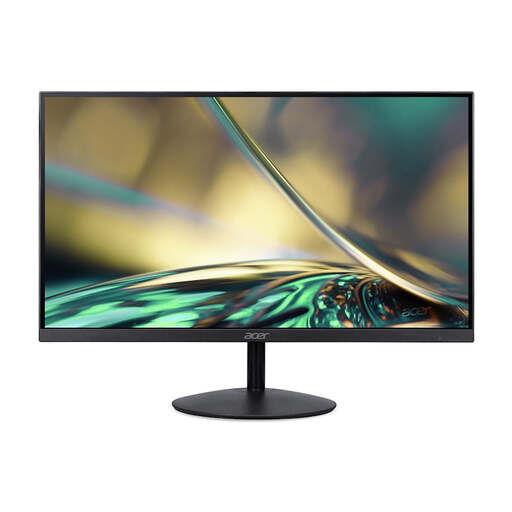
Why this fits the profile: A compact 23.8-inch monitor for working from home, watching videos and casual gaming, with 100Hz and Full HD resolution.
The combination of 24 inches and Full HD stops you paying for a large screen without needing the extra resolution. Please note: according to the product information, the power adapter is not included as standard.
VA panel, 100Hz, HDMI and VGA; tiltable design for a simple workstation.
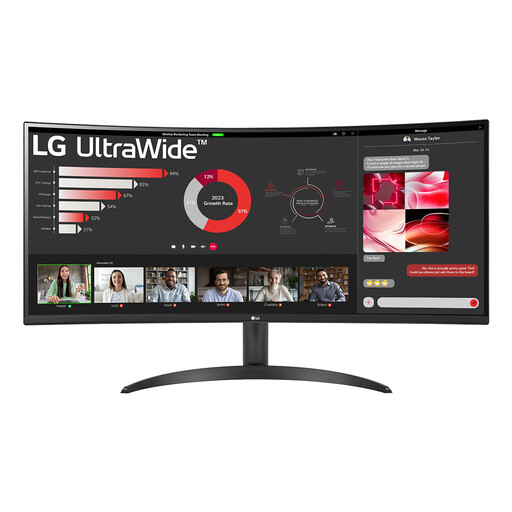
Why this fits the profile: For users who combine gaming with multitasking, spreadsheets, creative work and entertainment.
The 3440 × 1440 resolution suits the wide 21:9 format. The refresh rate is 100Hz, so this model isn’t aimed at extreme esports fps.
VA panel, 3440 × 1440, 100Hz, HDR10 support, FreeSync and Picture-by-Picture.
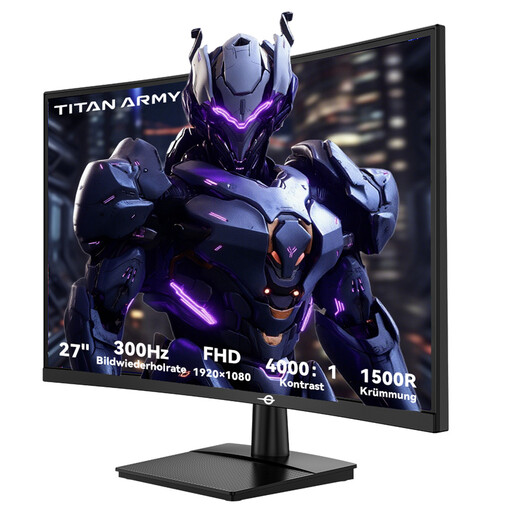
Why this fits the profile: For PC gamers who play at high frame rates and want a curved screen with strong contrast specifications.
The product specifications list both the 300Hz mode and the HDMI 2.0 and DisplayPort 1.4 connections. Do check whether your PC can output 300Hz at Full HD.
27 inches, 1920 × 1080, 300Hz, 1ms GTG, 1500R curvature and FreeSync Compatible according to the product information.
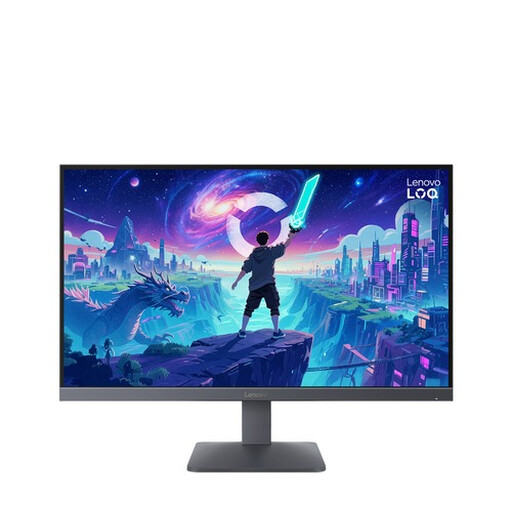
Why this fits the profile: A fast all-round monitor for PC and console, with a Fast IPS panel and support for modern connections.
The specifications state the measurement method: 0.5ms MPRT and 1ms GtG. The connections and console compatibility are also clearly listed.
Fast IPS, 200Hz, FreeSync Premium, VESA Adaptive Sync, two HDMI 2.1 ports and DisplayPort 1.4.
We’ve put together a full, up-to-date list of products that fully meet these strict selection criteria and comply with current European safety regulations.
Where possible, use the supplied DisplayPort or HDMI cable, then select the correct refresh rate in Windows or in your graphics card’s menu. Also check:
A monitor with a tiltable stand or VESA 100 × 100 mm offers extra flexibility for your workspace. For prolonged use, anti-glare, flicker-free and low-blue-light modes can be practical. According to manufacturers’ product information, these features are designed for greater viewing comfort; the exact experience varies from person to person.
For many PC gamers, 144Hz is a useful starting point. The difference from 60Hz is more noticeable than the difference between 240Hz and 300Hz. If you mainly play esports and consistently achieve high fps, you could consider a 240Hz or 300Hz gaming monitor.
QHD displays more pixels and therefore more detail, especially on 27 inches or larger. Full HD demands less from your graphics card and works well with a 24-inch screen or a setup where high fps matters more than extra sharpness.
Power consumption depends on screen size, brightness, resolution and HDR usage. Check the energy label and the stated consumption per 1,000 hours. Switch the monitor off when you’re not using it for a while, and use the power-saving mode when it suits your situation.
