
Vandaag of morgen in huis

Kwaliteit gegarandeerd

Welkomstaanbiedingen ontgrendelen: GRATIS bezorging | Tot 80% korting | Gratis 30 dagen JoyPlus-proefperiode
Download de app
A gaming monitor with a high refresh rate may seem like a straightforward purchase. However, there are clear differences between models. A 180Hz screen may make more sense for a competitive player than a 4K monitor with a lower refresh rate. Terms such as “1 ms”, HDR and synchronisation do not tell the whole story either.
The most common wrong purchases result from three pitfalls:
Refresh rate is measured in hertz. A 180Hz monitor can display a maximum of 180 refreshes per second. This produces smooth movement when your gaming PC can provide enough frames.
A practical guideline:
Also check which connection supports the desired resolution and refresh rate. DisplayPort and HDMI versions vary by model. The Alienware AW2525HM, for example, has HDMI 2.1 and DisplayPort 1.4, while the ASUS TUF Gaming VG249Q3A uses HDMI 2.0 and DisplayPort 1.2.
A Full HD gaming monitor with 1920 × 1080 pixels places less demand on your graphics card. This makes high frame rates easier to achieve. At 23.8 or 24.5 inches, Full HD is generally a practical combination.
A QHD gaming monitor with 2560 × 1440 pixels displays more detail. At 27 inches, this is often a logical balance between sharpness and performance. The AOC Q27G42XNE combines this size with 180 Hz and a VA panel.
A 4K gaming monitor offers 3840 × 2160 pixels and is suitable for single-player games, simulations, films and content creation. The Gigabyte AORUS FO32U uses a 31.5-inch QD-OLED panel with 4K and 165 Hz. Bear in mind that 4K requires considerably more graphics processing power than Full HD.
If you mainly want extra width, consider an ultrawide gaming monitor. The Alienware AW3425DWM has a 34-inch screen, a 21:9 aspect ratio, 3440 × 1440 pixels and a fixed 1500R curvature. This additional space at the sides can be useful for simulations and immersive games. Do check that your desk has enough room.
An IPS gaming monitor is generally known for its wide viewing angles and consistent colours. This is useful if you also watch photos, videos or streams alongside gaming. The ASUS TUF Gaming VG249Q3A uses an IPS panel and specifies a 1 ms response time.
According to the product specifications, a VA gaming monitor often offers higher static contrast and darker blacks. This suits films, RPGs and dark environments. The MSI MAG 27C6F, for example, has a VA panel, a contrast ratio of 3,000:1 and a 1500R curvature.
An OLED gaming monitor can display exceptionally deep blacks and high contrast. The Gigabyte AORUS FO32U uses QD-OLED, 4K resolution and a specified response time of 0.03 ms. With OLED models, always check the warranty conditions, usage recommendations and settings for prolonged static images.
When considering a monitor with a 1 ms response time, look at the full specification. A manufacturer may list different values for GTG and MPRT. A lower stated value does not automatically mean that every overdrive setting performs smoothly. Check whether the monitor offers multiple response-time modes and whether moving objects develop distracting artefacts.
Adaptive-Sync technology matches the monitor’s refresh rate to the graphics card’s frame rate. This can help reduce screen tearing and juddering when the frame rate fluctuates.
FreeSync monitors work with compatible AMD graphics cards and sometimes with other configurations too. With G-SYNC Compatible monitors, it is important to check whether NVIDIA officially supports the specific monitor.
FreeSync is listed for the Alienware AW3425DWM. The product information also states that the screen is not officially G-SYNC Compatible. G-SYNC may be enabled through the driver, but operation is not guaranteed according to the product specification. The Alienware AW2525HM, on the other hand, is listed as G-SYNC Compatible and FreeSync Premium.
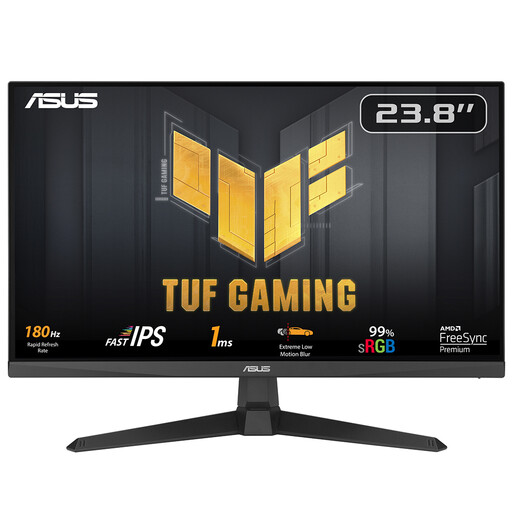
Why it suits this profile: This 23.8-inch Full HD monitor offers 180 Hz, an IPS panel and three video inputs, without requiring you to move straight to a large QHD or 4K screen.
The resolution, screen size and 180Hz refresh rate form a well-balanced combination. The specified 1 ms is clearly listed as the response time.
IPS panel, Full HD, 180 Hz, FreeSync Premium and VESA 100 × 100 mm.
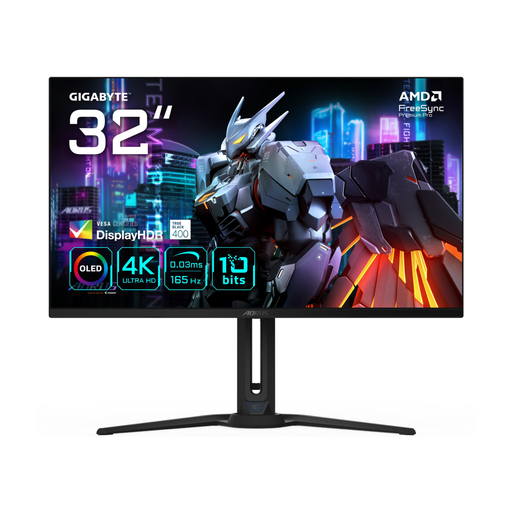
Why it suits this profile: For gamers and creators looking for high resolution, OLED contrast and plenty of connectivity in one 31.5-inch screen.
The product specification lists not only OLED technology, but also 4K, 165 Hz, HDMI 2.1 and DisplayPort 1.4. However, check that your graphics card can handle 4K at high frame rates.
QD-OLED, 3840 × 2160 pixels, 165 Hz, FreeSync Premium Pro and USB-C connectivity.
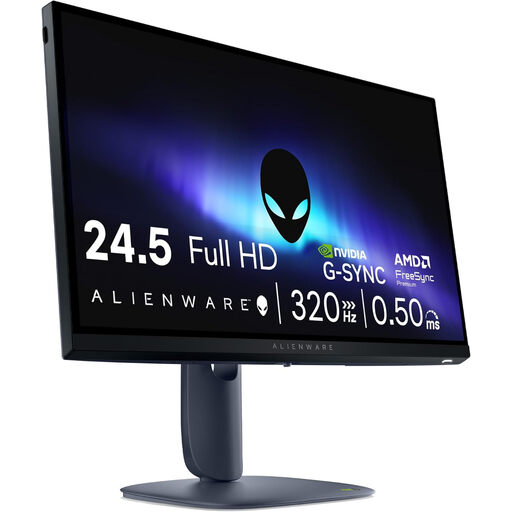
Why it suits this profile: A 24.5-inch Full HD screen with 320 Hz is aimed at players of fast-paced competitive games who run their PC at high frame rates.
The high refresh rate is combined with Full HD, a resolution that requires less graphics processing power than QHD or 4K.
320 Hz, Fast IPS, specified 0.5 ms response time, FreeSync Premium and G-SYNC Compatible.
Preferably use DisplayPort when you want to make the most of your PC’s maximum resolution and refresh rate. Then open your operating system’s menu and select the desired Hz value; a screen sometimes remains set to 60 Hz by default.
Enable Adaptive-Sync on the monitor and in your graphics card’s driver. Then test a few games. If your frame rate fluctuates significantly, setting a limit slightly below the maximum refresh rate can produce a more stable image. Position the screen directly in front of you and check that its height, viewing angle and distance suit your desk. A VESA mount is useful if you want to use a monitor arm.
We have compiled a complete, up-to-date list of products that fully meet these strict selection criteria and the applicable European safety regulations.
For many players, yes. A 180Hz monitor delivers smooth movement and is often easier to drive than a 240Hz or 320Hz model. The difference depends on your game, graphics card, frame rate and personal preference.
Its lifespan depends on usage, heat, power supply and the panel technology chosen. Check the manufacturer’s warranty and your statutory consumer rights. Use the correct cables, keep ventilation openings clear and avoid knocks or moisture. With OLED models, it is advisable to follow the manufacturer’s maintenance features and recommendations.
Consumption varies depending on size, brightness, resolution and HDR usage. A large ultrawide or 4K screen generally uses more energy than a compact Full HD model. Check the stated SDR and HDR consumption, and switch the screen off when you will not be using it for an extended period.
