
Vandaag of morgen in huis

Kwaliteit gegarandeerd

Welkomstaanbiedingen ontgrendelen: GRATIS bezorging | Tot 80% korting | Gratis 30 dagen JoyPlus-proefperiode
Download de app
Buying a gaming monitor seems simple: choose a large screen, a high refresh rate and a low response time. Yet many shoppers in the Netherlands pay for features their computer can’t make use of. The wrong resolution, too few connections or an unsuitable screen layout can also become frustrating after just a few weeks.
So, keep an eye out for these three common pitfalls:
The resolution determines how many pixels the screen displays. A QHD gaming monitor with 2560 × 1440 pixels gives you more detail and workspace than Full HD, without the graphics demands of 4K. For a 27-inch screen, QHD is a practical choice for gaming and everyday use.
A 4K monitor with 3840 × 2160 pixels is a good option for photo editing, video and crisp text. The higher resolution does put more demand on your graphics card, so check beforehand whether your PC or laptop can run 4K at your preferred refresh rate.
An ultrawide monitor usually has an aspect ratio of 21:9 or 32:9. This lets you open several windows side by side or enjoy a wider field of view in compatible games. Check that your desk, graphics card and favourite games support this aspect ratio properly.
Refresh rate is measured in hertz. A 144Hz monitor, 165Hz monitor or 240Hz monitor can display movement more smoothly than a 60Hz model, provided your computer can deliver enough frames.
Also look for support for FreeSync, G-Sync or a similar Adaptive Sync feature. These technologies match the screen’s refresh rate to the graphics card’s frame rate, which can help reduce tearing and stuttering. However, check whether support is officially certified. Some monitors are listed only as “G-Sync Compatible”; the product information for the MSI MPG 491CQP, for example, states that the screen is not officially G-Sync Compatible, although it may still work.
Check the connections too. DisplayPort is often important for high refresh rates on PCs. HDMI 2.1 can be useful for modern consoles and high resolutions. USB-C with Power Delivery is handy if you want to connect a laptop with a single cable. The Philips 34B2U6603CH/00, for example, has Thunderbolt 4, USB-C Power Delivery of up to 100 watts, a built-in camera and a USB hub.
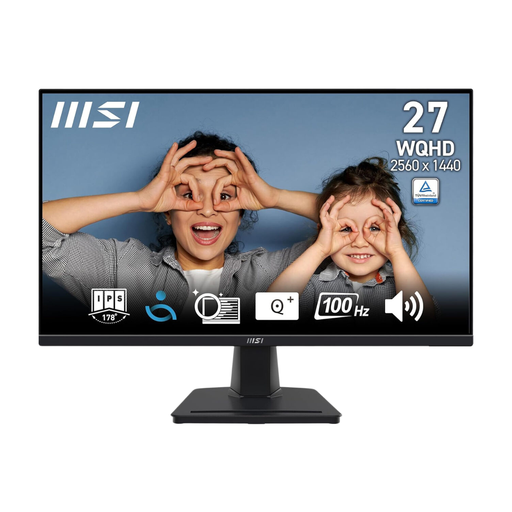
Why it suits this user type: This 27-inch QHD monitor combines an IPS panel with a 100Hz refresh rate, making it suitable for gaming, media and productivity.
The specifications are clear: QHD, 100Hz, 4 ms, DisplayPort and two HDMI connections. That way, you won’t automatically pay for a refresh rate your PC may not be able to reach.
2560 × 1440 pixels, IPS panel, 100Hz and VESA 100 mm.
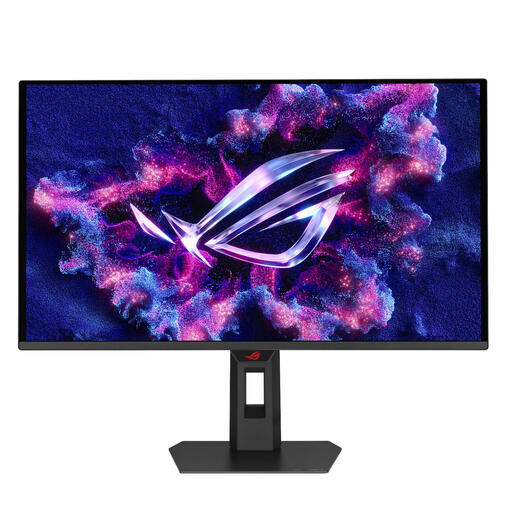
Why it suits this user type: This QD-OLED model is designed for users who want to combine a high refresh rate and fast pixel response with rich, vibrant visuals.
The product specifications explicitly list 500Hz, 0,03 ms, HDMI 2.1 and DisplayPort 1.4. Bear in mind that you’ll need a suitable graphics card, and heed the warning to avoid prolonged static images.
26,5-inch QHD, QD-OLED, FreeSync Premium Pro, G-Sync Compatible and an adjustable stand.
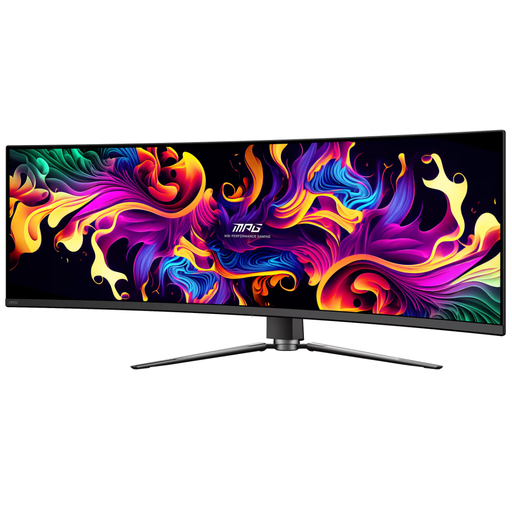
Why it suits this user type: For sim racers, multitaskers and anyone who prefers one wide screen to two separate monitors, this 49-inch 32:9 model offers plenty of horizontal workspace.
The aspect ratio, resolution and curvature are clearly specified: 5120 × 1440, 32:9 and 1800R. Measure your desk beforehand and check that your graphics card can handle this wide resolution.
QD-OLED, 144Hz, 0,03 ms, HDMI 2.1, USB-C with up to 90 watts of Power Delivery and height adjustment.
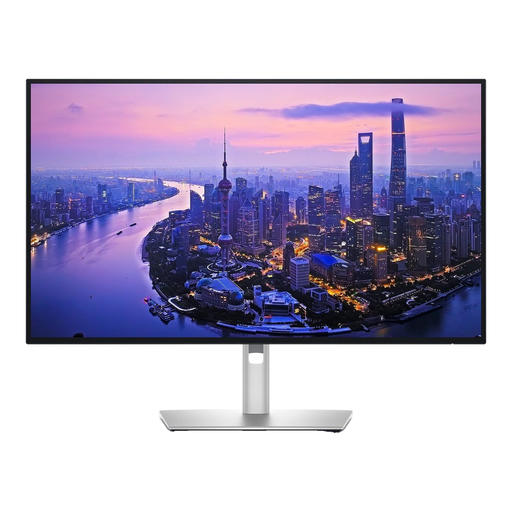
Why it suits this user type: This 27-inch 4K screen is designed for detailed office work, photo editing and video editing, with plenty of connection options.
Alongside 4K, the product specifications list a 120Hz refresh rate, 450 cd/m² brightness and an anti-glare surface. Check that your laptop or PC supports 4K at 120Hz through the connection you plan to use.
3840 × 2160 pixels, 120Hz, IPS panel, Thunderbolt 4 and multiple USB ports.
We’ve put together a complete, up-to-date list of products that meet these strict selection criteria and the applicable European safety regulations.
For many PC gamers, 144Hz is a practical choice. The difference compared with 60Hz can be noticeable during fast-paced action, while the demands on your graphics card are lower than with 240Hz or 500Hz. Focus on the games you play and the fps your PC can actually achieve.
An OLED gaming monitor can offer deep blacks and fast pixel response. However, manufacturers warn against displaying static images for long periods. Use the built-in pixel protection, avoid leaving the same desktop image on screen for hours, and read the care instructions for your specific model.
That depends on its power consumption, how long you use it and your energy tariff. Check the stated consumption in watts or kWh per 1,000 hours on the energy label. Multiply this by your annual usage and the price per kWh. A large ultrawide screen or OLED model may use a different amount of power from a compact IPS screen.
