
Vandaag of morgen in huis

Kwaliteit gegarandeerd

Welkomstaanbiedingen ontgrendelen: GRATIS bezorging | Tot 80% korting | Gratis 30 dagen JoyPlus-proefperiode
Download de app
Buying a gaming monitor seems simple: choose a large screen, a high refresh rate and a short response time. Yet many gamers pay for features they cannot use to their full potential. Your graphics card, console, connection and viewing distance determine whether you can actually make the most of the specifications.
This buying guide helps PC gamers, esports players, console users and home workers compare gaming monitors using measurable criteria.
A 240Hz gaming monitor can display smooth images, but your PC must also deliver enough frames per second. If your system runs a game at 90 fps, you will not make full use of 240Hz. For many players, a 144Hz, 180Hz or 200Hz gaming monitor is therefore already a practical step up from 60Hz.
Also pay attention to the connection. Check that the HDMI or DisplayPort version you choose supports the desired resolution and refresh rate.
A claim such as “0.5 ms” or “1 ms” may be based on a specific measurement method, such as MPRT or GtG. These figures are not directly comparable. A monitor with 1 ms MPRT is therefore not automatically faster in every situation than a monitor with 1 ms GtG.
Also check whether overdrive settings are required and whether highly aggressive overdrive can cause visible image artefacts. Use the quoted response time as a guideline, not as a standalone reason to buy.
HDR10 support means that a monitor can process HDR signals. The final image also depends on brightness, contrast, local dimming and panel technology. “HDR Ready” is also a different designation from full HDR display capability. According to the brand’s product specifications, you should therefore always check the associated brightness and HDR classification.
A 24-inch gaming monitor with Full HD is often a good fit for a compact desk. At 23.8 inches, 1920 × 1080 provides a clear image, while a mid-range PC can achieve high frame rates.
A 27-inch gaming monitor offers more workspace. At Full HD, the pixel structure may be more noticeable at close range. A QHD gaming monitor with 2560 × 1440 generally provides more detail at this size, but it also requires more graphics processing power.
A 32-inch gaming monitor is suitable if you sit further away from the screen or want one large display for games, films and productivity. At 32 inches, QHD is often a more logical choice than Full HD if you value sharpness.
For multitasking and racing games, a 34-inch ultrawide gaming monitor with 3440 × 1440 and a 21:9 aspect ratio could be interesting. Do check that your desk offers at least around 80 cm of width for the screen, as well as sufficient depth for your viewing distance.
A curved gaming monitor, often with a curvature such as 1500R, can direct the edges of ultrawide or 32-inch screens more towards the viewer. Whether this feels comfortable depends on your desk, viewing distance and personal preference.
Adaptive Sync matches the screen’s refresh rate to the graphics card’s frame rate. This can help reduce tearing and stuttering. A FreeSync gaming monitor is designed for AMD systems, while a G-SYNC Compatible monitor has been certified as compatible by Nvidia or supports similar functionality. Always check the official compatibility information and your graphics card settings.
For a monitor for PC gaming, DisplayPort and HDMI are practical connections. For a monitor with PS5 and Xbox, check which resolution and refresh rate the console supports through the relevant HDMI port. The cable, console settings and game support also play a part.
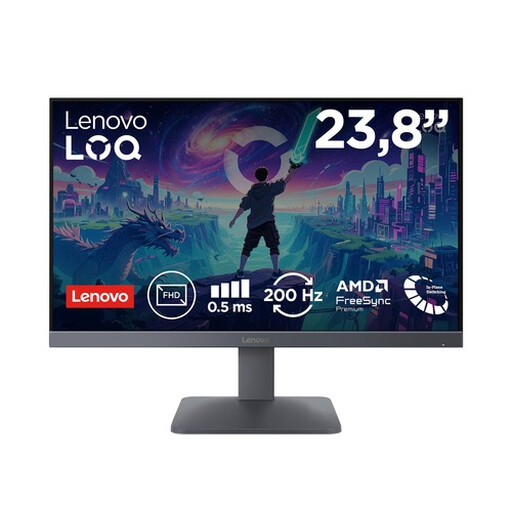
Why it suits this profile: The 23.8-inch size, Full HD resolution and 200Hz refresh rate make a well-balanced combination for a first gaming PC or compact workspace.
The specifications list both 200Hz and 0.5 ms MPRT/1 ms GtG. This lets you compare these figures with your PC’s capabilities instead of focusing on just one marketing number.
Fast IPS panel, 99% sRGB according to the product specifications, AMD FreeSync Premium, VESA Adaptive Sync, HDMI 2.1 and DisplayPort 1.4.
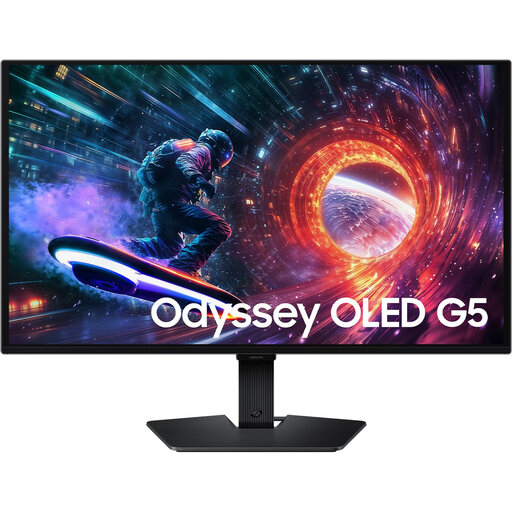
Why it suits this profile: QHD on a 27-inch screen combines detail with a popular display size. OLED, HDR10 and support for FreeSync and G-SYNC Compatible will appeal to users who combine gaming and entertainment.
The listing mentions not only 0.03 ms GTG, but also 180Hz, QHD and the synchronisation technologies used. Compare this complete set rather than focusing only on the response time.
2560 × 1440 pixels, 180Hz, OLED panel, HDR10, HDMI 2.0, DisplayPort 1.2 and VESA 100 × 100 mm according to the product information.
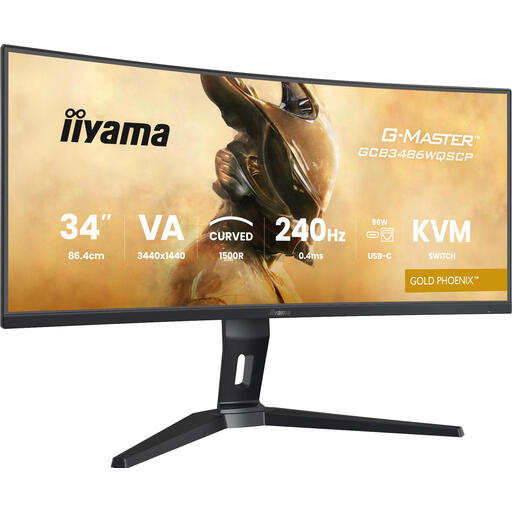
Why it suits this profile: The 34-inch ultrawide setup provides room for widescreen games, multiple windows and streaming or work applications. The KVM switch is practical when you switch between two devices.
The product specifications list 3440 × 1440, 240Hz, FreeSync Premium and DisplayHDR400. This means you can consider not only speed, but also the requirements for resolution, synchronisation and HDR.
1500R curvature, VA panel, 240Hz, 0.4 ms response time according to the listing, KVM switch, PiP/PbP and USB-C with up to 95W Power Delivery.
We have put together a complete, up-to-date list of products that fully meet these strict selection criteria and the applicable European safety regulations.
For many players, yes. 144Hz displays noticeably more frames than 60Hz and is suitable for systems capable of delivering around 144 fps. Those who play competitive games and have a powerful PC may also consider 180Hz, 200Hz, 240Hz or 300Hz. The difference becomes smaller as the refresh rate increases.
Yes, provided the monitor supports the desired console resolution and refresh rate through the correct HDMI port. Also check whether features such as Adaptive Sync work with your console. A gaming monitor with DisplayPort and HDMI is useful for a combination of PC and console, but DisplayPort is not a console’s standard video connection.
Its lifespan depends on hours of use, heat, brightness, transport and panel type. Do not leave the screen at maximum brightness for long periods, keep ventilation openings clear and use a stable surface. With an OLED gaming monitor, it is advisable to follow the manufacturer’s instructions on screen maintenance and static images.
