What should you look for when buying?
Start with the actions you want to assign to your mouse buttons. If you’re having tracking problems, use a flat, non-reflective surface too. Logitech Support recommends this approach, while RGB is mainly a visual choice.
| What to consider |
What should you check? |
Who does this matter most to? |
| Buttons within reach |
Count the actions you actually want to assign, and check whether you can reach and distinguish the buttons with your thumb. |
If I want to control lots of in-game actions directly from my mouse, reach and layout matter most to me. Around 40% of consumers prioritise the number of commands they can access quickly. |
| Tracking and surface |
Try a flat, non-reflective mouse mat. If the pointer stutters, also check the sensor and, if you’re using a wireless mouse, the battery. |
If my pointer stutters on my desk, I want to know first whether the surface is a factor. Around 30% of consumers give reliable tracking on their own surface the highest priority. |
| Fit for your hand |
Compare the shape, thumb reach and stated weight; try the grip for yourself if possible. |
During long gaming sessions, I want to reach the buttons without constantly changing my grip. Around 20% of consumers focus mainly on fit and ease of use. |
| Connectivity and settings |
Check the connection options and whether the configuration software is compatible with your computer. |
If I want to set up commands or switch between connection types, I check the options for the exact model. Around 10% of consumers prioritise connectivity and customisation. |
Gaming mice on Joybuy
Compare these gaming mice for tactical role-playing games by button layout and connectivity. Also consider a shape and weight that suit your hand.
 No image available
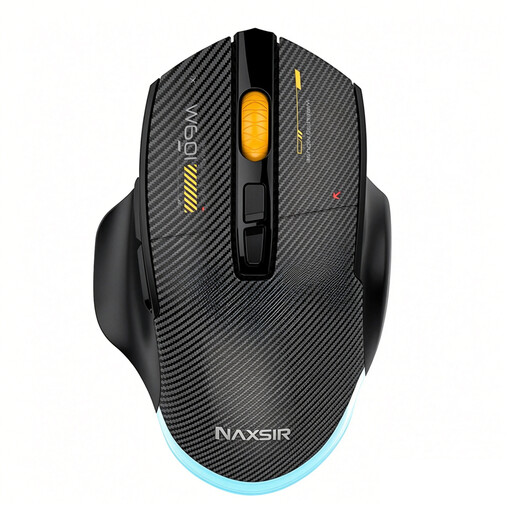
NAXSIR 3-in-1 Gaming Mouse
An option to compare if you want to control in-game actions using programmable buttons.
The product name lists 7 programmable macro keys, 12,800 DPI, and wired, 2.4G wireless and Bluetooth connectivity.
Joybuy
 No image available
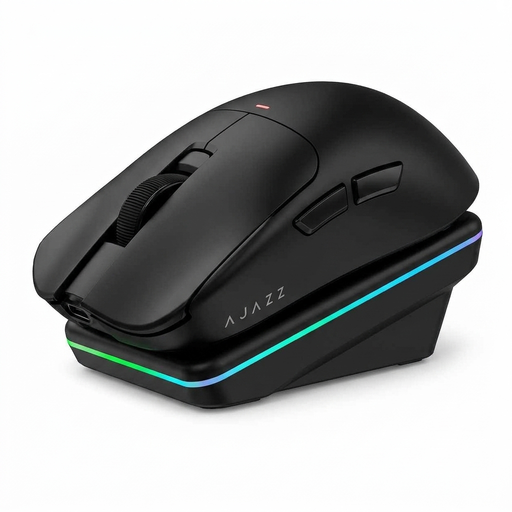
AJAZZ AJ159 PRO Wireless Gaming Mouse
Worth comparing if you’re looking for a lightweight mouse with a choice of connection options.
The product name lists a weight of 56 g, a PAW3395 sensor, 26K DPI, and support for 2.4G, USB-C and Bluetooth.
Joybuy
 No image available
AJAZZ AJ200 AI MC Wireless Gaming Mouse
An option to compare if you want to weigh up different connectivity options and configurable commands.
The product name lists a charging dock, a weight of 63 g, a PAW3311 sensor, 24,000 DPI, and BT, 2.4G and USB-C connectivity.
Joybuy
 No image available
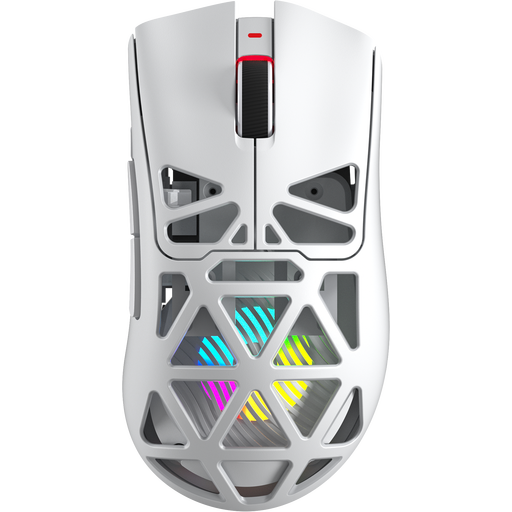
AULA SC620 Wireless Gaming Mouse
Worth comparing if you want to assign in-game actions to programmable buttons.
The product name lists 7 programmable buttons, a weight of 67 g, 12,000 DPI, and BT5.0, 2.4G and USB-C connectivity.
Joybuy
 No image available
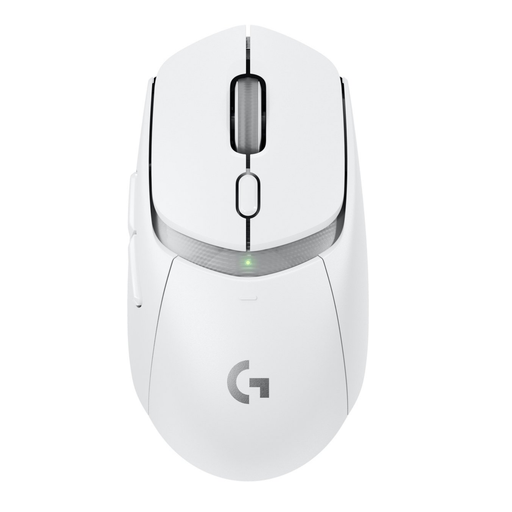
Logitech G G309 LIGHTSPEED Wireless Gaming Mouse
A wireless gaming mouse to include in your comparison; check which commands you can configure for your game.
Joybuy
Frequently asked questions
Does RGB lighting help you click more accurately in a bright room?
No. RGB lighting is mainly visual and, according to Lenovo Netherlands, doesn’t change the basic performance of tracking or clicking. If your pointer stutters, check the surface and sensor first.
What can you try if your pointer stutters on your desk?
Try a flat, non-reflective mouse mat instead of glass or a reflective surface. For tracking problems, Logitech Support also recommends cleaning the sensor and checking the battery if you’re using a wireless mouse. This doesn’t guarantee that every mouse will work on every surface.
Can you use extra mouse buttons for in-game actions straight away?
First, check how to configure the buttons on the exact model and whether the software is compatible with your operating system. Logitech, for example, explains how to programme the G502 HERO using G HUB; the available in-game assignments also depend on the game’s settings.
What consumer rights apply to online purchases in the Netherlands?
According to the Dutch government, when you buy online from a business, you’ll often have 14 days to change your mind, although exceptions apply. You’re also entitled to a product that is of satisfactory quality. The Dutch government states that the Netherlands has no fixed statutory guarantee period; if a product is faulty, you can ask the seller to put things right.


