If you have a spare USB port and room for a cable, a wired mouse means you won’t need to replace batteries or recharge it. Wireless gaming keeps the cable off your desk, but may still require a USB receiver, replaceable AA batteries or a way to recharge the mouse. Extra thumb buttons are most useful when your game supports the commands you want and you can reach them with your usual grip.
Who is this buying guide for?
Player with limited ports
You want to know in advance whether the mouse needs a USB port for a cable or receiver, and whether Bluetooth is an option. Razer lists both Bluetooth and 2.4 GHz for the Basilisk V3 X HyperSpeed; the Corsair manual specifies a USB port for the receiver.
Player who uses lots of shortcuts
You want to control frequently used commands with your thumb, so you’re checking where the programmable buttons are and how easy they are to reach. Corsair and SteelSeries describe models with extensive side-button layouts.
Player with long gaming sessions
You want the shape, scroll wheel and button placement to suit your grip when navigating maps and menus for long periods. Logitech G describes the wired G502 X as having a dual-mode scroll wheel; the Total War Academy recommends dragging with the middle mouse button to move the camera around the Total War campaign map.
What should you look for when choosing?
Wired via USB
Choose this if: you have a spare computer port and enough room for a cable, but don’t want to manage a mouse battery.
Bear in mind: the cable stays on your desk and uses a USB port; a wall socket is not the same as a computer port.
Wireless with an AA battery
Choose this if: you don’t want a permanent mouse cable and can replace a battery.
Bear in mind: a 2.4 GHz receiver takes up a USB port; Bluetooth avoids the receiver only if both the mouse and your computer support Bluetooth.
Rechargeable wireless
Choose this if: you don’t want to use disposable batteries and charging fits your setup.
Bear in mind: you’ll need a way to charge it; a model with a 2.4 GHz receiver may also use a USB port.
| What to consider |
What to check before buying |
Who should consider this? |
| Connection and ports |
Check whether you’ll use a USB cable, USB receiver or Bluetooth, and whether the required port is free. |
If I have few spare computer ports, I want to know in advance which connection the mouse needs. Connections are the top priority for around 29% of consumers. |
| Buttons for in-game commands |
Check which commands your game supports and whether you can reach the buttons with your usual grip. |
I want to use frequently played commands without having to search for them. Button mapping is the main priority for around 23% of consumers. |
| Batteries and charging |
Check whether the mouse uses AA batteries or has a rechargeable battery, and whether you can use it while it’s charging. |
I don’t want to interrupt a gaming session unexpectedly to replace or recharge batteries. Power and battery management are the top buying priority for around 18% of consumers. |
| Comfort during long sessions |
Compare the shape, hand preference and button placement; try the grip yourself if possible. |
During long sessions, I want to use the mouse and its buttons without constantly changing my grip. Comfort is the top buying priority for around 18% of consumers. |
| Map and menu navigation |
Check how the scroll wheel works and how you click, drag and scroll in the games you play. |
I want to navigate maps and menus comfortably using the scroll wheel and middle mouse button. Navigation is the main priority for around 12% of consumers. |
Avoiding common buying mistakes
-
Assuming ‘wireless’ means ‘no connection needed’
A wireless mouse may need a USB receiver; charging may also require a USB port. The Corsair manual specifies a USB port for the receiver when using 2.4 GHz and for charging.
Check which connection and power options your computer supports for the exact model.
Bear in mind that you may need to keep a USB port free, replace batteries or set aside time to charge the mouse.
-
Assuming the mouse with the most buttons is automatically the best choice
Extra buttons are only useful if your game allows the commands you want and you can reach the buttons with your usual grip.
First, make a note of the commands you want to assign, then compare the layout and customisation options.
-
Assuming the maximum battery life is the same as your actual playtime
Manufacturers’ maximum figures may depend on the connection mode, lighting and other features that are switched on.
Only compare battery life claims when the stated modes and settings also match.
If your settings don’t achieve the maximum, you may need to charge the mouse or replace its batteries more often than you planned.
-
Assuming different versions of the same model are identical
The Logitech G502 X and G502 X LIGHTSPEED have different connections; their similar model names don’t mean they’re the same version.
Check the full model name and power type before choosing a version.
Brands to compare when choosing
Focus on the exact version, connection and button layout: models in the same product family may use different power sources.
Logitech G
The wired G502 X and wireless G502 X LIGHTSPEED are separate versions.
- Logitech describes the wired G502 X as having a dual-mode scroll wheel and a DPI shift button that can be moved or covered.
- Check the connection for the exact version and whether the button placement suits your hand.
Razer
According to Razer, the Basilisk V3 X HyperSpeed offers 2.4 GHz and Bluetooth; the Naga V3 Pro is a different model with interchangeable side panels.
- Razer specifies nine programmable controls for the Basilisk V3 X HyperSpeed.
- The stated maximum battery life varies by connection mode and isn’t a fixed usage time for every setting.
Trust
The GXT 110 Felox is a wireless, rechargeable mouse with a USB receiver.
- Trust says you can keep using the mouse while it charges and quotes up to 80 hours per charge.
- The battery life is a maximum specified by Trust; the 2.4 GHz receiver uses a USB port.
Corsair
The SCIMITAR ELITE WIRELESS is designed for players looking for an extensive, adjustable thumb button panel.
- Corsair documents 16 programmable buttons and a panel that you can move.
- 2.4 GHz requires a USB receiver and charging requires a USB port; Corsair says battery life depends on the mode and lighting.
SteelSeries
According to SteelSeries, the Aerox 9 Wireless has a side panel with 12 buttons.
- SteelSeries quotes up to 180 hours in 2.4 GHz mode with High Efficiency Mode.
- Features that are switched on can reduce battery life; also consider whether the buttons suit your grip.
Gaming mice at Joybuy
This selection includes wired and rechargeable gaming mice, so you can weigh up connections, cable space and button mapping.
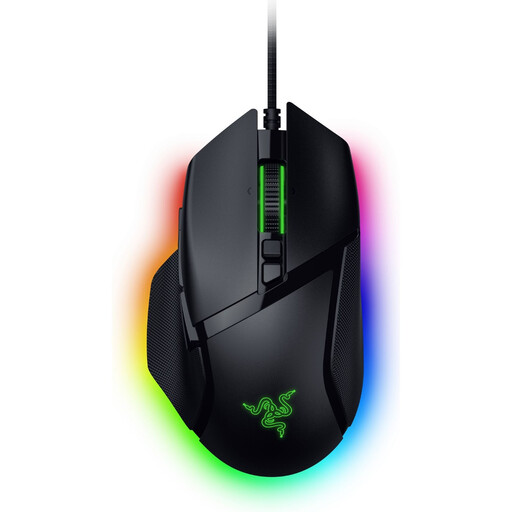 Image unavailable
Razer Basilisk V3 35K, wired, 11 buttons
A good fit if you’re looking for a wired connection and direct control for navigating maps and menus.
Wired USB connection; HyperScroll wheel with three modes.
View at Joybuy
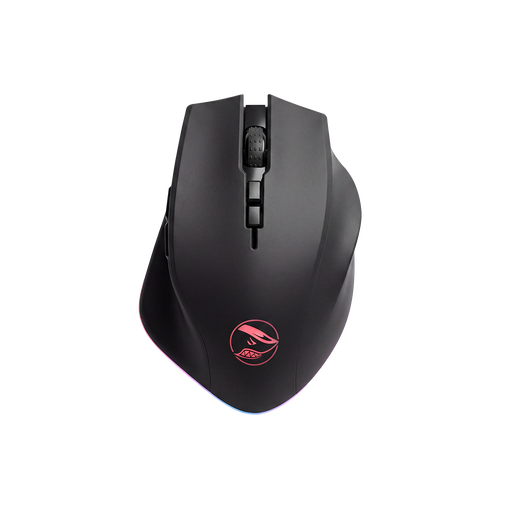 Image unavailable
Shark Velocity M71 wireless gaming mouse
A good fit if you want to play wirelessly but would also like the option of using a cable.
Supports wireless use via 2.4 GHz and wired use via USB; has a rechargeable battery and programmable buttons.
View at Joybuy
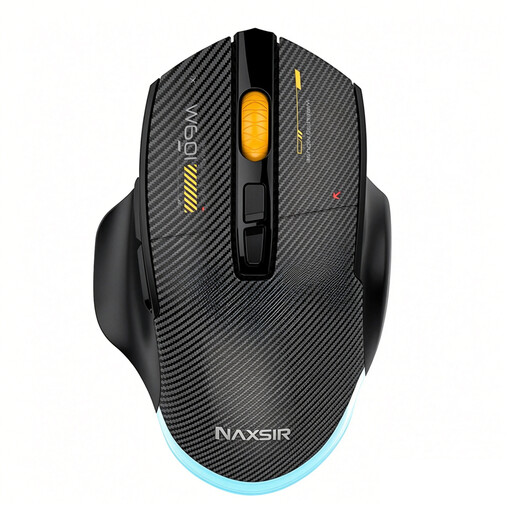 Image unavailable
NAXSIR 3-in-1 gaming mouse
A good fit if you want to switch between a cable, 2.4 GHz and Bluetooth.
Rechargeable; the product name mentions programmable macro buttons. Check that your game supports the commands you want.
View at Joybuy
 Image unavailable
AJAZZ AJ159 PRO wireless gaming mouse, white
A good fit if you’re looking for a rechargeable mouse with different connection options.
Supports 2.4G, USB-C and Bluetooth; it can be charged via USB-C or the magnetic charging dock. The product information warns you to keep the dock away from pacemakers and other medical implants.
View at Joybuy
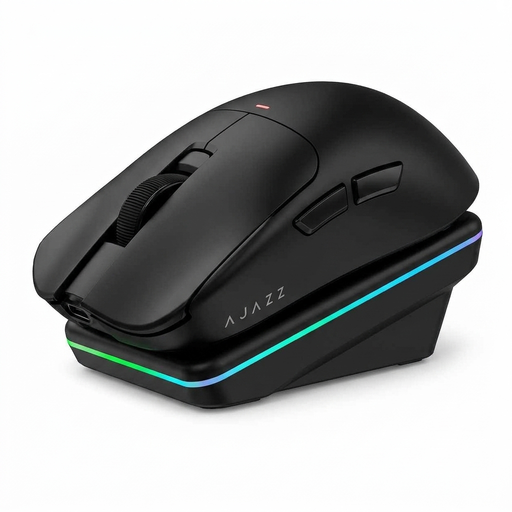 Image unavailable
AJAZZ AJ200 AI MC with charging dock
A good fit if you’re looking for a wireless mouse with a charging dock and customisable controls.
Supports Bluetooth, 2.4G and USB-C; the description mentions button remapping and macros.
View at Joybuy
Frequently asked questions
If you have few wall sockets, do you automatically need a wireless mouse?
No. A wired mouse uses a computer port; a 2.4 GHz mouse may also need a USB port for its receiver. Bluetooth avoids the receiver only if both the mouse and your computer support Bluetooth. The Corsair manual also specifies a USB port for charging.
How do you set up extra mouse buttons for your strategy game?
First, check which commands your specific game accepts. Then use the software for the exact mouse model to assign the available buttons, and test whether you can operate each one with your usual grip. Corsair describes settings and saved profiles for this in iCUE.
How long does a wireless gaming mouse battery last?
It depends on the model and how you use it. Razer quotes up to 285 hours via HyperSpeed and 535 hours via Bluetooth for the Basilisk V3 X HyperSpeed; these are manufacturer maximums for different modes. SteelSeries quotes up to 180 hours in 2.4 GHz mode with High Efficiency Mode for the Aerox 9 Wireless. So compare these claims alongside the modes and settings used.
What are my rights when buying online in the Netherlands?
According to ACM ConsuWijzer, when you buy a standard product online, you generally have up to 14 days after delivery to change your mind, subject to statutory exceptions. This is separate from your rights if a product doesn’t meet what you can reasonably expect from normal use: the seller is responsible for providing an appropriate solution. A manufacturer’s warranty doesn’t replace these statutory rights.


