
Player with a light-coloured, glossy desk
Wants the cursor to move predictably and checks the playing surface before choosing a mouse based on its maximum DPI.


Start with your playing surface and a shape that feels comfortable in your hand. Then decide how many extra buttons you need and what kind of scroll controls work for you. Logitech Support recommends using a flat, solid-coloured, non-reflective mouse pad if you’re having tracking problems. A high maximum DPI won’t, by itself, solve problems caused by a reflective desk, and lots of thumb buttons are only useful if you can assign them in your game and reach them comfortably.
Wants the cursor to move predictably and checks the playing surface before choosing a mouse based on its maximum DPI.
Wants shortcuts within easy reach and chooses the number of buttons based on the game they play, not just the specifications.
Prioritises a comfortable shape, buttons within easy reach and a connection that suits their setup.
First, check that your cursor tracks properly on the surface. Then compare the buttons, grip and connection you’ll actually use in management games.
| What to consider | What should you check? | Who is this important for? |
|---|---|---|
| Cursor tracking on your surface | If you play on glass or a glossy desk, try a flat, solid-coloured, non-reflective mouse pad. Logitech Support recommends this for tracking problems. | If I play on a light-coloured or glossy desk, I want the cursor to move reliably before weighing up other mouse specifications. Around 31% of consumers prioritise their surface and cursor control. |
| Buttons and scrolling | Make a note of the tasks you repeat and check the button layout, scroll function and configuration options for the exact version. | When I repeat the same tasks often or scroll through menus and lists, I want to reach and configure those controls without having unnecessary buttons. Around 31% of consumers prioritise shortcuts and controls that are easy to reach. |
| Fit and grip | Compare the shape, handedness and button positions of the exact model. Check whether you can reach the buttons without changing your grip. | During longer sessions, I want to keep my hand comfortably on the mouse and reach the buttons I need. Fit is a priority for around 23% of consumers. |
| Connection | Check whether the version is wired or wireless, how to charge a wireless mouse and which items are included. | If I want to play without a cable, or would rather not charge a battery, I weigh up that practical preference against the space available on my desk. Around 15% of consumers start by considering connection convenience. |
A maximum DPI specification doesn’t confirm that a mouse will track properly on glass or a reflective finish. Logitech Support recommends trying a non-reflective surface if you’re having tracking problems.
First, check the material you play on. If the cursor skips, try a solid-coloured, non-reflective mouse pad.
A panel with lots of buttons is only useful if you can reach them comfortably and your game supports the assignments you want.
Count the tasks you use repeatedly and check the button positions before choosing a mouse with an extended thumb panel.
Configuring buttons can take extra time, and a layout that’s difficult to reach can also affect your grip.
Corsair quotes battery life for the Scimitar Elite Wireless with lighting switched off. That figure therefore doesn’t necessarily apply when the lighting is on.
Compare wireless models based on the conditions attached to their quoted battery life, not just the number of hours.
These examples refer to the product ranges and versions named. A brand mention doesn’t mean a model is suitable for every hand or game.
The wired G502 X could suit a fixed setup and players who want configurable controls.
The wired Basilisk V3 is designed for configurable buttons and different scroll modes.
The Aerox 9 Wireless is worth comparing if you genuinely want to use an extended thumb panel.
According to Corsair, the Scimitar Elite Wireless has a sliding side panel for players who want to assign lots of tasks.
This Joybuy selection includes wired and wireless gaming mice for scrolling and assigning recurring tasks. Check whether the grip, controls and connection of each version suit your setup.
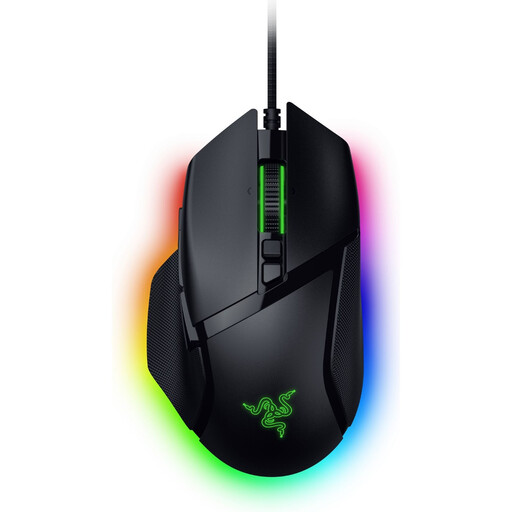 No image available
A wired option to compare if you scroll a lot and want to use configurable buttons.
35,000 DPI; 11 buttons.
Wired version: bear in mind that you’ll have a cable on your desk.
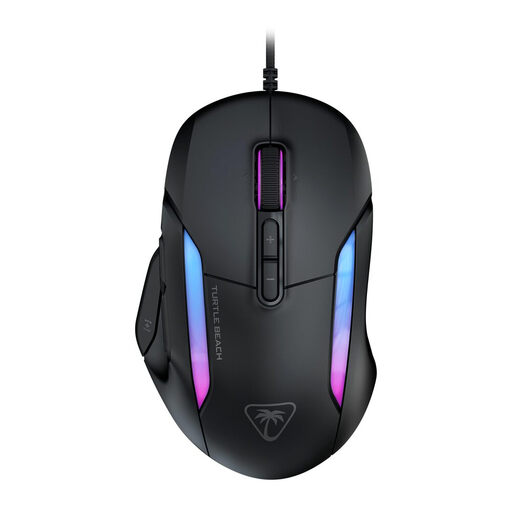 No image available
A model to compare if you want recurring controls and a tilting scroll wheel.
26,000 DPI; 23 buttons; wired.
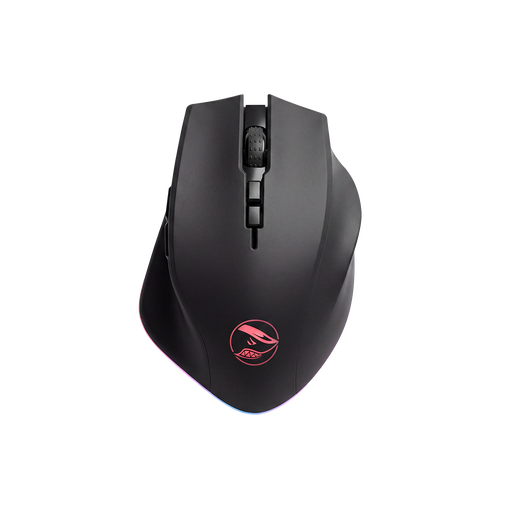 No image available
A wireless option to compare if you want to configure multiple buttons.
16,000 DPI; PAW3335 sensor; 8 programmable buttons.
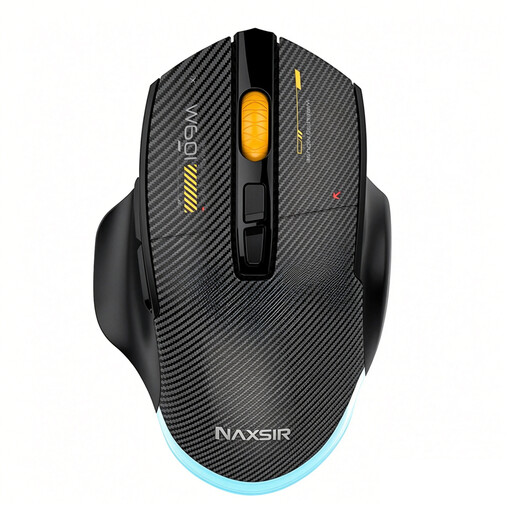 No image available
An option to compare if you want to configure macro buttons and choose between connection types.
12,800 DPI; 7 programmable macro buttons.
Wired, 2.4G wireless or Bluetooth.
 No image available
A wireless model to compare if customisable controls and multiple connection options matter to you.
26K DPI; PAW3395 sensor; 56 g; 400 mAh battery.
2.4G, USB-C or Bluetooth; magnetic charging dock.
Keep the magnetic charging dock away from pacemakers, medical implants and payment cards.
First, try a flat, solid-coloured, non-reflective mouse pad and check that the sensor is clean. This follows Logitech Support’s troubleshooting advice; a higher maximum DPI isn’t a proven solution for a reflective surface.
No. Start with the tasks you repeat most often in your management game. Check that you can reach your chosen buttons comfortably and find out which configuration options are available for the exact mouse. Extra buttons don’t automatically give you useful in-game functions.
It depends on whether you prefer playing without a cable or would rather avoid charging. Check how the exact version is charged and the conditions under which the manufacturer quotes its battery life. For example, Corsair quotes battery life for the Scimitar Elite Wireless with the lighting switched off.
According to ACM ConsuWijzer, online consumer purchases generally come with a cancellation period of up to 14 days after delivery; the relevant terms and exceptions still apply. Your statutory guarantee is separate: if a fault doesn’t meet what you could reasonably expect with normal use, the seller is responsible for providing a solution.