First, choose a mouse whose shape and buttons suit your hand and grip. Extra buttons and multiple scrolling modes are most useful if your map editor supports them. With a wired mouse, you won’t need to recharge the battery during a session, while a wireless mouse gives you more freedom of movement. A manufacturer’s specifications alone can’t tell you whether a mouse will be comfortable for you.
Who is this guide for?
Dedicated map creator
You spend long stretches working on a map and want a grip and mouse shape that suit you. Arboportaal highlights repetitive hand movements and static strain as factors to consider when working at a screen, so make sure you take breaks from prolonged work.
Shortcut user
You often switch between tools or actions and may want to assign them to easily accessible mouse buttons. This only works if your mouse settings and map editor support the assignments you want.
Precision and navigation-focused creator
You zoom and navigate frequently, and want to weigh up whether different scrolling modes are more useful in your editor than extra buttons. Logitech G and Razer describe different scrolling controls on specific models.
What should you look for when choosing?
Start with the grip and controls supported by your editor. Then decide whether buttons, scrolling or the connection matters most for your work.
| What to consider |
What to look for |
Who is this important for? |
| Grip and strain |
Compare the shape, dimensions, weight and button reach; if possible, try your usual grip. |
If I spend hours working on one map, I want a mouse that suits my hand; around 36% of consumers prioritise a comfortable grip. |
| Buttons for editor actions |
Check whether your editor lets you assign the actions you want to mouse buttons, and whether those buttons are easy to reach. |
If I switch tools frequently, I want my most-used actions within easy reach; around 29% of consumers prioritise assignable actions. |
| Scrolling and navigation |
Compare the available scrolling modes and try the wheel to see how accurately you can navigate. |
If I zoom and navigate a lot, I want the scrolling controls to suit my editor; around 21% of consumers prioritise navigation. |
| Cable or charging |
For wired use, check whether the cable gets in the way of your movements. For wireless use, check the stated battery life and the conditions it applies to. |
If I want freedom of movement but also need to consider charging, I weigh up both; around 14% of consumers prioritise freedom of movement. |
Pitfalls to avoid when choosing
-
Assuming a description such as ‘ergonomic’ proves the mouse will suit you
Hand size, grip and button reach vary from person to person. A product description doesn’t prove that a mouse will reduce strain on your hand; prolonged, repetitive movements still need to be considered.
Compare the dimensions and, if possible, try your usual grip and check how easily you can reach the buttons. Take breaks from prolonged computer work.
-
Choosing more thumb buttons without checking your editor
A panel packed with buttons won’t help if your map editor doesn’t let you assign the actions you want, or if the buttons are difficult to reach.
First, make a note of the actions you use frequently, then decide how many buttons you need for them.
Also allow time to set up the buttons and get used to them.
-
Assuming similar model names mean the same version
The wired Logitech G502 X is not the same model as the G502 X LIGHTSPEED. The Basilisk V3, Basilisk V3 Pro, Basilisk V3 35K and Basilisk V3 35K Wired are also different versions.
Before buying, check the full model name, connection type and features of the version you’re considering.
Relevant brands to consider
Logitech G
The wired Logitech G G502 X is worth considering if you want configurable buttons and two scrolling modes without having to manage a battery.
- Logitech G lists a weight of 89 g, an adjustable DPI button and free-spin or click-to-click scrolling for this model.
- These specifications don’t tell you whether the shape will suit your hand. The G502 X LIGHTSPEED is a different, wireless version.
Razer
The wired Razer Basilisk V3 is an option to compare if you’re looking for programmable buttons and a tilt-click scroll wheel.
- Razer lists eleven programmable buttons, a right-handed shape and a weight of 101 g without the cable for the Basilisk V3.
- These details don’t tell you whether the model will feel comfortable in your hand. The Basilisk V3 Pro and Basilisk V3 35K are different versions.
SteelSeries
The Aerox 5 Wireless is worth considering if wireless control and a low stated weight matter to you, but you don’t need a very large number of buttons.
- SteelSeries lists a weight of 66 g and nine programmable buttons for this model.
- The stated weight doesn’t prove that the mouse will be comfortable for you. Weight and number of buttons are separate considerations.
Corsair
The CORSAIR SCIMITAR ELITE WIRELESS is worth considering if you want to assign lots of actions to an adjustable thumb-button panel.
- Corsair lists sixteen programmable buttons, a sliding side panel and a weight of 114 g without the cable and accessories.
- More buttons aren’t useful for every editor. According to Corsair, the stated battery life is without backlighting and varies depending on the connection.
Gaming mice at Joybuy
This selection includes wired and wireless gaming mice with different numbers of buttons and control options. Compare their features with the actions, grip and navigation you use in your map editor.
 No image available
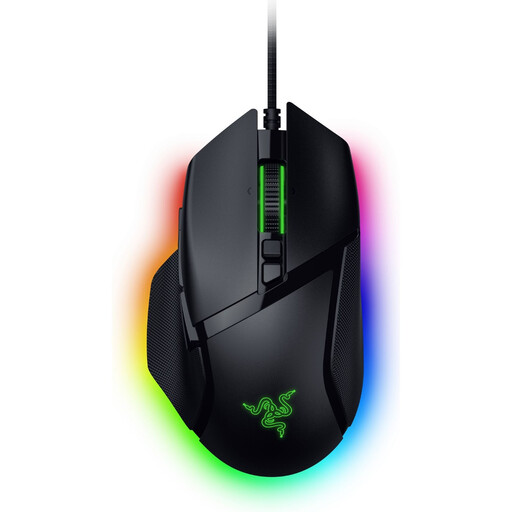
Razer Basilisk V3 35K, wired gaming mouse
Worth comparing if you’re looking for wired control and plenty of mouse buttons; the product name lists 11 buttons.
35.000 DPI; black.
Joybuy
 No image available
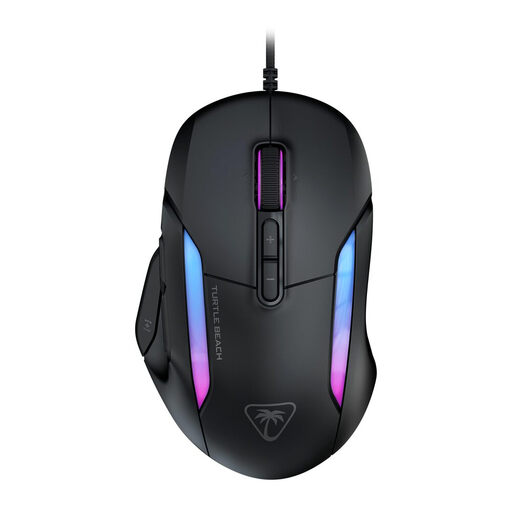
Turtle Beach Kone II, wired gaming mouse
Worth comparing if you’re looking for plenty of mouse buttons; the product name lists 23 buttons.
26.000 DPI; black.
Joybuy
 No image available
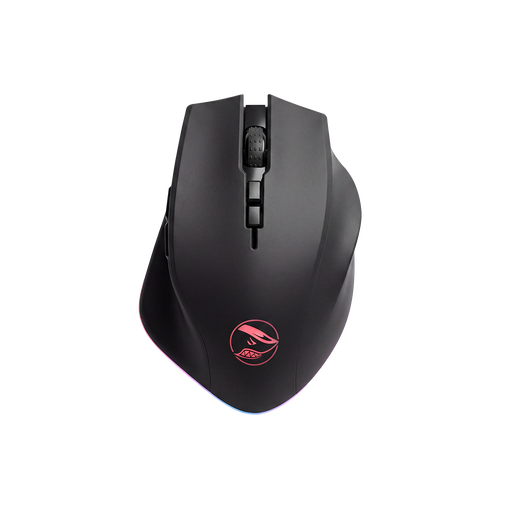
Shark Velocity M71, wireless gaming mouse
Worth comparing if you want to work wirelessly and assign actions to mouse buttons; the product name lists eight programmable buttons.
PAW3335 sensor; 16.000 DPI.
Joybuy
 No image available
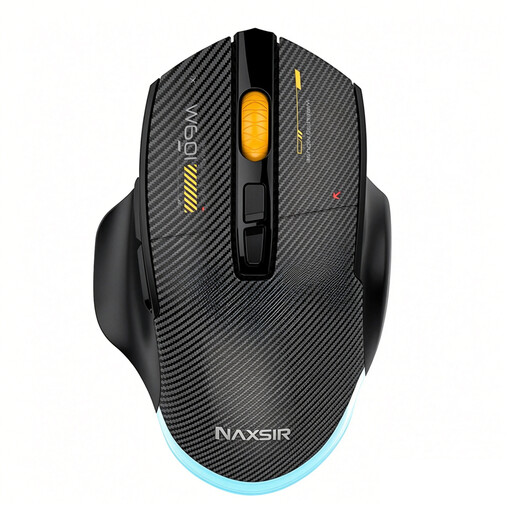
NAXSIR 3-in-1 gaming mouse
Worth comparing if you want to assign actions to buttons and choose between different connections; the product name lists seven programmable macro buttons.
12.800 DPI; wired, 2.4 GHz wireless and Bluetooth; black.
Joybuy
 No image available
AJAZZ AJ159 PRO, wireless gaming mouse
Worth comparing if you’re looking for a wireless mouse with a low stated weight; the product name lists 56 g.
PAW3395 sensor; 26K DPI; 2.4G, USB-C and Bluetooth; 400 mAh battery; white.
The magnetic charging dock contains magnets. Keep it away from pacemakers, medical implants, payment cards and ID cards.
Joybuy
Frequently asked questions
Do I need a very high DPI for creating game maps?
Don’t choose a mouse based only on its maximum DPI. Check whether you can set the sensitivity to a level that lets you point accurately in your editor; a manufacturer’s specifications don’t automatically show how suitable a mouse is for map editing.
How do I set up mouse buttons for my map editor?
First, check which actions your editor lets you assign to buttons. Then assign only the actions you use frequently to easily accessible mouse buttons. Logitech describes configurable functions in G HUB; how useful they are also depends on your editor and computer.
What should I consider during a long session?
Take breaks from prolonged, repetitive computer work, and pay attention to your posture and workstation. Arboportaal highlights repetitive tasks and static strain as factors to consider; a mouse can’t guarantee that you’ll avoid discomfort.
What product safety requirements apply to a gaming mouse in the Netherlands?
Electrical and electronic equipment must carry the required CE marking. Wireless radio equipment must also meet the applicable European radio requirements. According to the Dutch Authority for Digital Infrastructure, additional RED 3.3 cybersecurity requirements depend on the type of device. Check the information for the specific version you want to buy.
What is the cooling-off period for an online purchase?
For an online distance purchase from a business, the cooling-off period is usually 14 days. The Dutch government describes this rule for many distance purchases; check who the seller is and which terms and conditions apply to your purchase.


