
Players who want precise cursor control
On a large screen, you want to move quickly to a target while still being able to make small adjustments. Logitech G and Microsoft Support explain how to adjust cursor speed.


Choose a mouse that feels comfortable in your hand and lets you adjust the sensitivity to suit your screen and game. A high maximum DPI doesn’t automatically make a mouse right for you. Extra buttons are most useful when you assign them to individual in-game actions. Whether you choose wired or wireless depends on your setup and the mouse’s connection and power requirements.
On a large screen, you want to move quickly to a target while still being able to make small adjustments. Logitech G and Microsoft Support explain how to adjust cursor speed.
If you want to control individual in-game actions with your thumb, it’s not just the number of buttons that matters. You also need to be able to reach them easily with your usual grip. SteelSeries and Corsair describe models with different side-button layouts.
Shape and freedom of movement can make a difference during longer gaming sessions. Also consider cable routing, where to place a wireless receiver and how your chosen model is powered.
Start with the fit and cursor settings, then decide how many buttons you need and which type of connection suits your game and setup.
A good fit if: you mainly want to move the cursor quickly and don’t need many extra actions under your thumb.
The trade-off: a wired mouse has a cable, while a simple layout leaves more actions to the keyboard.
A good fit if: you use several individual abilities in your game and want to reach them with your thumb.
The trade-off: you’ll need to get used to the layout and configure the buttons. Not every arena game calls for more buttons.
A good fit if: a cable gets in the way of your setup or mouse movement, and your computer has room for the required receiver.
The trade-off: consider the power requirements and where to place the receiver; these vary by model.
| What to consider | What to look for | Who is this important for? |
|---|---|---|
| Cursor control | Check whether the sensitivity is adjustable and try it in your own game. | If I want to move quickly and make small adjustments on a large screen, I look for a setting that suits my game. Around 31% of consumers put cursor control first. |
| Buttons for actions | Check the number and position of the buttons, and whether you can reach them with your usual grip. | If I want to control abilities with my thumb, I only want buttons I can find easily and will actually use. Around 23% of consumers prioritise easy-to-reach in-game actions. |
| Fit and movement | See how the shape feels in your hand and whether you have enough room to move the mouse. | If I play for longer periods, I want a comfortable shape that doesn’t restrict my movement. Hand comfort is the main purchasing concern for around 23% of consumers. |
| Cable, receiver and power | Check the cable routing or, for wireless use, the receiver and power requirements of the exact model. | If my desk has little space or a cable gets in the way, I consider the connection and where the receiver will go. Connection and power are top priorities for around 15% of consumers. |
| Features and after-sales support | Compare the features you’ll use and check who to contact if there’s a problem with the product. | If I don’t want to pay for features I don’t need, I also look at the after-sales support available. Value for money and after-sales support are the main concerns for around 8% of consumers. |
A higher DPI setting makes the cursor move faster, but it doesn’t tell you which sensitivity will feel right for your screen and game. A different setting may work better for small adjustments.
Compare the adjustment options and try different sensitivities in your own game before basing your choice on maximum DPI. Logitech G and Microsoft Support explain how to adjust sensitivity and pointer speed.
A large number of buttons only helps if you can use them for the actions you want without constantly changing your grip. Configuring buttons and profiles can also take time.
First decide which actions you want under your thumb, then assess the layout using your usual grip. SteelSeries and Corsair describe different button layouts; the right choice depends on what you use in your game.
Power, receiver and connection options vary by model. According to Logitech, the Logitech G305 uses an AA battery. Corsair describes the Scimitar Elite Wireless as having a USB receiver and charging via its USB charging/data port.
Check the power requirements, receiver and connections for the exact version before you choose.
According to the Dutch government, the Netherlands has no fixed statutory warranty period. If a product is faulty, the retailer is your point of contact; any manufacturer’s warranty is separate.
Keep your proof of purchase and check what additional rights an extended warranty actually provides.
The G203 and G305 are examples of a wired mouse with six buttons and a wireless option with an AA battery, respectively. These features apply to these models, not the entire range.
The wired Aerox 3 is worth comparing if you’re looking for a lightweight mouse; the Rival 5 has more programmable buttons.
The Naga V3 Pro is designed for players who want to switch between layouts for different types of games.
The Scimitar Elite Wireless is a wireless option with an adjustable side panel for players who want to configure lots of actions.
This selection includes wired and wireless gaming mice, with a range of options for sensitivity, buttons and connectivity.
 No image available
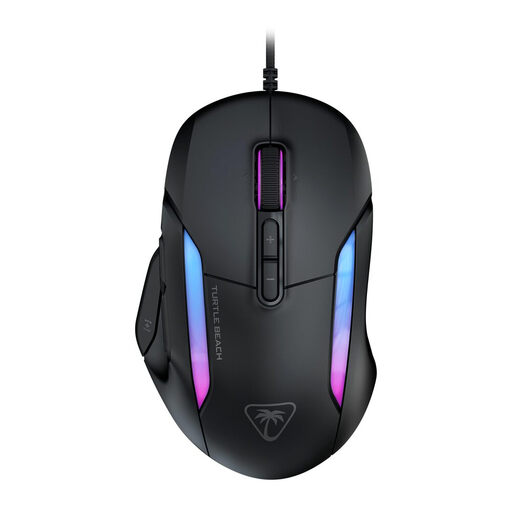
An option to consider if you want to adjust sensitivity and keep several in-game actions within easy reach.
The product name lists 23 buttons, 26,000 DPI and a wired design. Maximum DPI alone doesn’t determine which setting is right for your game.
 No image available
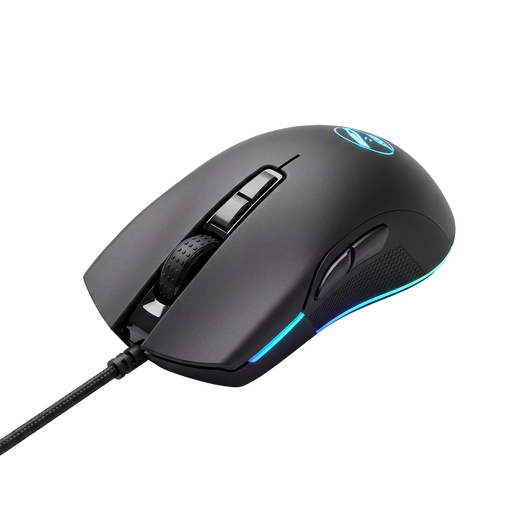
An option to explore if you want to adjust sensitivity for your screen and assign extra actions.
 No image available
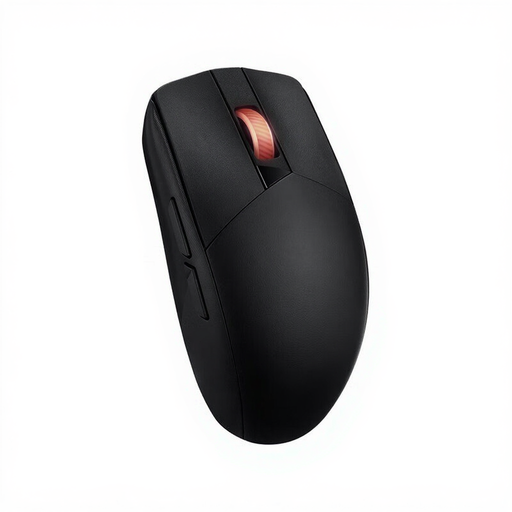
A wireless option to consider if you’re looking for a mouse described in the product name as suitable for both left- and right-handed use.
The product name lists RF and Bluetooth, an optical sensor and 36,000 DPI. Check which connection suits your gaming setup.
 No image available
A wireless option if you want to adjust the sensitivity and recharge the mouse between sessions.
The product name lists a PAW3395 sensor, 26K DPI, 2.4G, USB-C and Bluetooth, a 400 mAh battery and a weight of 56 g. The product information warns that the magnetic charging base should be kept away from pacemakers and other medical implants.
 No image available
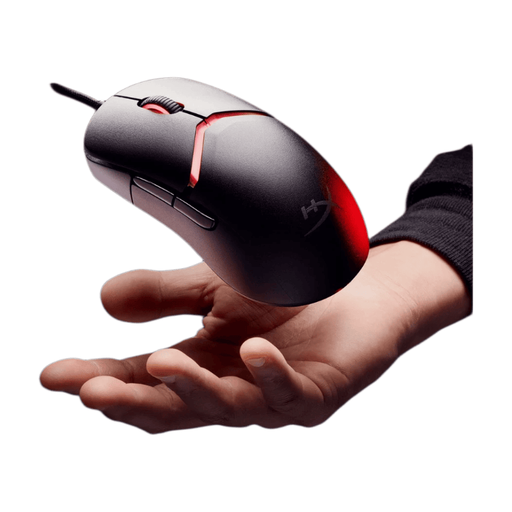
A wired option if you want to adjust sensitivity and don’t mind having a cable in your setup.
The product name lists RGB lighting and 26,000 DPI. The maximum figure doesn’t tell you which sensitivity will feel right for your game.
No, the highest DPI isn’t automatically the right choice. A higher setting makes the cursor move faster, so choose a mouse with adjustable sensitivity and try out what works for your game. You can also adjust pointer speed in Windows.
Start with the actions you use regularly and check whether the game recognises your assignments. Corsair describes settings through iCUE and a movable side panel for the Scimitar Elite Wireless; the controls can vary by model.
Check the power requirements of the exact model and make sure you can connect and position its receiver. According to Logitech, the Logitech G305 uses one AA battery; Corsair describes the Scimitar Elite Wireless as having a USB receiver and charging via its USB charging/data port.
According to the Dutch government, online purchases from a business generally come with a 14-day cooling-off period; the same rule doesn’t apply in the same way to purchases from a private seller. You’re also entitled to a product that works as it should. The Netherlands has no fixed statutory warranty period, and if there’s a fault, the retailer is your point of contact, even if the product has a manufacturer’s warranty.