
Sprite animator in a shared office
You mainly work on 2D animations using frames and layers, and want to be considerate of your colleagues when the fans are running.


For 2D sprite animation, it makes sense to start by assessing the screen, visible workspace and fan noise under your workload. A powerful dedicated GPU isn’t automatically the top priority. Aseprite describes a workflow using frames, layers and a timeline, while ASUS says that a quieter performance mode can limit the CPU and GPU power available. So choose your laptop based on the games or 3D software you actually use, too.
You mainly work on 2D animations using frames and layers, and want to be considerate of your colleagues when the fans are running.
You use the same laptop for sprite work, more demanding games or software such as Blender. The requirements of these other applications will also affect your choice.
You regularly take your laptop with you, weighing up its size and weight against screen space and how it performs under load.
Start with what you need every day for sprite work and office comfort. Then consider any extra requirements from your games or 3D software.
| What to consider | What should you check? | Who is this important for? |
|---|---|---|
| Fan noise | Compare noise measurements under both light and heavy loads, and check which performance modes are available on that configuration. | If I animate in an office, I want to know how the laptop sounds under my own workload. Around 29% of consumers say a quiet office environment is their main consideration. |
| Screen and workspace | Check the screen size, resolution and colour coverage of the exact configuration on offer. | I want to see my frames, layers, timeline and canvas clearly without constantly switching between windows. Around 29% of consumers give screen and drawing workspace their highest priority; Aseprite describes animation work using frames, layers and a timeline. |
| Portability | Check the weight of the exact configuration, and take the screen size and charger into account. | When I move between workspaces, I want to know what I’ll be carrying each day and how much screen space I’ll have. Around 24% of consumers put portability first. |
| Games and 3D | Make a note of your games, engine and any Blender features you use, then compare their requirements with the CPU, RAM, GPU and video memory. | If I play more demanding games or use 3D software as well as working on sprites, I want to choose a configuration that suits those extra tasks. Around 18% of consumers say additional gaming or 3D performance is their main priority; Blender lists 8 GB RAM as the minimum and 32 GB as the recommended amount for Windows. |
A Notebookcheck test of a Zephyrus G14 with RTX 5080 describes loud fan noise while gaming. A small size alone doesn’t tell you how quiet a laptop will be under your office workload.
Look for measurements of the exact configuration under a load similar to the one you expect. Also check whether a quiet mode comes with any performance limitations.
A product range can include different screens and GPUs, so its specifications won’t necessarily apply to every sub-model.
Compare the full model and product code with the specifications of the configuration you want to buy.
What’s in the box can vary between configurations. Some laptop configurations are listed as requiring the charger to be bought separately.
Before you buy, check what’s included with the exact offer and what power supply the laptop needs.
If a suitable charger isn’t included, you’ll need to buy one separately.
According to ASUS, the ROG Zephyrus G14 range combines a compact 14-inch design with gaming hardware and OLED screen options. Check which features apply to each configuration.
The Legion 5 15IAX10 is a 15-inch range worth comparing for its screen, ports and gaming hardware.
The Nitro V 15 is a 15.6-inch gaming laptop range. Check each configuration against its own specifications.
The OMEN 16-am0625nd is a 16-inch configuration with a 1920 × 1200 screen and an RTX 5050.
The Stealth 14 AI Studio A1V range is a compact series worth comparing for gaming and creative software.
These models suit sprite work, with scope for gaming tests, extra 3D tasks or moving between workspaces. Compare the specifications of each configuration and check fan noise under the load you expect.
 No image available
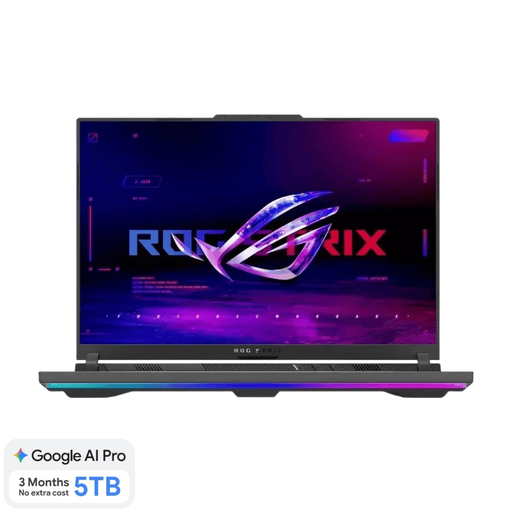
The 16-inch screen gives you room to view your animation work and timeline side by side.
16-inch OLED screen, 2560 × 1600, 100% DCI-P3, RTX 5060 Laptop GPU, 16 GB RAM and 1 TB SSD.
The charger must be bought separately.
 No image available
This configuration pairs a spacious screen for animation work with a GPU for more demanding games or 3D applications.
16-inch IPS screen, 2560 × 1600, 100% DCI-P3, Ryzen 9 9955HX, RTX 5070 Ti Laptop GPU with 12 GB video memory, 16 GB RAM and 1 TB SSD. QWERTY keyboard.
The charger must be bought separately.
 No image available
The 18-inch screen could suit you if you want more workspace on your laptop while animating.
18-inch screen, 2560 × 1600, 16:10, RTX 5060 Laptop GPU, 16 GB RAM and 1 TB SSD.
The charger must be bought separately.
 No image available
This configuration pairs a high-resolution screen with specifications for additional gaming and creative tasks.
16-inch IPS screen, 2560 × 1600, 100% DCI-P3, RTX 5070, 32 GB RAM and 1 TB SSD. UK RGB keyboard.
 No image available
This 16-inch configuration is worth comparing if you’re weighing up screen space against taking your laptop between workspaces.
16-inch QHD+ OLED screen, 2560 × 1600, 100% DCI-P3, RTX 5060 Laptop GPU, Intel Core Ultra 9 386H, 16 GB DDR5 and 1 TB SSD. Listed weight is approximately 1.99 kg.
No. Sprite animation alone doesn’t automatically call for a powerful gaming graphics card. Aseprite describes a workflow using a timeline, frames, layers and previews; also check the requirements of your games, engine or other software.
If your model has one, use a quieter performance mode for light sprite work and keep the vents clear, following the instructions for your model. ASUS says its Silent Mode limits the power available to the CPU and GPU. Check the noise again when you start a game or render.
Check the requirements for the version of Blender and the features you plan to use. The Blender Foundation lists 8 GB RAM as the minimum and 32 GB as the recommended amount for Windows; GPU rendering may have additional requirements. These are not general RAM requirements for 2D sprite work alone.
No. The legal guarantee depends on what you could reasonably expect from the product and the circumstances. According to ACM ConsuWijzer, the seller is responsible if a product proves faulty during normal use; a manufacturer’s warranty period doesn’t limit your legal rights.
For distance purchases, you generally have a cooling-off period of up to and including 14 days after delivery, and you don’t have to give a reason. ACM lists legal exceptions. If a laptop has been made specially to your specifications, check which exception applies.