
Explorer of dark worlds
You mainly play on your laptop’s screen and want dark scenes to be easy to make out. Look beyond marketing terms such as HDR and check the screen configuration and support for the games you play.


Start with the screen on the exact model you’re considering. OLED and mini-LED are worth comparing if you mainly watch dark scenes on the built-in display, but the panel name alone won’t tell you how clearly details will show up. For HDR games, both the PC and the display need to support HDR. Then compare the GPU and its stated power, memory and storage against the games you play, and factor in fan noise and portability for longer sessions.
You mainly play on your laptop’s screen and want dark scenes to be easy to make out. Look beyond marketing terms such as HDR and check the screen configuration and support for the games you play.
You want a laptop that suits the games you actually play. Compare the full configuration, not just the name of the laptop GPU.
You want to enjoy long sessions without overlooking fan noise, heat management or the lighting in your gaming space.
For HDR games, both the PC and the display need to support HDR. Microsoft Support explains the hardware requirements for HDR in Windows.
A good fit if: you mainly play on the built-in display and dark scenes matter to you.
Consider: if you often have static on-screen elements for long periods, check the maintenance settings on the specific model.
A good fit if: you want to compare an alternative to OLED for dark scenes.
Consider: compare panel measurements for the exact model. The panel name alone doesn’t show how it compares with OLED.
A good fit if: contrast matters less than other features of the model, such as an anti-glare screen or the combination of GPU and size.
Consider: check screen measurements for dark scenes. The panel label alone doesn’t tell you how much detail remains visible.
| Buying consideration | What to check before buying | Who is this important for? |
|---|---|---|
| Dark scenes on the laptop screen | Check the panel and the exact screen configuration. Also make sure the PC and display support HDR for the HDR games you play. | If I want to make out dark areas clearly on the built-in display, I compare the specific panel rather than relying on the HDR label alone. Around 36% of consumers give screen quality their top priority. |
| Performance in your games | Compare the full model code, GPU, stated GPU power, RAM and storage with the requirements of your games. | If you first want to know how your own exploration games will run, it’s worth comparing the complete configuration. Around 29% of consumers put gaming performance first. |
| Noise and heat during evening sessions | Look for noise measurements under gaming load for the exact model and check which fan modes are available. Keep the vents clear. | For long sessions in a quiet or shared space, I want to know how much noise the laptop makes under load and how best to position it. Around 21% of consumers give noise and setup their top priority. |
| Portability and configuration | Check the model code, screen size, weight, keyboard layout and backlighting, SSD and what’s included in the box. | If I move my laptop around or type in the dark, I want to make sure this exact configuration suits the way I use it. Around 14% of consumers prioritise portability and a complete configuration that meets their needs. |
The same GPU name can appear in laptops with different power and cooling configurations. The name alone therefore doesn’t tell you how the complete model will perform in your games.
Compare the stated GPU power and tests of the complete model in the games you play. NVIDIA explains how laptop GPU power and cooling work together.
A panel label doesn’t measure how clearly dark details show up on every model. HDR also requires support from both the PC and the display.
Check the exact panel, HDR support and relevant measurements for the model. With OLED, also consider static on-screen elements for long periods and the model’s maintenance settings.
The screen, storage, keyboard and power supply can vary between configurations. Manufacturers also distinguish between features of a range and those of a specific model.
Before buying, check the full model code, specifications and box contents.
A configuration that doesn’t suit the way you use your laptop could mean you need a different version or an additional component.
The Zephyrus range includes compact and larger gaming laptops with OLED options, for those weighing up screen quality and portability together.
A specific Legion 5 Gen 10 configuration shows how the screen, GPU, keyboard backlighting and storage come together on a particular model.
The Predator Helios Neo 16S AI configuration NH.QX9EH.001 is a specific model you can use to compare larger OLED screens.
The OMEN range includes different screen options, so it’s important to check the exact configuration when comparing models.
The Stealth 16 AI+ is another option to compare if you’re looking for a slimmer 16-inch model with an OLED screen.
This selection of gaming laptops on Joybuy includes OLED, mini-LED and IPS screens, for those weighing up screen type and configuration for exploration games.
 No image available
An option to compare if you play on the built-in screen and want to weigh up performance for demanding games.
16-inch IPS screen with a resolution of 2560 × 1600 pixels and a 240 Hz refresh rate; 32 GB of memory and a 1 TB SSD.
The product name specifies a UK RGB keyboard.
 No image available
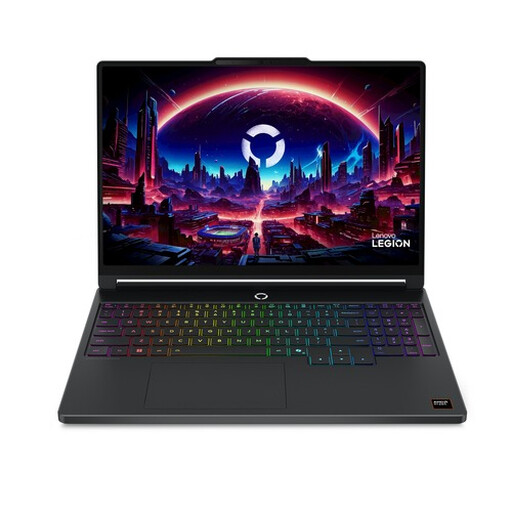
An option if you want to compare a large built-in screen and a high-spec configuration; bear its size in mind when deciding where to place it.
18-inch UHD+ mini-LED screen with a 120 Hz refresh rate; Intel Core Ultra 9 285HX, RTX 5090 laptop GPU with 24 GB, 64 GB DDR5 and a 6 TB SSD.
The product description lists a weight of 3.6 kg and recommends keeping the vents clear.
 No image available
An option to compare if both an OLED screen and the GPU configuration matter for your games.
15.3-inch WQXGA OLED screen with a 165 Hz refresh rate; AMD Ryzen 7 250, 16 GB DDR5 and a 512 GB SSD. The product description lists an RTX 5060 laptop GPU with up to 115 W TGP.
The product name specifies a Belgian AZERTY keyboard layout.
 No image available
A 16-inch OLED option to compare if you’re weighing up screen size, configuration and portability together.
QHD+ OLED screen with a 240 Hz refresh rate; Intel Core Ultra 9 386H, RTX 5060, 16 GB DDR5 and a 1 TB SSD.
The product name specifies a QWERTY keyboard; the product description recommends keeping the vents clear.
 No image available
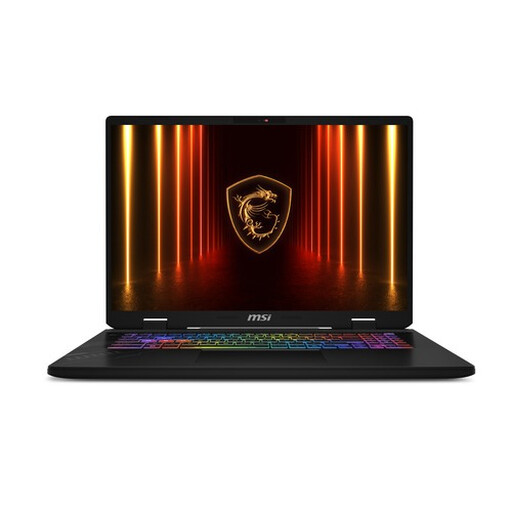
An option if you want to compare a large built-in screen with the configuration your games require.
17-inch QHD+ IPS-level screen with a 240 Hz refresh rate; Intel Core Ultra 7 255HX, RTX 5060 with 8 GB, 32 GB DDR5 and a 1 TB SSD.
The product description recommends keeping the vents clear.
No, neither is a general requirement. Compare screen configurations for dark scenes. For HDR games, both the PC and the display need to support HDR; check that the game supports HDR too.
In Windows, go to Display and HDR to check whether the selected display supports HDR games and apps, and switch HDR on if needed. Microsoft Support says the Windows HDR Calibration app can help you adjust visible dark and light details in Windows 11.
Check which maintenance features your model has and bear in mind the effects of static, high-contrast images displayed for long periods. For supported OLED models, ASUS recommends screen maintenance and avoiding this type of static image for extended periods, among other measures. This doesn’t guarantee that burn-in is impossible.
Keep the vents clear and follow your model’s manual for cleaning and fan modes. ASUS explains that dust or blocked airflow can affect cooling and performance.
For online consumer purchases, you generally have a statutory cooling-off period of up to 14 days after delivery, with some exceptions. ACM ConsuWijzer also states that under the statutory guarantee, you’re entitled to a solution if the product doesn’t perform as you could reasonably expect during normal use; the seller must resolve this in line with the applicable terms.