What should you look for?
Choose your aquarium app first, then check your screen setup and connections. Only then compare the laptop configuration with the app’s requirements and those of any other games you play.
| What to consider |
What should you check? |
Who is this important for? |
| Picture on the big screen |
Check the screen’s resolution and aspect ratio, the video output on the exact laptop configuration, and whether the app supports it. Remember to check the cable and refresh rate too. |
If I want to display the aquarium on a TV, an ultrawide screen or multiple monitors, I need to know whether the app and connection will work with my setup. Around 33% of consumers put picture fit and connectivity at the top of their list when buying. |
| Compatibility with the aquarium app |
Check the system requirements, operating system and any restrictions on the screen format for the title you’ve chosen. |
If you already have a particular screensaver, overlay or simulation in mind, you’ll want to make sure general claims about gaming don’t take the place of checking that app’s requirements. Around 27% of consumers put app compatibility first. |
| Comfort during extended viewing |
Check which resolution and refresh rate your connected setup supports. If you’re buying a screen too, check its energy label. |
If I want to display the aquarium regularly or for long periods, I need to know which settings my complete screen setup can handle. Around 20% of consumers put practical long-term use at the top of their list when buying. |
| Avoid paying for more power than you need |
Compare the requirements of your chosen app with the configuration of the exact laptop model, and consider any other games you want to play on it. |
If you’re mainly looking for a laptop to run an aquarium app, check whether the app really needs extra gaming power. Around 20% of consumers put avoiding unnecessary power at the top of their list when buying. |
The minimum requirements for Sea Aquarium Screensaver, published by Spinal Games on Steam, apply to that title: Windows 10 or 11 64-bit, 8 GB RAM, a GeForce GTX 1070, DirectX 12 and 2 GB of storage. These aren’t general minimum requirements for virtual aquariums, and they don’t prove that the app will run smoothly at every external screen resolution.
The screen’s aspect ratio can also make all the difference. The developer of Zen Aquarium says that 21:9 and 32:9 aren’t supported; a more powerful GPU won’t change that app limitation. Microsoft Support notes that the available display settings depend on the connected screen and setup.
Gaming laptops at Joybuy
These Joybuy products are gaming laptops to compare for use with an external screen. You don’t automatically need a gaming laptop for every aquarium app; check the connection and the requirements of your chosen software for each configuration.
 No image available
ASUS ROG Strix G18 G814PM-S9012W
This configuration lists HDMI 2.1 and USB-C DisplayPort for connecting an external screen; check which resolution your complete setup supports.
18-inch screen; Ryzen 9 8940HX; RTX 5060; 16 GB DDR5; 1 TB SSD; Eclipse Gray; QWERTY keyboard.
View at Joybuy
 No image available
ASUS V16 FX3607VP-RP061W
This configuration lists HDMI 2.1 FRL and USB-C display output. USB-C requires compatible equipment and a suitable cable.
16-inch screen; Intel Core 7 240H; GeForce RTX 5070 8 GB; 16 GB DDR5; 1 TB SSD; WUXGA 144 Hz; Windows 11 Home; Dutch QWERTY.
View at Joybuy
 No image available
MSI Titan 18 HX AI A2XWJG-492NL
This configuration lists HDMI 2.1 and two Thunderbolt 5 ports; check that the connections are compatible with your screen and cables.
18-inch UHD+ Mini LED 120 Hz; Intel Core Ultra 9 285HX; GeForce RTX 5090 24 GB; 64 GB DDR5; 6 TB SSD; Windows 11 Pro.
View at Joybuy
 No image available
MSI Stealth 16 AI+ B3WF-011NL
This configuration lists HDMI 2.1 and two Thunderbolt 4 ports for connecting an external screen.
16-inch QHD+ OLED 240 Hz; Intel Core Ultra 9 386H; GeForce RTX 5060; 16 GB DDR5; 1 TB SSD; Windows 11 Home; QWERTY keyboard.
View at Joybuy
 No image available
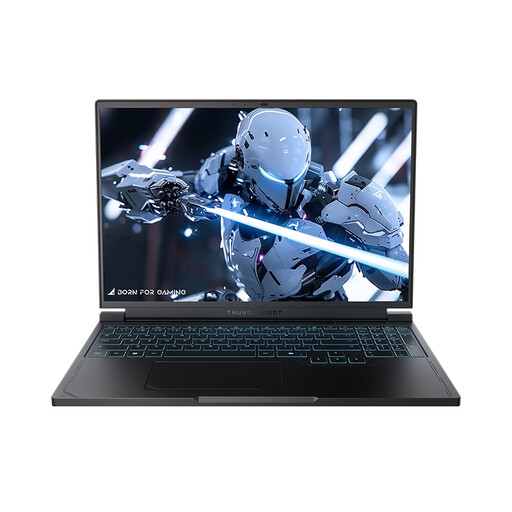
Thunderobot Radiant S16
This configuration lists HDMI and Mini DP connections; check that the port and cable are compatible with your screen.
16-inch QHD+ 240 Hz screen; AMD Ryzen 7 7745HX; 16 GB DDR5; 1 TB SSD; GeForce RTX 5060; RGB keyboard; Wi-Fi 6.
View at Joybuy
Frequently asked questions
Do I need a powerful gaming laptop for every virtual aquarium?
No, using an aquarium app doesn’t automatically mean you need one. One Overlay Games overlay we looked at works as a layer over windows, while Spinal Games publishes specific minimum requirements for Sea Aquarium Screensaver. Choose your app first, then compare its requirements with the exact laptop configuration.
How do I display the aquarium on my TV or monitor?
Connect the screen using a supported connection, then configure it in Windows. Also check whether the aquarium app supports the screen’s resolution and aspect ratio. For example, Dream Aquarium describes a zoom issue when using two screens with version 1.
What if my big screen doesn’t show the expected refresh rate?
Check the advanced display settings in Windows and the connection to your external screen. Microsoft Support notes that the available refresh rates depend on the screen and connected setup; the selected resolution can also make a difference.
What consumer rights apply when buying a laptop online in the Netherlands?
For a standard online purchase, you generally have a 14-day cooling-off period from delivery, with some exceptions. You also have statutory rights if a product doesn’t perform as you could reasonably expect under normal use; the Netherlands doesn’t have a fixed, general two-year warranty period. ACM ConsuWijzer and the Dutch government explain these rights.
Should I check the energy label when buying a large screen separately?
You can use the energy label to compare electronic displays, such as TVs and monitors. The European Commission uses a scale from A to G for these displays; the label doesn’t tell you whether the connected laptop is suitable or how well it performs.


