
UI designer who also games
You want one laptop for both design and gaming. Figma says its graphics requirements are low, so assess the screen configuration and the requirements of your games separately rather than relying on the series name alone.


A gaming laptop makes most sense for UI design at home if you also play games or use other graphics-intensive software alongside Figma. For Figma alone, a powerful dedicated GPU isn’t necessarily needed. First check the screen on the exact configuration, your workspace and the monitor connections, then choose the memory, storage and graphics capabilities to suit your other programmes. Figma says its graphics requirements are low; according to Figma, a dedicated GPU can improve performance, but it can also increase battery use.
You want one laptop for both design and gaming. Figma says its graphics requirements are low, so assess the screen configuration and the requirements of your games separately rather than relying on the series name alone.
You work with designs, previews and calls side by side. Think about your desk setup in advance and check that the laptop has the connections you need for the monitor you want to use.
You use Photoshop, for example, alongside UI software. For Photoshop 27.x on Windows, Adobe recommends at least 16 GB RAM and a fast internal SSD, among other things; check the requirements for the version you use.
Start with the screen and your home setup. If you also use Photoshop, other creative software or games, check their requirements too before choosing extra graphics power.
| What to consider | What to look for | Who it matters to |
|---|---|---|
| Screen and design display | Check the resolution, panel type and stated colour gamut for the full model number. Also decide whether you’ll design on an external monitor. | If I mainly design on the laptop screen, I want to be able to assess the specifications of that exact configuration. Around 36% of consumers give the screen top priority. |
| Memory and storage | Make a note of your programmes and their versions. For Photoshop 27.x on Windows, Adobe recommends at least 16 GB RAM and a fast internal SSD, among other things. | When I use design software alongside other programmes, I want the configuration to match what I actually run at the same time. Around 29% of consumers prioritise memory and storage for those programmes. |
| Home workspace and monitor | Check the monitor outputs and the space on your desk. Arboportaal sets out requirements for employees who work at a screen for more than 2 hours a day, including having a screen and keyboard that are not attached to each other. | If I work from home for long periods, I want to know whether my monitor and input devices will fit my setup. Around 21% of consumers prioritise their workspace arrangement. |
| Extra graphics power | Work out which games or other graphics-intensive programmes you use, then compare their requirements with the GPU in the exact configuration. | If gaming or other graphics-intensive work is part of how I use my laptop, I want to choose a GPU to suit it. Around 14% of consumers prioritise extra graphics power. |
A gaming screen specification won’t necessarily tell you which panel configuration you’re buying or how accurately it displays colours.
Compare the screen specifications for the full model number and assess any external monitor separately.
Figma says its graphics requirements are low. According to Figma, a dedicated GPU in a laptop with two GPUs can improve performance, but it can also use more battery power.
Let the other programmes and games you use determine how much extra graphics power you need.
A more powerful configuration could mean unnecessary expense if you don’t use the extra GPU capacity.
The setup you need depends on how you work and for how long. Arboportaal sets out specific workspace requirements for employees who work at a screen for more than 2 hours a day.
Check your desk and connections before buying, and only apply those requirements if they’re relevant to your working situation.
An external monitor or separate input devices need extra space and must fit your workspace.
The Zephyrus G14 GU405 series is worth considering if you’re looking at a compact gaming model with an OLED screen.
The Legion 5 16IRX9 shows why it’s important to check the configuration and connections for each version of a gaming laptop.
The OMEN 16 16-am0647nd configuration is an example of where the full model number helps you compare specifications.
The Predator Helios Neo 16S AI is a series worth exploring if OLED and gaming capabilities are both on your wish list.
The Raider 16 Max HX B2W series is worth considering if you’re looking at more demanding graphics work or gaming as well as UI design.
This selection features gaming laptops with stated screen, memory or connection specifications that may be relevant to UI design and additional creative programmes. Check the configuration and your software requirements before choosing.
 No image available
An OLED configuration with a stated DCI-P3 colour gamut to compare if you design on the laptop screen.
16-inch OLED, 100% DCI-P3, 16 GB RAM, 1 TB SSD and RTX 5060.
The listed connections are HDMI 2.1 and Thunderbolt 4. The product description states that the charger must be purchased separately.
 No image available
The 18-inch screen may appeal if you want a larger built-in workspace; check that this size suits your desk.
18-inch screen, 2560 × 1600, 100% DCI-P3, 16 GB RAM, 1 TB SSD and RTX 5060.
The listed connections are HDMI 2.1 and USB-C with DisplayPort. The product description states that the charger must be purchased separately.
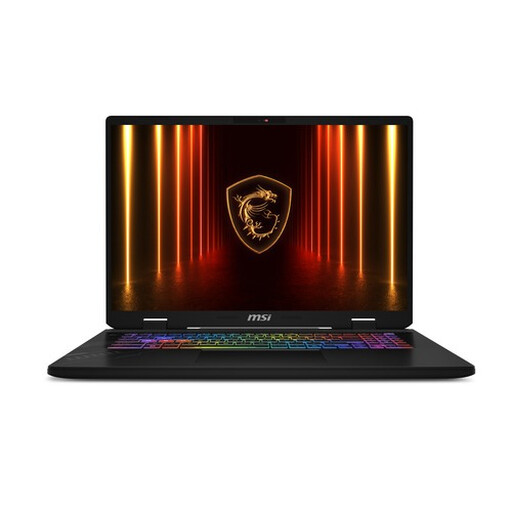 No image available
The listed configuration combines a larger screen with 32 GB RAM, making it worth comparing if you use several programmes.
17-inch screen, 2560 × 1600, 100% DCI-P3, 32 GB RAM, 1 TB SSD and RTX 5060 with 8 GB.
The screen is listed as QHD+ with 240 Hz. The listed connections are HDMI 2.1 and Thunderbolt 4.
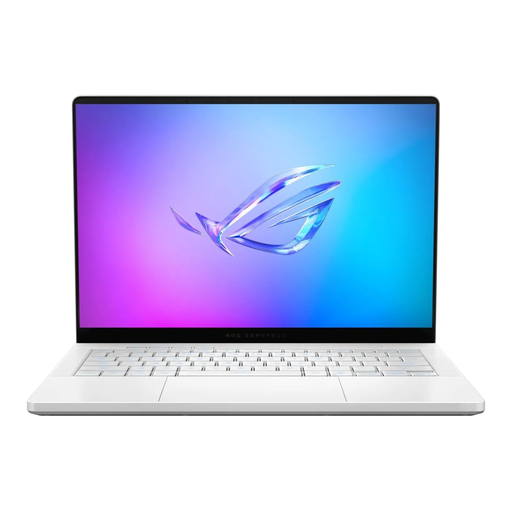 No image available
A 14-inch configuration to compare if you want a smaller OLED screen and also use additional programmes.
OLED, 2880 × 1800, 100% DCI-P3, 32 GB RAM, 1 TB SSD and RTX 5070.
The listed connections are HDMI 2.1 and USB-C with DisplayPort. According to the product description, the memory is onboard and cannot be upgraded by the user.
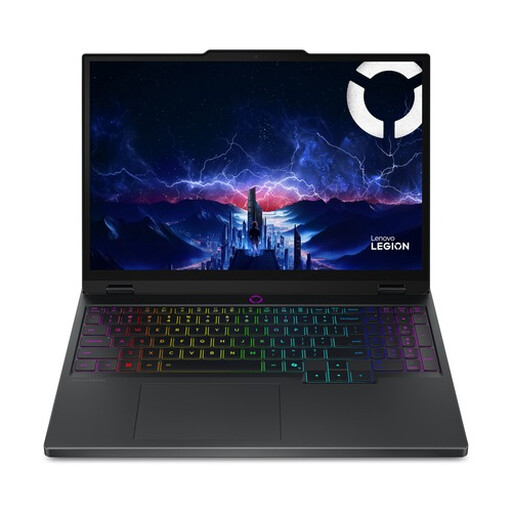 No image available
The stated OLED screen specifications and GPU configuration make this a version worth comparing for design and additional graphics applications.
15,1-inch OLED screen, 2560 × 1600, 100% DCI-P3, 16 GB RAM, 512 GB SSD and RTX 5070.
Check the keyboard layout on the exact configuration. The product description states that the charger must be purchased separately.
Not just because you use Figma. Figma describes its graphics requirements as low; according to Figma, a dedicated GPU in a laptop with two GPUs can improve performance, but it can also use more battery power.
Tailor your setup to how you work and for how long. According to Arboportaal, requirements apply to employees who work at a screen for more than 2 hours a day, including having a screen and keyboard that are not attached to each other; whether they apply depends on your working situation.
According to the Dutch government, online purchases from a business often come with a 14-day cooling-off period. Check who the seller is and which terms apply to your purchase; buying from a private seller is different.
No. According to the Dutch government, the Netherlands has no fixed legal guarantee period. You’re entitled to a product that works properly, depending on what you can reasonably expect; if a product is faulty, contact the seller. An additional manufacturer’s or seller’s guarantee doesn’t replace this right.