For a fixed workspace, a gaming laptop with a suitable video output and an external monitor is a straightforward choice. If you want to take two work areas with you without carrying a separate monitor, consider a model with two built-in screens. For either option, check the ports and screen layout of the exact model, and compare the requirements of your animation software and test games with its specifications.
Who is this choice for?
Sprite animator with a fixed workspace
You want to keep the timeline and drawing area separate from references or a game preview, and have space for an external monitor. Aseprite describes features for working with frames and layers, while Lenovo lists support for external displays on the Legion Pro 5 16IRX10.
Mobile creator who wants to use two screens
You want to work across two areas even when away from your usual workspace, so you’re comparing built-in screens with a separate monitor. ASUS ROG describes the Zephyrus Duo GX651 as having two built-in screens.
Creator who also tests games
You make sprites, but want to choose a processor, graphics card and memory based on the game and development software you use too.
What to consider when choosing
Laptop screen with an external monitor
Choose this option if: you usually work in one place and want to spread your canvas, timeline and preview across two screens.
Bear in mind: you’ll need a separate monitor and may need extra cables or an adapter. The connections must support your preferred screen settings.
Laptop with two built-in screens
Choose this option if: you want both work areas built into a single laptop that you can take with you.
Bear in mind: the screen layout, weight and working position of the exact model. Using two built-in screens isn’t automatically the same as working with a separate display.
| What to consider |
What should you check? |
Who is this important for? |
| Connecting a second screen |
Compare the video output on the exact laptop model with the monitor’s input, cable and required resolution. If using USB-C, check specifically whether that port supports video. |
If I want to connect an external monitor, I need to know that the port I choose can transmit a picture. For around 36% of consumers, screen connectivity is the top priority. |
| Space for animation |
Decide where you want your canvas, timeline, references and preview to appear. Then compare the screen sizes, resolutions and layout of the two work areas. |
I want to arrange my canvas and timeline comfortably, while leaving room for references or a preview. Around 29% of consumers prioritise the layout of their animation workspace. |
| Software and game previews |
Make a note of your editor, development environment and test game, then compare their requirements with the processor, memory, graphics card and storage of the same model. |
If I test a game as well as creating sprite animations, I want to match the specifications to the programmes I actually use. For around 21% of consumers, software and gaming performance is the top priority. |
| Carrying and setting up |
Compare the laptop’s weight and keyboard layout with the extra items you’ll need, such as a monitor, cable or adapter. |
I want to move my workspace without carrying more than is practical. For around 14% of consumers, portability and the overall setup matter most. |
Common buying mistakes
-
Assuming every USB-C port can transmit video
Video support depends on the port on the exact model; the shape of the connector alone doesn’t confirm that it has this feature.
Check whether the specifications mention USB-C with DisplayPort support, or use a suitable HDMI connection. Also check that it supports your preferred monitor settings.
-
Assuming a product range has one fixed configuration
Models in the same range can differ in graphics card, memory and other features.
Compare the full model code and specifications of the version you want to buy, including its memory, screens and ports.
-
Assuming two built-in screens are the same as a separate monitor
The screen layout and ways of using a laptop with two built-in screens differ from those of a monitor you can position separately.
Think about where you’ll animate and how you want to position your canvas, timeline and preview before comparing the two setups.
-
Confusing the manufacturer’s warranty with your rights as a buyer
The Government of the Netherlands states that there is no fixed statutory warranty period in the Netherlands and that the seller is responsible for faulty products.
Compare any additional cover with the rights that apply to your purchase, and assess a fault in light of the circumstances.
Brands to compare
ASUS ROG
Compare the Zephyrus G16 GA605KP-QR025W for use with an external monitor with the Zephyrus Duo GX651, which has two built-in screens. These are different models, with their own screen layouts and specifications.
- ASUS ROG lists HDMI and USB-C with DisplayPort support for the GA605KP-QR025W. For the GX651, ASUS lists two built-in 16-inch screens and a weight of 2,82 kg.
- Check the full model code, the ports you need and the working position. Features of one model don’t automatically apply to the other.
Lenovo Legion
The Legion Pro 5 16IRX10 is one model to consider if you’re comparing gaming laptops for use with an external monitor.
- Lenovo says this model supports its built-in screen alongside external displays via HDMI and USB-C.
- The range includes different configurations. Compare the full model code and the ports on the version you’re considering.
Acer Nitro
The Nitro V 16 AI ANV16-42-R85B is one model to compare with other gaming laptops.
- Acer Netherlands lists the model identifier ANV16-42-R85B.
- Check the full specifications of the version against the software and monitor you plan to use.
MSI Stealth
The Stealth A16 AI+ A3XWIG is a range to compare if game previews alongside creative work are important to you.
- For the A3XWIG range, MSI lists features including an RTX 5080 Laptop GPU and a 16-inch QHD+ OLED screen.
- These are range-level specifications. Check that the regional version you’re looking at has the same configuration.
Gaming laptops at Joybuy
Joybuy gaming laptop options for sprite animation and gaming; if you plan to use an external monitor, check the ports on the exact model.
 No image available
Thunderobot 16 Gaming Laptop, i7-14700HX, RTX 5070
Could suit you if you want to combine sprite work with gaming; match the configuration to the software you use.
32 GB memory, 1 TB storage and a 16-inch IPS screen with 2560 × 1600 resolution and 240 Hz.
Joybuy
 No image available
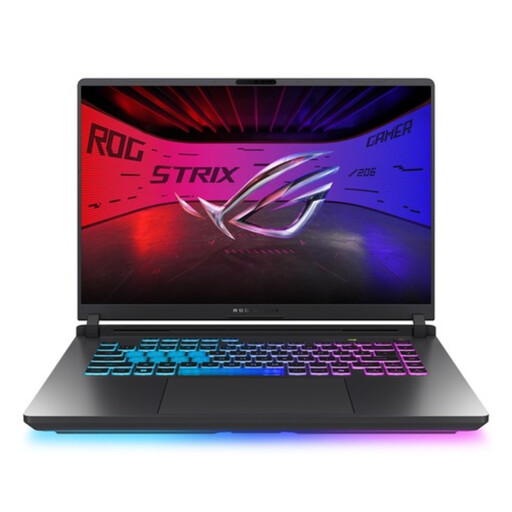
ASUS ROG Strix G16 G615LR-S5396W
An option to compare if you’re looking for a gaming laptop for animation and gaming; check the ports if you want to use an external screen.
Core Ultra 9, RTX 5070 Ti and QWERTY keyboard.
Joybuy
 No image available
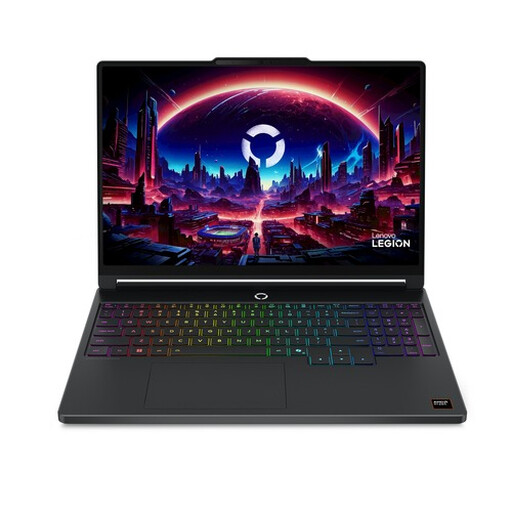
Lenovo Legion 5 15AHP11
Could suit you if you want to combine animation and gaming on the laptop screen; check the ports against your monitor before choosing an external setup.
AMD Ryzen 7 250, RTX 5060, 16 GB DDR5, 512 GB SSD and a 15,3-inch WQXGA OLED screen with 165 Hz. Belgian AZERTY keyboard layout.
Joybuy
 No image available
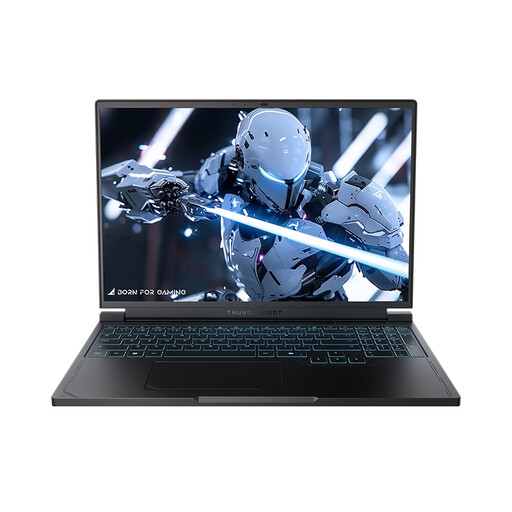
Thunderobot Radiant S16, Ryzen 7 7745HX, RTX 5060
Could suit a laptop-and-monitor setup; check the monitor connections and your software requirements before choosing.
16-inch QHD+ screen with 240 Hz, 16 GB memory and 1 TB SSD.
Joybuy
 No image available
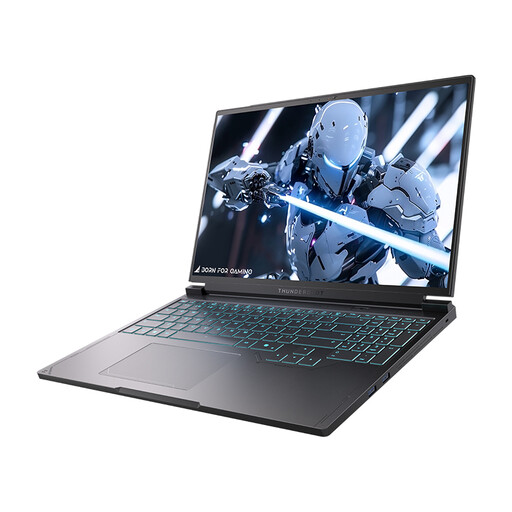
Thunderobot Radiant S16 5060, Core i7-13650HX
Could suit animation and gaming on a gaming laptop; compare the model’s specifications with the requirements of the programmes you use.
RTX 5060, 16 GB DDR5, 1 TB SSD and a 16-inch QHD+ screen with 240 Hz.
Joybuy
Frequently asked questions
How can I use my laptop screen and an external monitor as two work areas?
Connect a compatible monitor and choose the option to extend your desktop in Windows. Then arrange and identify the screens to match their positions on your desk. Both the laptop and monitor must support the connection you choose.
Do I need an RTX 5080 or RTX 5090 just to draw sprites?
Sprite work alone doesn’t mean you need a graphics card like that. Aseprite describes features for working with frames and layers; also match the configuration to the game engine, test game and other software you use.
What should I check besides the laptop when using an external monitor?
Check that the laptop model and monitor have a compatible video connection, and whether you’ll need a cable or adapter. Follow the guidance for the exact model on power, ventilation and cleaning.
Is the statutory warranty on a laptop in the Netherlands always exactly two years?
No. The Government of the Netherlands states that there is no fixed statutory warranty period in the Netherlands. What you can expect depends, among other things, on the product, its price and the information provided at the time of sale. If a product is faulty, the seller is responsible for providing an appropriate solution.


