First, choose a laptop whose exact configuration supports your screen setup: using the laptop screen plus one external monitor is different from using two independent external monitors. Then match the memory and graphics hardware to the software and project size you actually use. Unity notes that memory requirements can increase as a project grows and becomes more complex, so a more powerful configuration is not necessarily essential for every quest map project.
Who is this guide for?
Quest map creator using one external monitor
You want to view your map and documentation at the same time on your laptop screen and an external monitor. So, first check that the video output and connection are compatible with your monitor. Microsoft Support explains how to set up connected screens separately in Windows.
Designer using two desktop monitors
You want to use two external screens independently. Check the support offered by the exact laptop configuration; counting the ports alone doesn’t confirm that both screens will display independently. Lenovo PSREF specifies that the Legion 5 15IRX10 series supports its built-in screen and up to three external screens via HDMI and USB-C.
Creator working on larger 3D projects
You’re working on a more complex game-engine project alongside your quest map. Unity notes that the amount of memory a project needs depends on its size and complexity.
What should you look for when choosing?
First decide which screens you want to use at the same time. Then check that the configuration suits your software, project and way of working.
| What to consider |
What should you look for? |
Who should pay particular attention? |
| Screen setup |
Decide whether you’ll use the built-in screen with one external screen or two external screens. Check that the exact configuration supports independent screens and has the right video outputs. Microsoft Support warns that a standard splitter won’t extend your desktop across multiple external screens. |
If I need two workspaces side by side, I want to know that my chosen setup really does provide independent displays. Around 31% of consumers put their screen setup first. |
| Project performance |
Compare the installed RAM and graphics hardware with the requirements of your software and specific project. Unity notes that larger, more complex projects may need more memory. |
If you’re working on a larger project or using additional 3D rendering, you’ll want to match the configuration to that workload. Around 31% of consumers make project performance their top priority. |
| Workspace and portability |
Compare the screen size and resolution of the exact configuration, and consider how you plan to carry the laptop. |
If I sometimes work without an external monitor, the usable space on the built-in screen matters, as does how easy the laptop is to carry. Around 19% of consumers put this consideration first. |
| Overall configuration and upgrades |
Check the configuration, installed memory and storage. Also consider which monitor connections and other accessories your setup needs. |
If you want to know in advance what you can use straight away and what you might want to upgrade later, look at the complete configuration and the equipment you’ll need. Around 19% of consumers prioritise the purchase and upgrade options. |
Things to watch out for when buying
-
Confusing a laptop screen plus one monitor with two external screens
These are different setups. According to Microsoft Support, a splitter won’t extend your desktop across multiple external screens.
Decide which screens need to display at the same time, then check that combination for the exact laptop configuration.
-
Assuming every configuration in a laptop series is the same
Configurations with related model names can differ. A series specification therefore doesn’t automatically confirm the components or screen support of every configuration.
Compare the full model number and configuration of the laptop you’re considering.
-
Confusing an extended warranty with your statutory rights
The Dutch government distinguishes between statutory rights and additional warranties. The retailer is your point of contact if there’s a problem with a product.
Before choosing an additional warranty service, compare its terms with your statutory rights.
Brands to consider
Lenovo
The Legion 5 15IRX10 series is worth considering if support for multiple independent screens is a priority.
- Lenovo PSREF specifies that this series supports its built-in screen and up to three external screens via HDMI and USB-C.
- Check the memory configuration and what’s included with the exact model; the series specification doesn’t confirm these for every individual laptop.
HP
The OMEN 16-am0640nd is a useful reference if you’re comparing a specific configuration with 32 GB RAM and a 16-inch screen.
- HP lists 32 GB RAM, a 1 TB SSD and an RTX 5070 with 8 GB of video memory for the OMEN 16-am0640nd.
- Check which combination of external screens this exact configuration supports.
MSI
The Katana 15 HX B14WFK range gives you a series of models to compare for your project.
- MSI lists several model variants within the Katana 15 HX range.
- Check the components and screen support for the full model number you’re considering.
ASUS
The TUF Gaming A16 range shows why you should compare the GPU, screen and ports for each configuration.
- The ASUS UK specifications page lists several configurations within the A16 range.
- These UK specifications don’t confirm the contents of the box or availability of a specific configuration in the Netherlands.
Joybuy laptops to compare
These Joybuy gaming laptops are options to compare for quest map work and projects where screen space or graphics hardware matters. For your preferred two-screen setup, check the video outputs and screen support of the exact configuration.
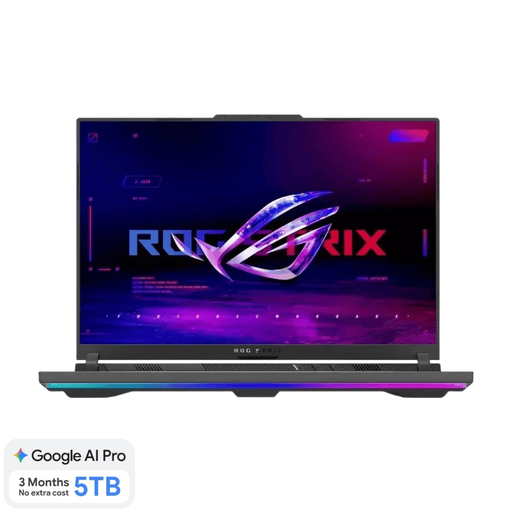 Image unavailable
ASUS ROG Strix G16 G614FR-S5252W
A configuration to compare if a built-in screen and graphics hardware are important; check separately that the ports suit your screen setup.
16-inch WQXGA screen with 240 Hz, Ryzen 9 9955HX, RTX 5070 Ti, 16 GB DDR5 and 1 TB SSD. The mains adapter must be purchased separately.
View at Joybuy
 Image unavailable
ASUS V16 FX3607VP-RP061W
An option to compare if an external screen and graphics hardware are part of your setup; check that the ports are compatible with your monitor.
16-inch WUXGA screen with 144 Hz, Intel Core 7 240H, RTX 5070 8 GB, 16 GB DDR5 and 1 TB SSD. HDMI 2.1 and USB-C with compatible display output are listed.
View at Joybuy
 Image unavailable
Thunderobot 16 i7-14700HX RTX 5070
Compare this configuration if memory, graphics hardware and the built-in screen matter for your project; check the video outputs for your preferred screen combination.
16-inch IPS screen with 2560 × 1600 resolution and 240 Hz, RTX 5070, 32 GB RAM and 1 TB SSD.
View at Joybuy
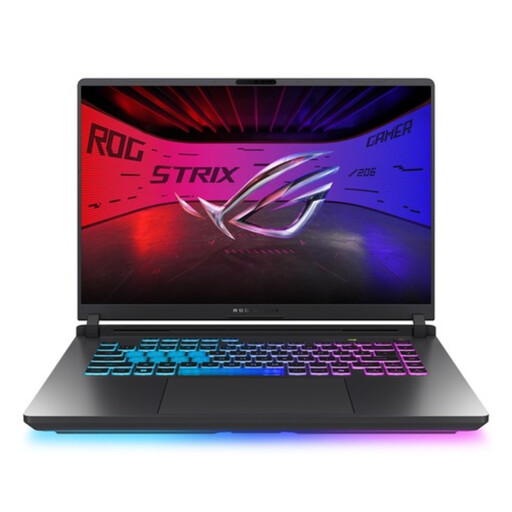 Image unavailable
ASUS ROG Strix G16 G615LR-S5396W
A configuration to compare if both graphics hardware and memory are important; check the screen support of this exact model before choosing a setup.
16-inch WQXGA screen, Core Ultra 9, RTX 5070 Ti, 32 GB DDR5 and 1 TB SSD.
View at Joybuy
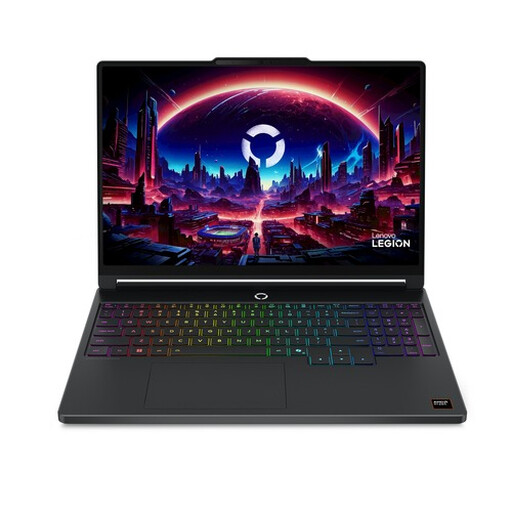 Image unavailable
Lenovo Legion 5 15AHP11, Belgian AZERTY configuration
Compare this configuration if its graphics setup and built-in screen suit your quest map work; check separately that the ports support your external screens.
15.3-inch WQXGA OLED screen with 165 Hz, AMD Ryzen 7 250, RTX 5060, 16 GB DDR5 and 512 GB SSD.
View at Joybuy
Frequently asked questions
How do I display my quest map and notes on separate screens?
Connect a supported external screen and select Extend these displays in Windows. Then arrange the screens in Display settings. If you have connection problems, check the cable and port, among other things.
Can I use an HDMI splitter to create two separate external desktops?
No, a standard display splitter won’t extend your desktop across multiple external screens. Microsoft Support recommends checking that your laptop supports independent screens; also make sure any dock you use is suitable for your setup.
Is 16 GB RAM always enough for designing a quest map?
That depends in part on the software you use and the size of your project. Unity recommends at least 8 GB RAM to run the editor, but also notes that larger, more complex projects may need more memory.
What if my laptop breaks after the manufacturer’s warranty expires?
A commercial manufacturer’s warranty is separate from your statutory rights when buying as a consumer in the Netherlands. According to the Dutch government, the retailer is your point of contact for a solution; what you could reasonably expect from the product may also be relevant.


