
Character artist working in daylight
Mostly draws in a bright workspace and wants to know whether the screen will remain easy to see there.


When choosing a gaming laptop for drawing beside a bright window, don’t base your decision on peak HDR brightness alone. Consider the screen’s standard brightness, panel finish and reflections where you work. Then compare the exact configuration with your drawing software and games, and check the screen size, portability, keyboard layout, ports and included charger.
Mostly draws in a bright workspace and wants to know whether the screen will remain easy to see there.
Wants to judge colours carefully, so looks at the screen configuration and colour settings separately from gaming specifications.
Moves between drawing spots and gaming, weighing screen space against the effort of carrying the laptop and power adapter.
The percentages show which concerns matter most to consumers in this usage scenario.
| What to consider | What to look for | Who should pay particular attention? |
|---|---|---|
| Screen visibility in daylight | Check the panel finish and standard screen brightness of the exact configuration. If possible, assess reflections from your own workspace. | When I draw beside a bright window, I want to see my work without reflections making it difficult to judge. Around 36% of consumers prioritise visibility in daylight. |
| Judging colours | Check the stated colour coverage and available colour settings for the exact configuration. If possible, work in consistent lighting conditions. | When painting a character, I want to judge colours carefully rather than rely solely on a gaming-focused screen specification. Around 29% of consumers prioritise colour accuracy. |
| Combining drawing and gaming | Compare the requirements of your own drawing software and games with the processor, memory, storage and GPU in the configuration on offer. | When looking for one laptop for my artwork and games, I want the configuration to suit both. Around 21% of consumers prioritise this combined workload. |
| Portability and what’s included | Check the size, weight, ports, keyboard layout and whether the necessary power adapter is included. | When I want to move my drawing setup, I want to know in advance what I can take with me and which accessories I’ll need. Around 14% of consumers prioritise portability and a complete setup. |
ASUS quotes a peak brightness in HDR for the G16 series. On its own, that figure doesn’t tell you how visible a standard drawing area will be beside a window.
Compare the standard-use brightness specification and panel finish of the exact configuration. If possible, assess the screen position in your own workspace.
A product series can include different configurations. Acer warns that general series information doesn’t necessarily reflect the specifications of the model you choose.
Check the full model code and specifications for that exact configuration, including the panel, GPU and memory.
A Joybuy listing for the Lenovo Legion 5 15IAX10 states that the charger isn’t included as standard. This is a different configuration from the Legion Pro 5i.
For your chosen configuration, check whether the power adapter is included and whether the keyboard and ports suit the way you work.
The Legion Pro 5i is worth considering if you want to assess a specific 16-inch configuration for drawing and gaming.
The ROG Zephyrus G16 is a 16-inch gaming range to consider if you regularly move your workspace.
The Predator Helios Neo 18 AI offers a larger screen size to consider for a permanent drawing spot.
The OMEN MAX 16 is a gaming-focused 16-inch configuration to explore if you want to factor in memory and power adapter specifications.
These laptops are for anyone looking to combine drawing and gaming on one device. Assess the screen configuration and the specifications you need for each model against your own workspace and the applications you use.
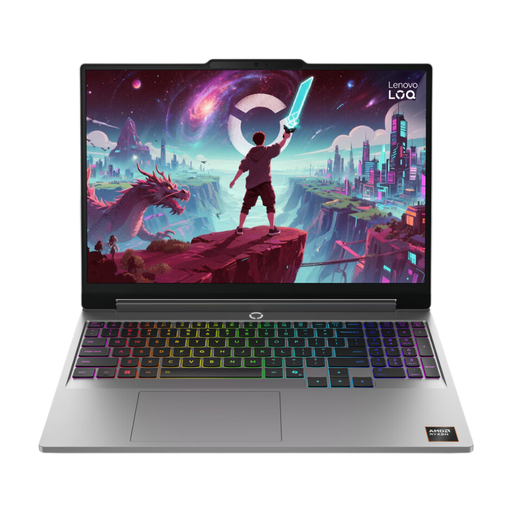 No image available
A configuration to compare if you want to combine drawing and gaming on one laptop; check whether the screen configuration suits your workspace.
Ryzen 7 250; RTX 5070; 16 GB; 512 GB SSD; QWERTY keyboard.
 No image available
A 16-inch configuration to take between workspaces; check the screen features against your lighting conditions.
Ultra 9-285H; RTX 5060; 16 GB; 1 TB SSD. The charger must be purchased separately.
 No image available
A larger screen size to consider if you have a permanent drawing spot; check that it suits how often you plan to move the laptop.
Ryzen 9 8940HX; RTX 5060; 16 GB; 1 TB SSD; QWERTY keyboard. The charger must be purchased separately.
 No image available
A 16-inch configuration to compare for drawing and gaming; bear in mind the stated UK keyboard layout.
2560 × 1600 IPS screen; 100% DCI-P3; UK RGB keyboard.
 No image available
An 18-inch configuration with plenty of screen space to compare for a permanent drawing spot; weigh up the size against how often you move the laptop.
UHD+ Mini LED screen, 120 Hz; Intel Core Ultra 9 285HX; 64 GB DDR5; 6 TB SSD; NVIDIA GeForce RTX 5090 24 GB; Windows 11 Pro.
No, peak HDR brightness alone won’t tell you that. ASUS quotes peak brightness in HDR for the G16 series, while Lenovo also describes the screen finish on configuration 83LU001JMH as glossy. Assess standard screen brightness and reflections separately in your workspace.
In Windows, you can adjust the built-in screen’s brightness manually. According to Microsoft, automatic adjustment to lighting conditions is only available on some PCs.
Check the details for each configuration. A Joybuy listing for the Lenovo Legion 5 15IAX10 states that the charger must be purchased separately; HP lists an included 420W adapter for the OMEN MAX 16-ak1691nd.
ACM ConsuWijzer states that the 14-day cooling-off period ends 14 days after delivery. For product problems, the Dutch government says the seller is responsible for providing a solution; this is separate from the cooling-off period.