
Player with limited socket access
Wants to play turn-based games without having to fit a separate screen on the gaming desk as well. A laptop with a built-in screen can do away with that extra piece of equipment.


When you have few spare sockets, a gaming laptop with a built-in screen can save you from needing a separate monitor, although the laptop still needs to be plugged into the mains. A desktop is a better fit if you already have a suitable screen, can connect the complete setup safely and value the option to upgrade. Choose specifications to suit the games you actually play; a power supply’s maximum rated output does not measure power consumption while gaming.
Wants to play turn-based games without having to fit a separate screen on the gaming desk as well. A laptop with a built-in screen can do away with that extra piece of equipment.
Wants to match the computer to the games they actually play. The Windows requirements published by 2K Support for XCOM 2 are a useful check for that title, not a guarantee for other tactical games.
Already has peripherals and is considering a desktop, provided there is enough safe socket access and future upgrades matter. Acer lists expansion interfaces for the Nitro 20; check that any components you plan to add are compatible.
First compare the complete setup with the requirements of your games. Then decide whether a built-in screen or upgradeable desktop components are a better fit for your space. The percentages below relate to consumers choosing a PC for turn-based tactics when few sockets are available.
Choose this when: you don’t want to connect a separate screen and want to keep the number of devices in your setup to a minimum.
Trade-off: the laptop still needs mains power. Check the charger requirements and what’s included with the specific configuration, too.
Choose this when: you already have a suitable screen, have enough safe socket access and value the option to make upgrades later.
Trade-off: factor in the screen and other mains-powered devices; a desktop power supply’s specifications don’t predict actual power consumption during a game.
| What to consider | What should you check? | Who should pay particular attention? |
|---|---|---|
| Number of devices and safe connections | Count the PC or charger, screen and any other mains-powered devices. The fire service advises against connecting extension leads to one another or plugging too many devices into a single multi-socket extension lead. | If I have limited socket access, I want to know how many separate devices my gaming area needs and how to connect them safely. Around 36% of consumers give socket access the highest priority. |
| Requirements of the games you play | Compare the operating system, processor, graphics card, RAM and available storage with each game’s official requirements. 2K Support recommends, among other things, 8 GB RAM for XCOM 2. | I want to match the components to the games I play without automatically choosing higher specifications. Around 29% of consumers prioritise game compatibility. |
| Complete setup | Check whether you’ll need a screen or charger for the configuration you’ve chosen; compare everything you need for a complete gaming setup. | If I choose a PC, I want to know what other equipment I’ll need to play. Around 21% of consumers give the complete purchase the highest priority. |
| Existing equipment and future upgrades | Before factoring in an upgrade, check the available connections, space and compatibility for the exact desktop configuration. Acer lists two M.2 interfaces, among other features, for the Nitro 20 DG.E5VEH.001. | I want to use the screen I already own and know whether a desktop can be adapted to my needs later. Around 14% of consumers make this their priority. |
A setup might physically fit, but that doesn’t mean the connection is safe. The fire service advises against connecting extension leads to one another or plugging too many devices into a single multi-socket extension lead.
First, list all your mains-powered devices and the sockets available. Check the permitted load and don’t connect extension leads to one another.
A laptop has a built-in screen; a desktop needs a separate screen if you don’t already own one. So compare the complete setup, not just the computer.
Make a note of what you already own and check which equipment and accessories you’ll still need for each configuration.
The 400 W specified for the Acer Nitro 20 DG.E5VEH.001 is the power supply’s maximum rated output, not a measurement of power consumption while gaming.
To compare consumption, use kWh measurements taken on a like-for-like basis and your own tariff. Don’t estimate consumption from the power supply’s maximum rating alone.
Acer has configurations in both its Nitro V 15 laptop range and Nitro 20 desktop range, which you can compare based on the screen and other equipment you’ll need.
The Katana 15 HX B14WFK range is a gaming laptop range with a built-in screen.
The Victus 15-fa2601ndx is a specific gaming laptop configuration to include when comparing screens and the accessories you’ll need.
The LOQ 15 Gen 10 range is a laptop range worth comparing with specific configurations.
ASUS presents TUF Gaming as a portable, budget-focused laptop range; this is brand positioning.
This selection focuses on gaming laptops with a built-in screen, for anyone who doesn’t want to set up a separate monitor.
 No image available
A good fit if you’re looking for a gaming laptop with a built-in 18-inch screen and don’t want to set up a separate monitor.
Ryzen 9 8940HX, RTX 5060, 16 GB RAM and a 1 TB SSD. According to the product description, the charger must be purchased separately.
 No image available
An option if you’re looking for a laptop with a built-in screen and want to compare the listed configuration with your games’ requirements.
32 GB RAM, a 1 TB SSD and a 16-inch screen with a resolution of 2560 × 1600.
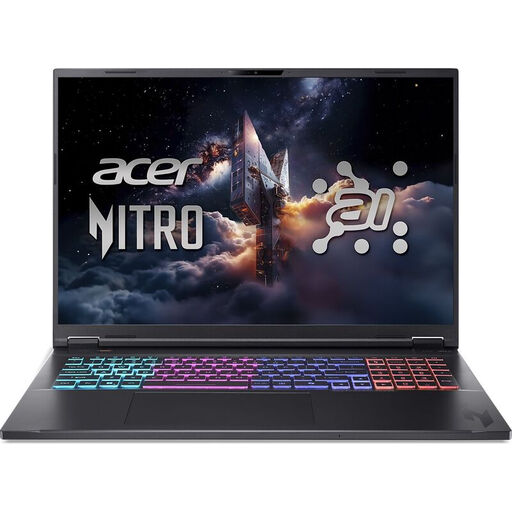 No image available
A good fit if you want to compare a gaming laptop with a built-in 18-inch screen against a desktop setup, which needs a separate screen.
AMD Ryzen AI 7 350, GeForce RTX 5060, 16 GB RAM and a 1 TB SSD; the screen is WQXGA.
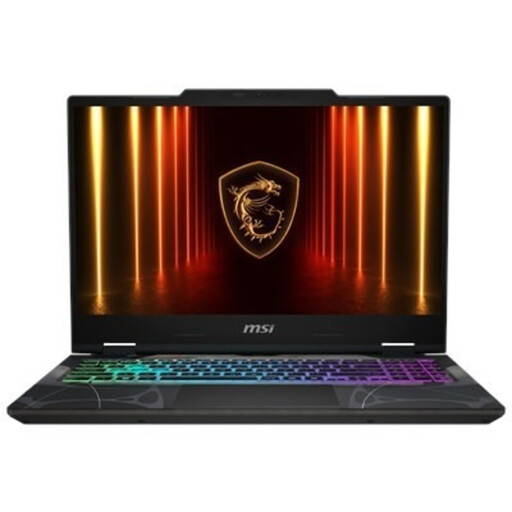 No image available
A gaming laptop with a built-in 15.6-inch Full HD screen to compare if you don’t want to connect a separate monitor.
RTX 5070, 16 GB RAM and a 512 GB SSD.
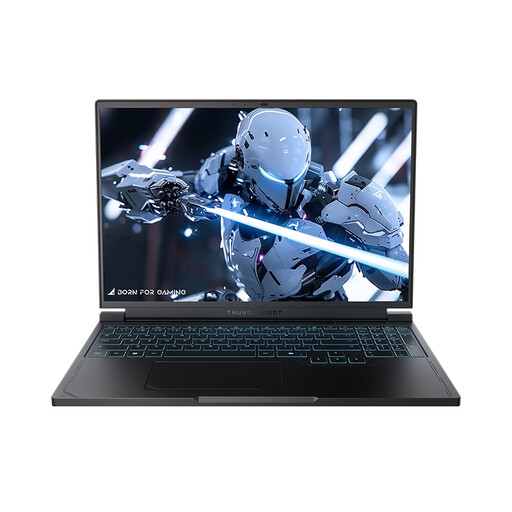 No image available
A good fit if you’re looking for a built-in 16-inch screen and want to match the components to the games you play.
Ryzen 7 7745HX, RTX 5060, 16 GB RAM and a 1 TB SSD; the screen is QHD+.
No. The fire service advises against connecting extension leads to one another or plugging too many devices into a single multi-socket extension lead. Count the devices in your setup and check the permitted load of the extension lead you’re using.
No. Acer lists 400 W as the maximum rated output of the power supply for the Nitro 20 DG.E5VEH.001. Without measuring the power consumption of the complete setup during the relevant use, you can’t work out actual gaming consumption or electricity costs from that figure.
Compare the specifications with the system requirements published by 2K Support for XCOM 2. These recommend, among other things, 8 GB RAM and list 45 GB of available storage. Check the other requirements as well, and leave room for other software.
The available specifications don’t establish battery life or performance while gaming on battery power. Check the details for the exact configuration and bear in mind that the laptop needs to be connected to the mains for mains power.
Leave enough room for the computer and other equipment to release heat, and keep the area free of dust. The fire service advises cleaning around equipment regularly and fully unwinding any cable reel in use.