What should you look for when buying?
Start with your engine and the size of your scene. Then consider whether the laptop and its ventilation suit the available space and how you use the shared desk.
| What to consider |
What should you check? |
Who should pay closer attention? |
| Memory and engine |
Check the RAM, GPU and graphics memory in the exact configuration. Unity recommends 8 GB of RAM as the minimum for the editor; Epic Games recommends 32 GB of RAM and at least 8 GB of graphics memory for Unreal Engine 5.8. |
I want to match the configuration to my engine and project size before choosing more powerful hardware. Around 31% of consumers in this situation prioritise engine requirements. |
| Testing workflow |
Record your scene and settings before comparing hardware. Unity explains that discrete collision detection can miss collisions between physics steps; Unreal’s sub-stepping can require extra processing power. |
I want to work out whether unexpected collision behaviour is caused by the settings or limited processing capacity. For around 23% of consumers, the testing workflow is their main buying concern. |
| Noise and airflow |
Compare noise measurements for the exact configuration under similar loads, and consider where the vents are positioned. ASUS notes that fans can become more audible under heavy loads. |
I want to work alongside someone without having to accept more fan noise as a given. Around 23% of consumers prioritise a quiet workspace. |
| Size and ports |
Measure the available desk space and check that the exact variant has the ports you need, for example for an external monitor or testing equipment. |
I need to be able to position and connect the laptop, then put it away after testing. For around 15% of consumers, workspace and portability are the main considerations. |
| Configuration and aftercare |
Compare the full model code and the components installed; also check who the seller is and what warranty terms apply. |
I want to factor in the costs after purchase and know who to contact if something goes wrong. Around 8% of consumers prioritise purchase and aftercare costs. |
Gaming laptops at Joybuy
This selection at Joybuy includes gaming laptops to compare for Unity work at a shared desk and more demanding Unreal Engine projects. Before buying, check the configuration, available space and conformity documentation for the exact model.
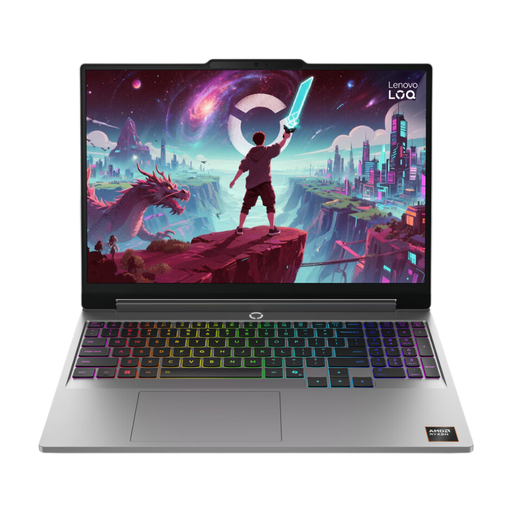 No image available
Lenovo LOQ 15AHP11, Ryzen 7 250, RTX 5070
A configuration to compare for smaller Unity projects at a shared desk.
The Joybuy product name lists 16 GB of RAM, a 512 GB SSD and a QWERTY keyboard. The product information says the power adapter must be purchased separately.
View at Joybuy
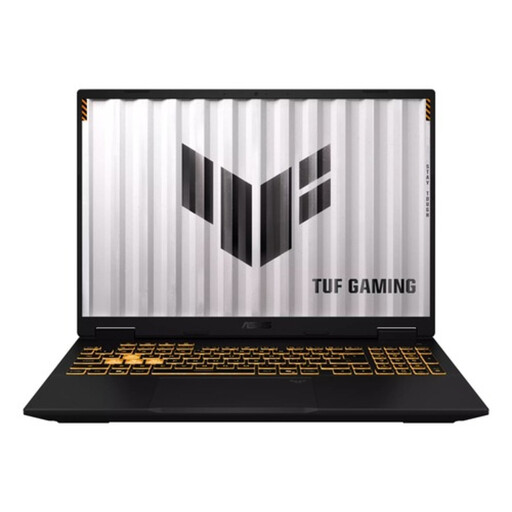 No image available
ASUS TUF Gaming 16 FX610JM-TU005W
Compare this configuration with the dimensions and ports you need at your shared desk.
The Joybuy product name lists an Intel Core i7-14650HX, an RTX 5060, 16 GB of RAM and a 1 TB SSD.
View at Joybuy
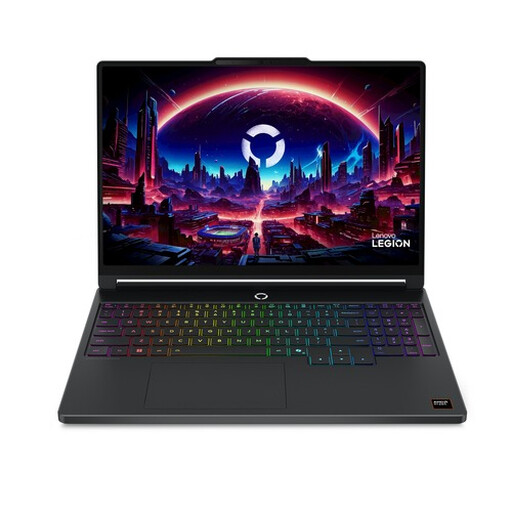 No image available
Lenovo Legion 5 15AHP11, Ryzen 7 250
An option to compare if you want to connect a fixed test setup to a gaming laptop.
The Joybuy product name lists a 15.3-inch 165 Hz WQXGA OLED screen, 16 GB of DDR5, a 512 GB SSD and a GeForce RTX 5060.
View at Joybuy
No image available
ASUS TUF Gaming F16 FX610JM-TU120W
Compare this gaming laptop with the available desk space and the ports on your test setup.
View at Joybuy
 No image available
MSI Stealth 16 AI+ B3WF-011NL
Compare this configuration for Unreal Engine development where memory and graphics memory matter.
The Joybuy product name lists a 16-inch QHD+ OLED screen, 32 GB of DDR5, a 1 TB SSD and an RTX 5060. Keep the vents clear during use.
View at Joybuy
Frequently asked questions
Do I definitely need 32 GB of RAM for collision testing?
No, 32 GB isn’t a general requirement for every collision test. Unity recommends 8 GB of RAM as the minimum for the editor and notes that larger projects may need more; Epic Games recommends 32 GB for Unreal Engine 5.8 development. Choose based on your engine, version and project size.
Will a faster gaming laptop automatically prevent missed collisions?
No, a faster laptop won’t automatically prevent missed collisions. Unity explains that discrete detection can miss collisions between physics steps; additional or different detection settings may require more processing power. Start by testing with a reproducible scene and fixed settings.
How can I use a gaming laptop at a crowded shared desk?
Keep the vents clear and check where they are before positioning the laptop. ASUS notes that fans can become more audible under heavy loads, and that obstructed airflow can cause performance issues.
What returns and warranty rights apply when buying online in the Netherlands?
For a standard online purchase from a business, you generally have 14 days to change your mind; check the applicable exceptions and the seller’s information. The Dutch government says that, if a product is faulty, the seller may have to provide a free repair or replacement under statutory conditions. An additional commercial warranty doesn’t replace your statutory rights.
What should I check for EU conformity when buying a gaming laptop?
Check the documentation for the exact configuration and model code. According to the Dutch government, manufacturers must assess the applicable conformity requirements for electrical and electronic equipment sold in the Netherlands, draw up an EU Declaration of Conformity and apply the CE marking.


