If you mainly paint in 2D, start by looking at the screen, how your drawing tablet connects and how you’ll set up your desk. A high refresh rate alone tells you little about whether a laptop meets these needs. If you also use Blender for 3D characters or play demanding games, compare the RAM and VRAM configuration of the exact model too. A manufacturer’s specifications for a product range don’t automatically apply to every version.
Who is this choice relevant to?
2D character artist
If you mainly paint with digital brushes, you need a usable screen and reliable input from a pressure-sensitive pen, not just a fast gaming GPU. Krita explains how a correctly installed tablet pen can transmit pressure-sensitivity information.
3D character creator
If you combine painting with modelling or rendering in Blender, it’s worth comparing the exact RAM and VRAM configuration. For Windows, Blender recommends 32 GB RAM and 8 GB VRAM.
Creator at a sit-stand desk
You may change your working position, so you’ll need to position the screen and input devices comfortably. The regulations described by Arboportaal apply to employees who work at a screen for more than 2 hours a day.
What should you look for?
For 2D painting, start with the screen and pen input. Factor in RAM and VRAM if Blender is part of your workflow, then check that the connections and screen setup suit your desk.
| What to consider |
What should you check? |
Who is this important for? |
| Screen for painting |
Compare the resolution, panel and finish of the full model number. Also consider whether you want to use an external screen. |
If I want to assess details on the canvas, I look at the panel and reflections in the lighting at my desk. Around 33% of consumers prioritise screen suitability for painting. |
| RAM and GPU memory |
Check whether you use Blender, then compare the RAM and VRAM specifications of the exact version. For Windows, Blender recommends 32 GB RAM and 8 GB VRAM. |
If you model or render 3D characters, you’ll want to match the memory configuration to your workflow. Around 27% of consumers give 3D capability top priority. |
| Pen input and desk setup |
Check tablet and driver compatibility, the available connections, and where you want to position the screen and input devices. |
If I want to paint with pressure sensitivity and regularly adjust my workspace, my tablet input needs to work with the software and everything needs to fit on my desk. Around 20% of consumers prioritise pen input and setup. |
| Gaming and configuration |
Compare the GPU, screen, weight and ports of the exact version. Don’t assume every version has the product range’s maximum specifications. |
If you want to use the same laptop for painting and gaming, weigh the gaming configuration against the features your creative work requires. Around 20% of consumers prioritise this versatility. |
Common buying mistakes
-
Looking only at the refresh rate
A high refresh rate doesn’t tell you whether the panel, finish and tablet input are suitable for painting.
Compare the exact screen and your preferred drawing setup before weighing up extra gaming features.
-
Assuming a product range specification applies to every version
A product range can include different GPU configurations. Acer lists GPUs up to RTX 5070 for the Nitro V 16 range, while the Dutch version listed as ANV16-42 NH.QYXEH.00B has an RTX 5060 with 8 GB.
Check the GPU, RAM, screen and model code on the page for the version you’re considering.
-
Assuming the laptop itself supports pressure-sensitive drawing
For pressure-sensitive brush strokes, Krita describes using a suitable tablet pen and a correctly installed driver.
Check your drawing tablet, driver and required connections before choosing a laptop or additional device.
Depending on your current equipment, you may need a separate drawing tablet and a suitable connection or driver.
Brands to compare
Lenovo Legion
The Legion Pro 5i 16 version 83NN004DMH is a specific model worth comparing for gaming and potential 3D work.
- Lenovo Netherlands lists 32 GB RAM and an RTX 5060 laptop GPU with 8 GB of memory for this model.
- The manufacturer lists a matt 16-inch screen; this isn’t an independent measure of performance or colour reproduction. Check the full model number.
ASUS ROG
The Zephyrus G16 is a gaming range that ASUS ROG Netherlands also positions for creative use. Compare its portability and built-in screen with your own workspace.
- For the GA605 range, ASUS ROG Netherlands lists a 16-inch OLED screen and a stated weight of 1,85 kg.
- A range page doesn’t guarantee that every version has the same other specifications. Also consider the OLED finish in the lighting at your workspace.
Acer Nitro
Nitro V 16 is a gaming range worth comparing if the GPU, screen and configuration all matter to you.
- Acer lists GPUs up to RTX 5070 for the range. For the Dutch version ANV16-42 with manufacturer code NH.QYXEH.00B, Acer lists 32 GB RAM and an RTX 5060 with 8 GB.
- The maximum GPU for the product range isn’t the specification for every version; check the full model number.
MSI
The Stealth A16 AI+ A3XWIG-016NL and Katana 15 HX belong to different MSI ranges. Assess the specific version you’re actually considering.
- The model code A3XWIG-016NL helps identify the specific Stealth A16 AI+ version.
- Don’t judge suitability for painting by the range name alone; check the current configuration and the GPU capacity you need.
Gaming laptops at Joybuy
These gaming laptops are worth comparing for character art, with configurations suited to different combinations of painting, possible 3D work and gaming. For each version, check that the screen, input and specifications suit your workflow.
 No image available
Thunderobot 16, i7-14700HX, RTX 5070
An option to compare if you combine painting with Blender or gaming.
16-inch IPS screen, 2560 × 1600, stated 100% DCI-P3 and 240 Hz.
32 GB RAM, 1 TB storage and RTX 5070.
Joybuy
 No image available
ASUS ROG Strix G16 G614FR-S5252W
A configuration worth comparing if you want to use the same laptop for creative work and gaming.
16-inch IPS screen, 2560 × 1600 and stated 100% DCI-P3.
RTX 5070 Ti with 12 GB video memory, 16 GB RAM and 1 TB SSD.
According to the product description, the charger must be purchased separately.
Joybuy
 No image available
ASUS ROG Strix G18 G814PM-S9012W
A larger built-in screen could be a consideration if you want to combine painting and gaming on the same laptop.
18-inch screen, 2560 × 1600 and stated 100% DCI-P3.
RTX 5060 with 8 GB video memory, 16 GB RAM and 1 TB SSD.
According to the product description, the charger must be purchased separately.
Joybuy
 No image available
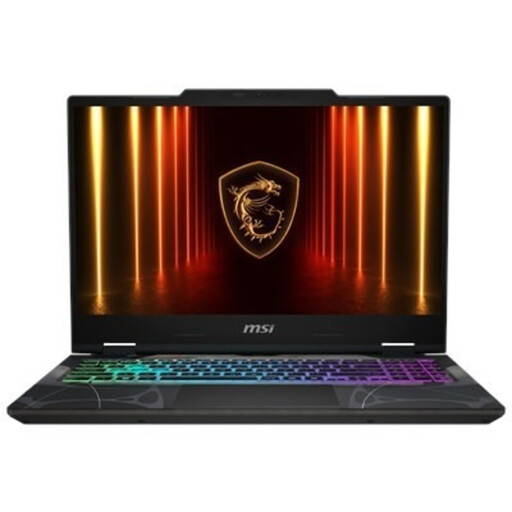
MSI Cyborg A15 AI B2HWGKG-248NL
A gaming configuration worth comparing if you want to paint and play games on one laptop.
15,6-inch Full HD IPS screen with anti-glare finish and 144 Hz.
RTX 5070 with 8 GB video memory, 16 GB DDR5 and 512 GB SSD.
AMD Ryzen 9 270, 8-core; Windows 11 Home.
Joybuy
 No image available
ASUS V16 FX3607VP-RP061W
An option to compare if you’re looking for a gaming laptop for painting on its built-in screen.
16-inch matt screen, 1920 × 1200 and stated 45% NTSC; this colour gamut isn’t a measure of screen calibration.
RTX 5070 with 8 GB video memory, 16 GB DDR5 and 1 TB SSD.
Dutch QWERTY keyboard.
Joybuy
Frequently asked questions
Do you need a touchscreen for digital painting?
No, not if you use a separate drawing tablet. Krita explains that pressure-sensitive brush strokes depend on a suitable tablet pen and a correctly installed driver. Also check which input protocol your setup uses.
Should you choose 32 GB RAM if you use Blender?
For Windows, Blender recommends 32 GB RAM and lists 8 GB as the minimum. If you use Blender for 3D characters, this recommendation is a useful point of comparison. It doesn’t make that amount essential for 2D painting alone.
What rules apply to using a laptop at a sit-stand desk?
The regulations described by Arboportaal apply to employees who work at a screen for more than 2 hours a day. The screen and keyboard must not be attached to one another; when using a laptop, it must be possible to use a separate screen or keyboard. This workplace requirement doesn’t automatically apply to everyone buying a laptop for a hobby.
What can you do if a laptop bought online disappoints or is faulty?
According to the Rijksoverheid, in many cases you have a 14-day cooling-off period when buying online from a business. This is separate from your right to a product that meets the required standards: if there’s a fault, contact the seller about your statutory guarantee. There’s no fixed general two-year guarantee period in the Netherlands.


