
Player sitting away from the PC
You play on a big screen and want to position your keyboard without a cable dictating where you sit. Compare the USB receiver’s position, charging options and how practical the setup will be.


If you’re playing on a PC some distance from the screen, choose a connection that suits that distance. For competitive play, a wired connection or a suitable USB receiver is a more sensible choice than Bluetooth. On a console, first check that your game supports both keyboard and mouse controls. Then choose a layout that keeps your movement, inventory and communication keys within easy reach. Adjustable actuation is mainly worth considering if you want to fine-tune fast, repeated inputs.
You play on a big screen and want to position your keyboard without a cable dictating where you sit. Compare the USB receiver’s position, charging options and how practical the setup will be.
You issue quick movement commands and may want to adjust key actuation. These features aren’t essential for every player.
You want to play with a keyboard and mouse, but first you need to check that your console and the specific game support those controls.
A good fit if: your PC is further away and a cable would restrict your playing space.
Bear in mind: you’ll need to charge it and position the receiver somewhere practical for your setup.
A good fit if: your PC is nearby and you don’t want to charge a wireless keyboard.
Bear in mind: the cable limits where you can position the keyboard.
A good fit if: you want to fine-tune fast, repeated movement inputs.
Bear in mind: a sensitive setting may make accidental key presses more likely; these features aren’t necessary for everyone.
A good fit if: you’ve first confirmed that your game on your console supports keyboard and mouse controls.
Bear in mind: being able to connect a keyboard to a console doesn’t, by itself, mean a game supports these controls.
| What to consider | What to look for | Who does this matter to? |
|---|---|---|
| Connection and positioning | Compare wired play with a USB receiver. If you choose wireless, check how the keyboard charges and where you can position the receiver. | If I play from a seat some distance away, I don’t want a cable to dictate where I can sit. Around 31% of consumers prioritise connection and freedom of placement. |
| Game and platform support | Check whether both keyboard and mouse work as game controls with your specific game and console. | If I play on a console, I want to know in advance whether the game I have in mind supports these controls. Around 25% of consumers prioritise game and platform support. |
| Fast, controlled input | Compare adjustable actuation and Rapid Trigger with conventional switches. Set the sensitivity so light touches don’t trigger unwanted inputs. | If I repeat fast movement commands, I may want to adjust actuation without assuming it will improve my results in-game. Around 25% of consumers prioritise adjustable input. |
| Size, keys and noise | Check which keys are within easy reach and whether you’ll need Fn combinations. Compare the layout and any noise-dampening features for each model. | If I want more room for my mouse but need quick access to my game and communication keys, the layout needs to work for me. Around 19% of consumers prioritise key layout and everyday usability. |
A console may recognise a keyboard without every game offering keyboard and mouse controls. Check the specific game and platform before choosing a model for this purpose.
Check in advance whether the game supports both keyboard and mouse as game controls. PlayStation Support and Xbox Support make clear that support can vary by device or game.
In its gaming keyboard recommendations, updated on 19 October 2026, RTINGS.com notes that Bluetooth has higher latency than a receiver connection and is less suitable for competitive play.
For competitive PC gaming, a wired connection or suitable USB receiver is a better choice. Then check that the connection suits the distance from your PC.
A smaller layout may leave out keys or tuck functions behind Fn combinations. That can be inconvenient if you need quick access to certain keys during a match.
Make a note of the keys and shortcuts you use, then check that they’re directly accessible on the layout you choose.
The G915 X LIGHTSPEED TKL and G515 LIGHTSPEED TKL are examples of compact wireless models for setups where having room to move matters.
The Huntsman V3 Pro Tenkeyless is a wired model with adjustable analogue optical input.
The Apex Pro TKL Gen 3 is a TKL model with adjustable magnetic switches.
The K65 PLUS WIRELESS is a 75% model with arrow keys and multiple connection options.
The wired Alloy Origins Core is a mechanical TKL alternative for anyone who doesn’t prioritise wireless use or adjustable actuation.
This selection features compact gaming keyboards for big-screen setups, with wired and wireless models and both conventional and adjustable input.
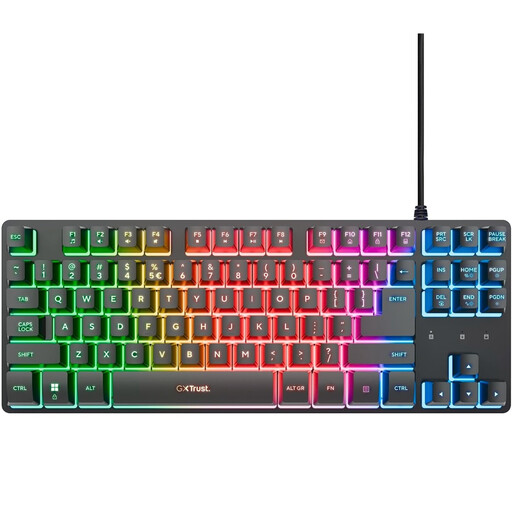 No image available
A wired TKL model to compare if you don’t need a wireless connection. The PS5 listing doesn’t confirm that your game supports keyboard controls.
Membrane switches; 1.8 m USB cable; anti-ghosting for up to 10 simultaneous key presses.
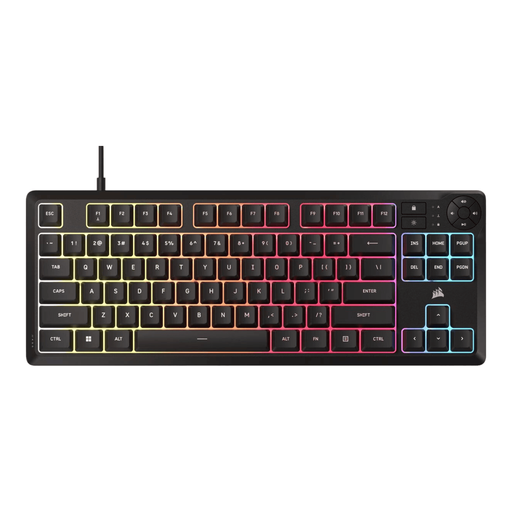 No image available
A wired TKL model to compare if you want a compact layout without the need to charge a wireless keyboard.
Membrane switches; USB connection; 1000 Hz polling rate; 12-key rollover. The listed layout is US QWERTY.
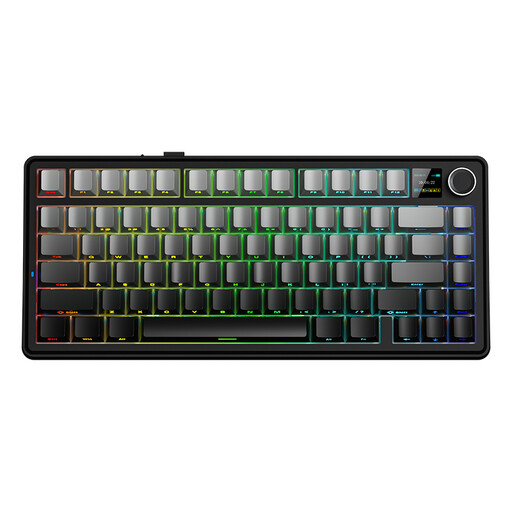 No image available
A 75% model to compare if you’re looking for a more compact layout and multiple connection options.
Mechanical switches; wired, Bluetooth and 2.4G; US QWERTY layout.
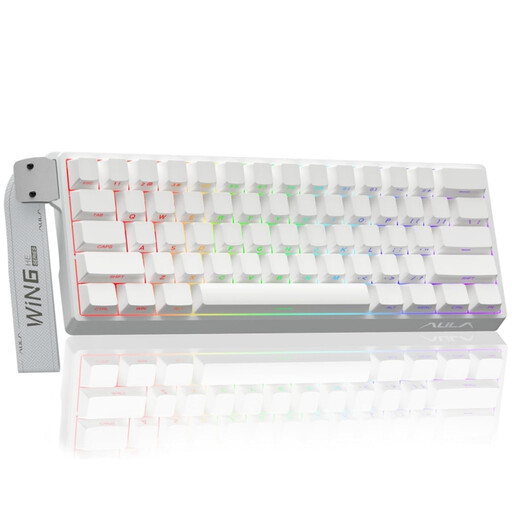 No image available
A compact wired model to compare if you want to fine-tune adjustable input. Check that the 60% layout keeps the keys you use within easy reach.
Hall-effect magnetic switches; Rapid Trigger; 8K polling rate; adjustable actuation from 0.01 mm.
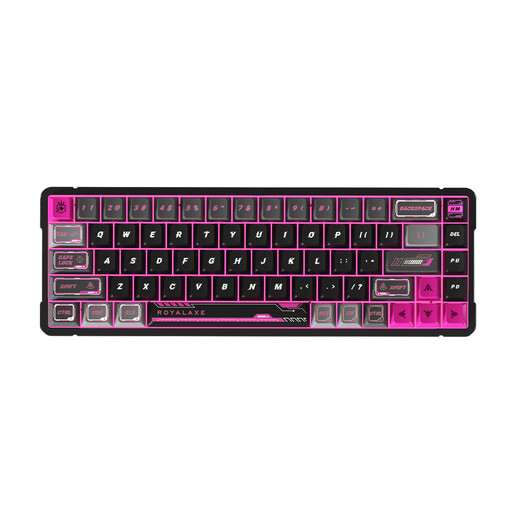 No image available
A compact wired model to compare if you’re looking for magnetic input and Rapid Trigger. Check that the 65% layout suits your shortcuts.
Gateron HE magnetic switches; Hall effect; Rapid Trigger; 68 keys; US layout.
No. Being able to connect a keyboard doesn’t confirm that a specific game supports keyboard controls. PlayStation Support explains keyboard connections for PS5 and notes that not all devices are compatible. Also check your game’s control options.
No. According to Xbox, the publisher must enable keyboard and mouse controls for the game or app in question. Check that your game supports them before choosing a keyboard for this play style.
For competitive PC gaming, a wired connection or a suitable USB receiver are sensible options to compare. RTINGS.com considers Bluetooth less suitable for competitive play because of its higher latency. Also consider the distance from your PC and, if you go wireless, charging and the receiver’s position.
Not necessarily. These features are mainly useful if you want to fine-tune fast, repeated inputs. Check the settings available on the specific model, and bear in mind that a sensitive setting may make accidental key presses more likely.
Before buying, check that your movement, inventory and communication keys are directly accessible. Look at which functions are behind Fn combinations on the specific layout, and consider whether you need the arrow keys or function keys.