
Replay viewer with few power sockets
You want to know whether you can plug the keyboard into a computer port or need to factor in recharging if you go wireless. Logitech G, Corsair and Keychron describe different connection options for their models.


You don’t necessarily need an extra power socket: a keyboard plugged into a suitable USB port on your computer can draw power from it. Then choose between wired and wireless based on your available computer ports and whether you’re happy to recharge the keyboard. Finally, check that your replay software supports the shortcuts you want to use and that the layout includes the keys you need.
You want to know whether you can plug the keyboard into a computer port or need to factor in recharging if you go wireless. Logitech G, Corsair and Keychron describe different connection options for their models.
You regularly control playback or navigate through replays and want to customise keys for your software. Check both the keyboard’s capabilities and those of your replay software; VideoLAN explains how to customise shortcuts in VLC.
You’re looking for a more compact layout but want to keep the keys you need for control. Compare the actual layout of a TKL or 75% model, for example, with the way you use your keyboard.
First compare the available computer ports and connection type. Then decide which replay actions you want to control with shortcuts, and check that the layout suits them.
| What to consider | What should you check? | Who is this important for? |
|---|---|---|
| Power and connections | Check available power sockets and computer ports separately, along with the connection modes and whether your chosen version uses a receiver or needs recharging. | If you don’t want to use an extra power socket, look for a connection that works with your computer. Around 36% of consumers prioritise available power sockets and computer ports. |
| Replay controls | Note the actions you use most often, then check your software’s shortcuts and the keyboard’s customisation options. | If you want to control playback or navigation with keys, check that your software supports those actions and lets you customise them. Around 29% of consumers prioritise controlling replays with shortcuts. |
| Layout and desk space | Compare the keys you need with the exact layout, including the language variant; TKL and 75% are different layouts. | If desk space is limited, look for a more compact layout without losing the keys you use. Around 21% of consumers prioritise keyboard layout and desk space. |
| Charging and model variant | Check the full model name, switch and language variant, charging method, and whether a receiver or cable is included. | If you want to know in advance which version you’re getting and how to connect or charge it, compare the full product specifications. Around 14% of consumers prioritise charging and knowing exactly which variant they’re buying. |
Bluetooth can save a USB port for a receiver if your computer supports Bluetooth. A 2.4 GHz connection usually requires a USB receiver, and going wireless doesn’t mean you can skip recharging. Check the connection options for the exact keyboard variant.
Set up replay controls in the software first. VideoLAN explains that you can view and customise the available shortcuts in VLC’s preferences. Keyboard settings can’t add features that your replay software doesn’t offer.
Wireless models with a battery need to be recharged. The Corsair K65 PLUS WIRELESS manual describes a charging indicator and USB charging procedure for that model.
Check how the exact version charges and consider whether you’re happy to manage the battery while using it.
A wireless connection via a receiver still uses a computer port. This could matter if you have few spare connections.
Count your available computer ports separately from your power sockets, and check which connection modes the keyboard offers.
The shortcuts you can use depend partly on your replay software. Remapping keys on the keyboard won’t make an unavailable software feature accessible.
First check your software’s shortcut settings, then set up the keyboard controls you want.
A model range may include versions with different layouts or switches. For example, the Dutch product listing for the Corsair K65 PLUS specifically names the US QWERTY layout and MLX Fusion Tactile switches.
Before ordering, compare the full model name and variant with the layout and switches you’re looking for.
The G915 X LIGHTSPEED TKL is a wireless TKL model worth considering if you’re looking for a more compact layout without a number pad.
The K65 PLUS WIRELESS is a 75% range worth exploring if you want to choose between wired, Bluetooth and a USB receiver.
According to Keychron, the K2 Max combines a 75% layout with Bluetooth, 2.4 GHz and wired connectivity.
The Dutch TKL catalogue includes both the Apex Pro TKL Wireless Gen 3 and wired TKL models.
The BlackWidow V4 75% is a compact, wired option worth considering if you’re looking for a customisable mechanical layout and have a computer port available.
This Joybuy selection includes wired and wireless gaming keyboards with compact layouts, to suit different preferences around computer ports and replay controls.
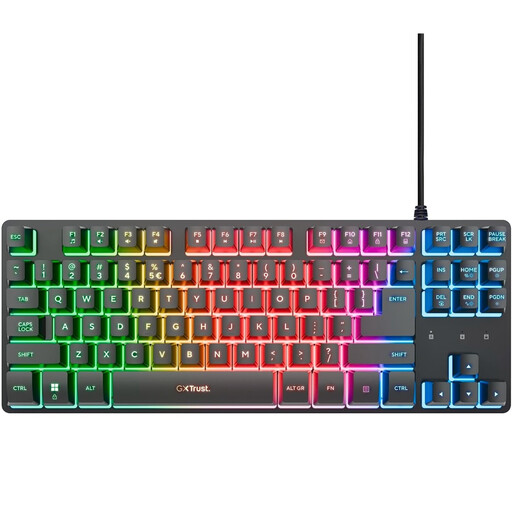 No image available
A wired TKL option if you have a computer port available and want a more compact layout.
Wired; TKL; QWERTY; listed for PC and PS5.
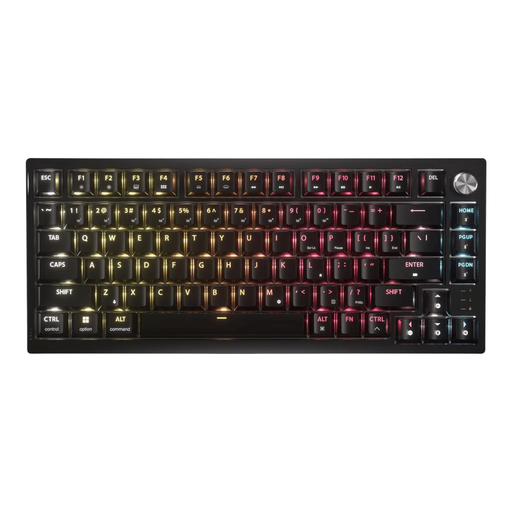 No image available
A compact option if you want to combine customisable replay controls with wired or wireless use; check that the US QWERTY layout suits you.
75% layout; product information lists wired, Bluetooth and 2.4 GHz with a USB receiver.
Wireless use requires battery management; the 2.4 GHz connection uses a USB receiver.
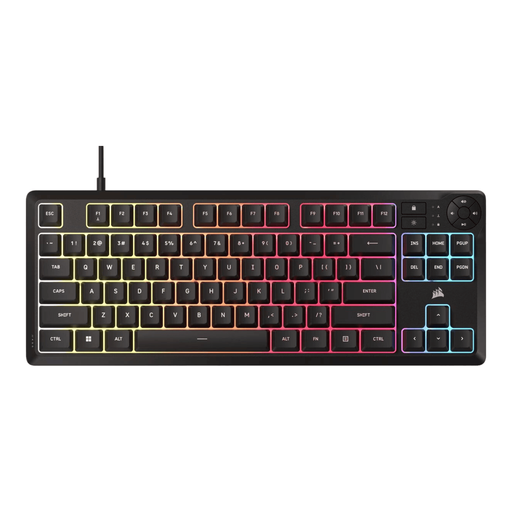 No image available
A wired TKL option if you have a spare computer port and don’t need a wireless connection.
Wired via USB; TKL; US QWERTY.
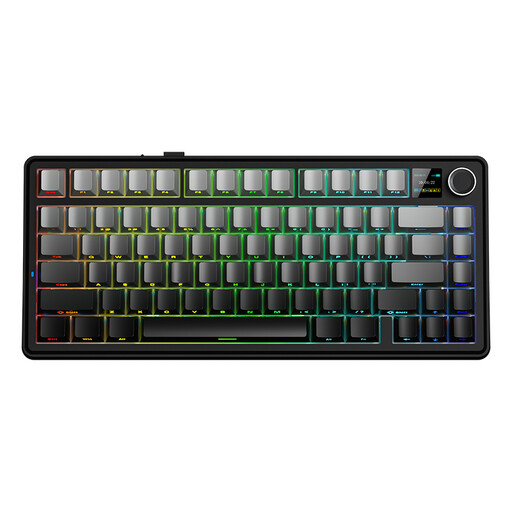 No image available
A compact option if you want a choice of connection methods; check that the US layout suits the way you use your keyboard.
75% layout; wired, Bluetooth and 2.4 GHz according to the product name.
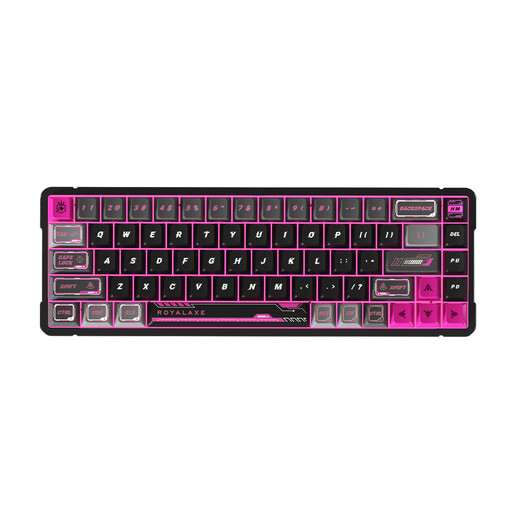 No image available
A compact wired option if you want to compare the stated US layout, with arrow and function keys, against the replay controls you need.
Wired; 65%; 68 keys; Hall Effect switches according to the product name.
It depends on the connection you choose. Keychron lists Bluetooth and 2.4 GHz alongside wired use for the K2 Max; the Corsair manual says that 2.4 GHz uses a USB receiver. Check whether your computer supports Bluetooth, or set aside a port for the receiver.
Start with the shortcuts in your replay software. VideoLAN explains that you can view and change the available shortcuts in VLC’s preferences; some keyboards also offer their own key remapping. Check both sets of settings separately.
Check the charging cable, connection and indicator for the exact version. The Corsair manual describes a USB-C connection, charging indicator, and wired and wireless modes for the K65 PLUS WIRELESS. These details apply to that model and aren’t a general feature of all wireless keyboards.
According to the Dutch government, products are covered by a statutory guarantee. The Netherlands has no fixed statutory guarantee period, and the retailer is your point of contact if a product is faulty. For distance purchases, a 14-day cooling-off period applies in many cases. Check the terms that apply to your purchase.
The Dutch Digital Infrastructure Inspectorate describes CE marking for radio equipment placed on the market in the EU. Check the product information and markings for the wireless version on offer. The compliance obligations for placing a product on the market don’t mean that ordinary buyers have to register it separately.