What should you look for when buying?
First, estimate how quickly the archive will grow, then decide whether your group mainly stores files or transfers them regularly. Before buying, check the connections and processes used by the consoles and computers in your group.
| What to consider |
What should you check? |
Who is this important for? |
| Space for the archive |
Check the size of your current folder and allow for new recordings; compare this with the capacity of the model you’re considering. |
If I want to keep clips from several members for a long time, I need enough space for the existing files and expected growth. Around 33% of consumers cite archive capacity as their main buying concern. |
| Transfer speeds for editing |
Check that your computer, port and cable support the drive’s interface. A stated maximum speed does not guarantee the same speed in your workflow. |
When I regularly move large clips to an editing computer, a suitable connection and fast transfers are important. Around 27% of consumers prioritise transferring and editing. |
| Console and formatting |
For each console, check whether clips are recorded directly or copied later, and find out which format is required. Xbox Support specifies NTFS for capturing clips externally; PlayStation distinguishes between a standard USB drive and extended game storage. |
If I want to collect recordings from different consoles, transfers need to work on each system before I choose a single archive drive. Around 20% of consumers make console and file-system compatibility their top priority. |
| Backup and access |
Assign a manager and keep a separate copy. The Dutch Data Protection Authority notes that identifiable people in images count as personal data; security measures should reflect the risks and how the footage is used. |
If I want to keep the group’s clips safe and prevent unwanted access, it needs to be clear who manages the drive and who is allowed to use the files. Around 20% of consumers prioritise keeping files safe and managing access. |
Joybuy products
This selection includes portable HDDs for a growing clip archive and portable SSDs for regularly taking files with you and transferring them. For each model, check that the connection, format and capacity suit your group’s devices and how you plan to use the drive.
 No image available
SanDisk Extreme Pro Portable SSD 1TB
A portable SSD for taking clips with you and transferring them between compatible devices.
1 TB storage; USB 3.2 Gen 2x2 and USB-C. The stated read speed of up to 2,000 MB/s requires a compatible USB 3.2 Gen 2x2 host; actual performance may vary.
View at Joybuy
 No image available
WD Elements Portable 5TB USB-C
A portable HDD for a growing archive that you take between locations.
5 TB storage and USB-C; the product description lists USB 3.2 Gen 1 and pre-formatting for Windows and Mac. Safely eject the drive before disconnecting it.
View at Joybuy
 No image available
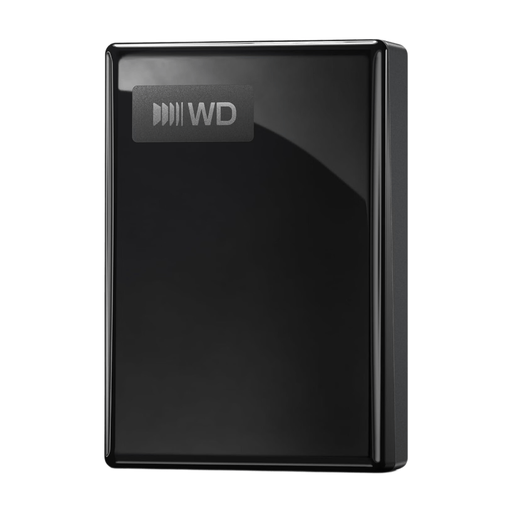
WD My Passport USB-C 5TB
A portable HDD for storing clips and other files in a group archive.
5 TB storage, USB-C, USB 3.2 Gen 1 and exFAT according to the product description. Safely eject the drive before disconnecting it.
View at Joybuy
 No image available
Toshiba Canvio Basics 4TB
A portable HDD for expanding an archive of gaming recordings.
4 TB storage, USB-powered and a compact 2.5-inch design. The product description lists formatting for Windows and reformatting for macOS; make a copy of existing files first.
View at Joybuy
 No image available
Samsung Portable SSD T7 2TB USB-C blue
A portable SSD for members who regularly transfer clips between compatible devices.
2 TB storage and USB 3.2 Gen 2. The stated sequential read and write speeds are up to 1,050 and 1,000 MB/s; actual speeds depend on the host device. The description lists USB-C-to-C and USB-C-to-A cables.
View at Joybuy
Frequently asked questions
Can you use a drive formatted for Xbox games to record Xbox clips directly?
Not according to the process described by Xbox Support. For capturing clips externally, Xbox specifies a USB 3.0 device formatted as NTFS; storage formatted for Xbox games isn’t suitable for this. Make a copy first before reformatting a drive.
Can a PS5 save captures to the same extended USB storage as games?
PlayStation treats these as separate functions. According to PS5 support, you can copy screenshots and clips to a standard USB drive formatted as FAT or exFAT, but not to a drive formatted as extended USB game storage.
How do you transfer recordings from a Nintendo Switch 2 to an external drive?
Nintendo describes copying screenshots and videos to a computer via USB. Then copy the files from the computer to the archive drive; an external USB drive isn’t necessarily a direct recording storage option for the console.
What should you do before reformatting or handing over a drive?
First, copy any files you want to keep somewhere else, as Crucial warns that reformatting erases data on the drive. Agree within the group who will manage the drive, and safely eject it after use.
Who should you contact about a faulty drive, and how does the legal guarantee work in the Netherlands?
For your legal guarantee, contact the seller. According to the Dutch government, there is no fixed statutory guarantee period in the Netherlands; a manufacturer’s guarantee is in addition to your right to a product that works properly.
Can our group store and share clips featuring identifiable participants?
It depends on who can be identified and how the recordings are used. The Dutch Data Protection Authority considers identifiable people in images to be personal data; sharing them for purposes beyond personal or household use may require a lawful basis under the GDPR. An organisation processing personal data must determine appropriate security measures. Consent is one possible lawful basis, but it isn’t automatically the only one.


