
Moving house and want to keep your captures
If you’re packing up clips and screenshots, it’s worth keeping an extra copy that you’ve checked. VeiligInternetten describes a backup as a copy to use if the original files are unavailable.


Start by deciding how you’ll transfer captures from your console or computer. Then choose a stick with the right connector and enough space. The transfer route varies by console: PlayStation describes copying to a USB drive, Xbox specifies USB 3.0 and NTFS for recording directly to external storage, and Nintendo describes transferring via a computer. Check the copied files, and keep the originals or a second copy separate.
If you’re packing up clips and screenshots, it’s worth keeping an extra copy that you’ve checked. VeiligInternetten describes a backup as a copy to use if the original files are unavailable.
The right approach depends on your console: PlayStation, Xbox and Nintendo describe different ways to transfer or save captures.
If you have a large collection, you’ll need enough free space and a suitable write speed. Verbatim and Transcend list maximum write and read speeds for specific models. These manufacturer figures aren’t measurements taken on your console or computer.
Suitable if: you want to copy captures without using a computer. For PS5, PlayStation describes using a standard USB drive formatted as FAT or exFAT.
Bear in mind: not every USB device is compatible. PlayStation also states that PS5 captures can’t be copied from the stick back to system storage.
Suitable if: you want to record captures directly to external storage and open them on a computer later.
Bear in mind: Xbox specifies USB 3.0 and NTFS for this route. Storage formatted for Xbox games isn’t suitable for saving game clips.
Suitable if: you first transfer captures from the console to a computer using a USB cable that supports data transfer, then save them to a stick.
Bear in mind: Nintendo doesn’t describe transferring files via the dock’s USB ports. For Switch 2, your computer must support MTP.
First, decide on your transfer route and how much space you need. Then compare the connector and write speed of the specific model.
| What to consider | What should you check? | Who is this important for? |
|---|---|---|
| Keeping an extra copy | Open a few files from the stick and keep the originals or a separate copy available. | If I want to keep my captures while moving house, I’ll check the copy before packing. Around 36% of consumers put keeping their captures first. |
| Transfer route and connector | Check your console’s instructions, the port on the receiving device and the required format. | If I want to transfer captures directly, I need to know whether my console supports a stick or whether I’ll need a computer. Around 29% of consumers prioritise having a transfer route that works. |
| Space for your collection | Compare the total size of your captures with the available space, and allow room for new files. | If I want to take lots of clips and screenshots with me, I need my collection to fit on the stick. Around 21% of consumers prioritise having enough storage space. |
| Write speed | Compare the stated write speed of the specific model. Read speed doesn’t tell you how quickly clips will be saved. | If I’m copying lots of video clips, I want to keep waiting time down, so I’ll check the write speed. Around 14% of consumers prioritise faster copying. |
If the only copy is on a stick and it gets lost or stops working, your captures may no longer be available.
After copying, open a few clips and screenshots, and keep the originals or a second copy separate.
Read speed and write speed describe different tasks. A high read speed doesn’t tell you how quickly your captures will be copied to the stick.
If you have lots of clips, compare the stated write speed of the specific model. Bear in mind that the actual speed may differ from the stated maximum.
Large files can take longer to copy than you might expect from the read speed alone.
PlayStation and Xbox specify different requirements for their respective transfer routes; Nintendo describes transferring captures via a computer.
Choose your console and transfer route first. Move any existing files elsewhere before reformatting a stick.
The Dual QuickStick 256 GB has USB-A and USB-C connectors for use with devices that have different ports.
The JetFlash 930C has USB-A and USB-C connectors and, according to Transcend, is available in 128, 256 and 512 GB models.
DataTraveler Exodia is a USB-A range that includes a 128 GB model.
The BAR Plus 256 GB is a USB-A model with a metal casing and a carrying loop.
These USB sticks are designed for keeping and carrying gaming captures. Before use, check that the connector and transfer route work with your console and computer.
 No image available
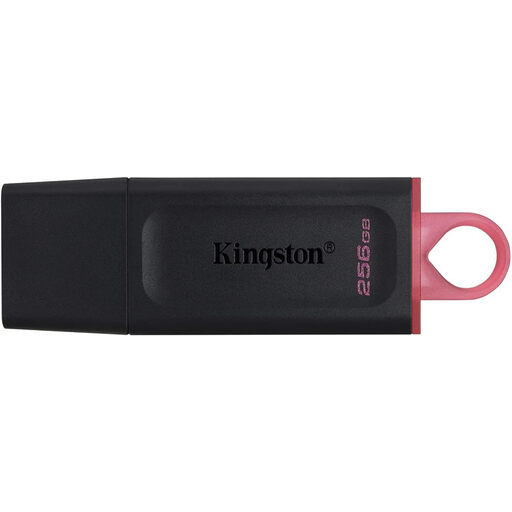
An option for carrying gaming captures if 256 GB is enough for your collection.
USB 3.2 Gen 1; stated write speed of up to 625 MB/s. This is a product specification, not a measurement taken on your device.
 No image available
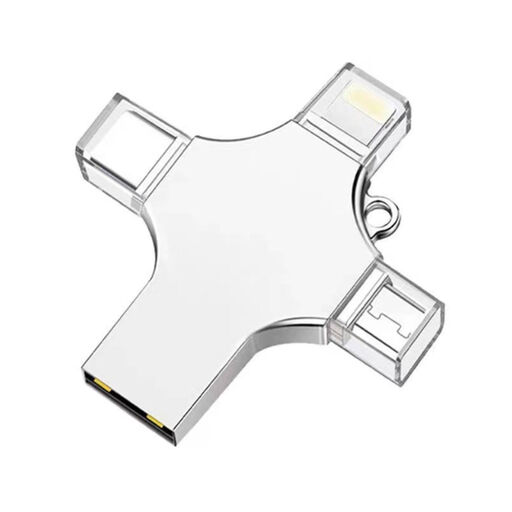
These connectors may be useful when transferring files between devices with different ports. Check that they suit your transfer route.
32 GB; USB 3.0, Lightning, USB-C and Micro-USB.
 No image available
An option if you want to carry captures between USB-A and USB-C devices. Check the port on your console or computer.
512 GB; USB-A and USB-C. Stated read speed of up to 150 MB/s; no write speed is listed in the product specifications.
 No image available
Suitable for a transfer route that uses a USB-A port directly. Check in advance that this is the right route for your console.
128 GB; USB Type-A.
 No image available
An option for captures you want to keep via a USB-A port. Check that the capacity is enough for your collection.
64 GB; USB 3.0; designed for use with a USB-A port.
Not using the capture route described by PlayStation: it specifies a standard USB drive formatted as FAT or exFAT, rather than a drive set up as extended USB storage. PlayStation also warns that not every USB device is compatible.
No. For Switch and Switch 2, Nintendo describes transferring files to a computer using a cable connected directly to the console. The dock’s USB ports don’t support this function. You can then save the captures to a stick from your computer.
For the Xbox route that records captures directly to external storage, Xbox specifies USB 3.0 and NTFS. Before reformatting, check whether the device contains any files you want to keep.
Open a few copied clips and screenshots, and keep the originals or a separate copy available. VeiligInternetten describes a backup as a copy and lists external storage as one possible place to keep it.
When you buy from a business online, you generally have 14 days to change your mind, although the Rijksoverheid notes that exceptions and conditions may apply. Separately, ACM ConsuWijzer explains that if a product is faulty, you may have statutory rights against the seller. A manufacturer’s warranty doesn’t replace those statutory rights.