Start by working out how captures will move from your console or computer to the archive. Then check the usable capacity, connector and stated write speed of the specific drive. Use a USB flash drive for transfers or as an extra copy, not as your only archive copy: the Library of Congress recommends keeping copies on at least two different types of media in separate locations. A drive that works for copying PS5 captures is not automatically suitable for recording directly on Xbox.
Who is this guide for?
Keeper of a growing capture archive
You collect contributions over time and want to be able to find and check files later. A standalone flash drive shouldn’t be your only copy; consider separate storage and integrity checks too. The Library of Congress explains why it’s important to keep multiple copies and have information that lets you check whether files have changed.
Collector of captures from several consoles
You bring together material from PS5, Xbox or Nintendo Switch, for example. Check how files are copied or recorded from each source: the instructions from PlayStation, Xbox and Nintendo describe different methods.
Volunteer transferring large clips
You regularly copy video files between computers. Check the stated write speed and the ports on both devices, not just the maximum read speed.
What should you look for?
First, choose the route from the source device to the computer you use for your archive. The USB connector alone won’t tell you whether a drive supports a capture feature or file system.
Copying PS5 captures
Choose this route if: you want to save screenshots or clips from a PS5 to a standard USB flash drive.
Bear in mind: PlayStation specifies FAT or exFAT for this. A drive set up as extended USB game storage is not the option described.
Recording directly on Xbox
Choose this route if: you want to record captures directly to external storage.
Bear in mind: Xbox specifies USB 3.0 and NTFS for this feature. Storage formatted for Xbox games won’t work for it.
Collecting captures via a computer
Choose this route if: you first bring together captures from different devices on a computer. For the Switch, Nintendo describes using a USB cable that supports data transfer to connect to a computer.
Bear in mind: also check the ports and file system on the computer you’ll use to fill your archive drive.
| What to consider |
What should you check? |
Who is this important for? |
| Preservation and checking |
Plan a separate copy on another type of media and check important files after transfer, for example using checksums. |
If I want to find and restore captures later, I don’t want to depend on a single flash drive. Around 28% of consumers give preservation and the ability to check files top priority. |
| Room to grow |
Add up the existing folders, allow for new contributions and compare the total with the usable space on the specific model. |
When my collection keeps growing, I want room for both my current files and new clips. Around 22% of consumers put having enough space at the top of their list. |
| Compatible transfer method |
Make a note of the source device, transfer method, computer ports and required file system. |
If I collect captures from different devices, I want to know which method and format work for each source. Around 22% of consumers say compatibility is their main concern. |
| Writing large files |
Compare the stated write speed of the specific model and check whether your computer supports the USB interface you plan to use. |
When I regularly write large batches of clips, I mainly want to know how the drive performs when writing. Around 17% of consumers put copy time at the top of their list. |
| Access to sensitive files |
Decide whether captures contain personal data, who needs access and which computer needs to support the security features. |
If my archive contains identifiable people or other personal data, I want to manage access carefully. Around 11% of consumers say restricting access is their top priority. |
Common pitfalls
-
Keeping your only archive copy on one USB flash drive
A portable flash drive doesn’t, by itself, give you a separate recovery copy. The Library of Congress recommends keeping copies on at least two different types of storage media in separate locations. Integrity information can help you spot changes to files.
Plan a second copy on another type of media and check important files after transfer and again later.
You’ll need another storage medium and time set aside for copying and checking files.
-
Mistaking maximum read speed for fast archive transfers
Reading files from a flash drive is different from writing them to it. Samsung lists a maximum read speed for the BAR Plus MUF-256BE4/APC, not a write speed; Corsair warns that performance depends on the platform and usage.
Check the write specification for the specific model and don’t treat maximum speeds as guaranteed copy times.
-
Assuming one format will work with every device
Copying PS5 captures and recording captures directly to Xbox storage have different stated requirements. What’s more, a Mac can’t write to NTFS without an additional solution.
Choose the file system based on the actual transfer method and check the computer you’ll be copying to before reformatting any existing files.
You may need an extra transfer or a second flash drive if your devices don’t support the same storage method.
Relevant brands to consider
Transcend
The JetFlash 930C is one option for transferring files between computers with USB-A and USB-C ports.
- Transcend lists 128, 256 and 512 GB models, with maximum read speeds of 420 MB/s and write speeds of 400 MB/s.
- The connectors can’t be used at the same time. Transcend recommends checking compatibility with your console in advance; the speeds are manufacturer claims.
SanDisk
The Extreme PRO Dual Drive 256 GB is worth considering if transferring files between USB-A and USB-C computers is a priority.
- SanDisk lists USB 3.2 Gen 2 for this model, with maximum read speeds of 1,000 MB/s and write speeds of 900 MB/s.
- These are manufacturer claims, not measured speeds for an archive workflow or proof of console compatibility.
Samsung
The BAR Plus MUF-256BE4/APC is a USB-A option for devices with that connector.
- Samsung lists 256 GB of storage and sequential read speeds of up to 400 MB/s for this model.
- A maximum read speed doesn’t tell you how quickly files will be written to the drive. Samsung notes that the actual available space may be lower.
Kingston
The IronKey Locker+ 50 G2 is a separate option for archive files that need computer-based access protection.
- Kingston lists hardware encryption, USB-A and compatibility with Windows and macOS.
- You’ll need to unlock the drive and manage a password. Kingston says the drive is cryptographically erased after ten consecutive incorrect administrator passwords; console use has not been demonstrated.
Corsair
The Flash Voyager GTX USB 3.1 256GB is a USB-A option for copying large files via a computer.
- Corsair lists maximum read and write speeds of 440 MB/s.
- Corsair says its performance figures are based on internal tests at launch and that performance depends on the platform and usage.
USB flash drives for collecting captures via a computer
This Joybuy selection focuses on USB flash drives for collecting and transferring game captures via a computer. Before use, check the transfer method, file system and available ports on your devices.
 No image available
Kingston DataTraveler Exodia 128 GB USB 3.2 Gen 1 Type-A
The USB Type-A connector suits a computer with that port when you’re collecting captures via a computer.
The product name specifies 128 GB and USB 3.2 Gen 1 Type-A.
View at Joybuy
 No image available
SanDisk Ultra Flair 64 GB USB 3.0
This USB 3.0 flash drive is an option for collecting files on a computer with a USB-A port.
The product name specifies 64 GB and USB 3.0. The product description lists read speeds of up to 150 MB/s; this is not a write speed.
View at Joybuy
 No image available
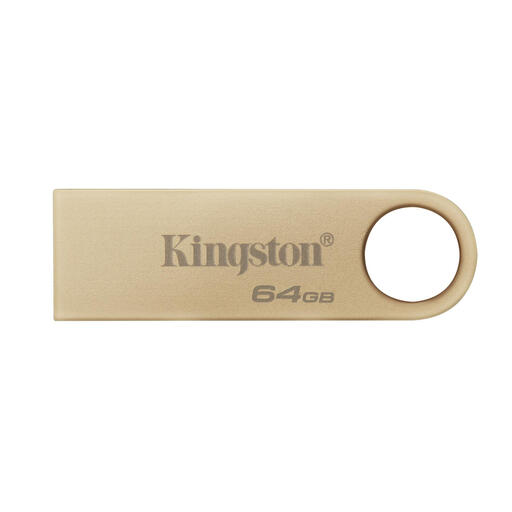
Kingston DataTraveler 64 GB Metal USB 3.2 Gen 1
The USB Type-A connector is useful if you’re connecting the archive drive to a computer with that port.
The product information specifies 64 GB, USB 3.2 Gen 1 and write speeds of up to 100 MB/s.
View at Joybuy
 No image available
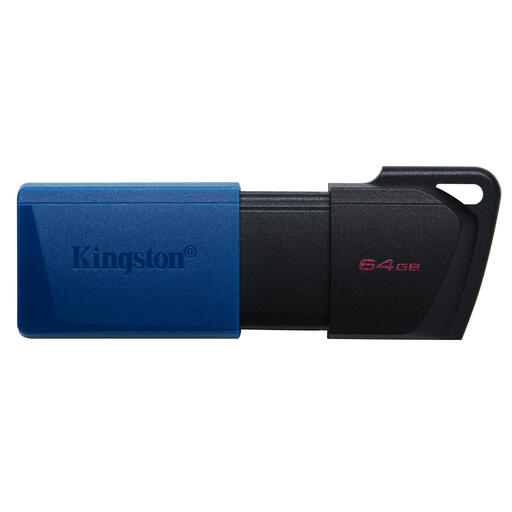
Kingston DataTraveler Exodia M 64 GB USB 3.2 Gen 1, black and blue
This model is designed for transferring files via a laptop or desktop computer.
The product information specifies 64 GB and USB 3.2 Gen 1. The description mentions a sliding cap and a keyring loop; no write speed is specified.
View at Joybuy
 No image available
Samsung MU-PG2T0B 2 TB USB Type-C 3.2 Gen 2x2, black
The product name specifies USB Type-C and USB 3.2 Gen 2x2. Check that this connector is suitable for the computer you’ll use to collect your archive.
View at Joybuy
Frequently asked questions
Can I use the same game storage for PS5 or Xbox captures?
Don’t assume so. For copying PS5 captures, PlayStation describes using a standard flash drive formatted as FAT or exFAT, not extended USB game storage. Xbox says that storage formatted for Xbox games won’t work for recording captures directly to external storage; Xbox specifies USB 3.0 and NTFS for this.
How do I transfer captures from a Nintendo Switch to a computer?
Nintendo describes using a USB cable that supports data transfer, connected directly from the Switch’s USB-C port to a computer. The USB ports on the dock don’t support this feature. You can then select the files for your archive drive on the computer; Nintendo also lists microSD as an alternative transfer method.
Why won’t a large video file fit on a flash drive with enough free space?
Check the file system and its maximum file size. Microsoft lists a 4 GB limit per individual file for FAT32. Only choose a different file system after checking that both the source and the receiving computer support it for your transfer method.
How do I maintain a community archive on USB?
Don’t keep the flash drive as your only copy. The Library of Congress recommends keeping copies on at least two different types of storage media in separate locations and describes using integrity information to check whether files have changed. Record checksums for important files and check them after transfer and again later.
Can a community publish captures showing identifiable people online without permission?
First, consider the applicable privacy rules and what the captures contain. The Dutch Data Protection Authority says that, in principle, organisations may only publish other people’s personal data online with their consent, and that organisations must properly protect the personal data they process. Whether a particular capture contains personal data and what legal basis applies to the intended use depends on the circumstances.


